
Back to illustrated tutorials

Canvas and nodes

Features: canvas, text, image, video and audio nodes

A Seagames project canvas brings your brief, references and results together. Explore its workspace before meeting the four common media node types.

Organize inputs before making outputs. Nodes hold content; reference connections describe how they work together.

Start with a signed-in account and a small brief. Make one prop before expanding the project.


What is the canvas?

Pan, zoom and arrange nodes freely. Keep briefs, references and results distinct so versions are easy to compare.

  • Create nodes: add text, images, video and sound, plus dedicated tasks such as 3D.

  • Edit and reference: change content and placement, then verify downstream references.

Text, image, video and audio nodes in the actual canvas
Actual Seagames screenshot (Chinese interface).

Create a canvas

Go to Projects and create or open a project. Use a recognizable name such as “Forest Lantern Study”.


Manage projects

Use Projects to reopen and organize work. Check the canvas save state before switching.

  • Use the site’s Projects entry to find existing work.

  • Choose a project from the list to continue with its assets.


Four workspace areas

Explore project actions, creation tools, account information and viewport navigation. Follow the current interface for exact placement.

Project controls

Check the project name and save state. Name projects and key nodes instead of relying only on thumbnails.

  • Confirm saving has finished before switching.

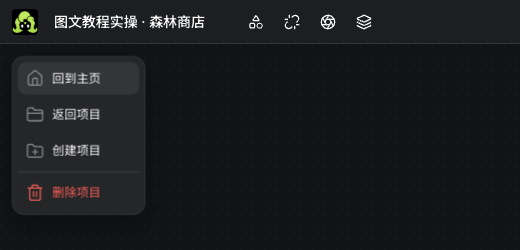
Actual project name and project menu
Actual Seagames screenshot (Chinese interface).

Canvas creation tools

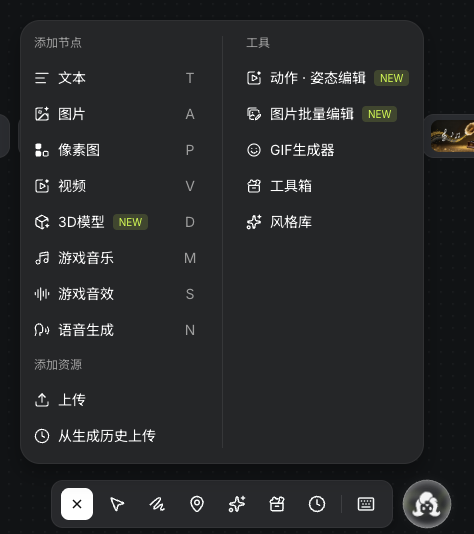
Double-click an empty area for the creation menu, including upload, the toolbox and style library.

Task types and Upload in the actual Add node menu
Actual Seagames screenshot (Chinese interface).
  • Add: create the appropriate task node.

  • Upload: choose local images, video or audio.

  • Toolbox and style library: explore available tools and styles.

  • Generation history: reuse earlier generated assets.

Account controls

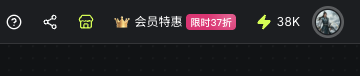
Use account and credit controls to review your account. Current pages and pre-submission quotes determine balance, costs and entitlements.

Actual credit and account controls at the top right
Actual Seagames screenshot (Chinese interface).
  • Review content and references before sharing.

  • Check the balance and each task quote separately.

Minimap and viewport navigation

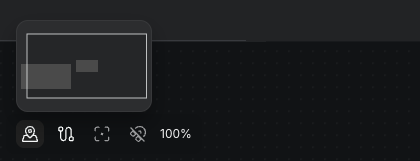
Use viewport, zoom and minimap controls to navigate larger layouts. Zoom changes your view, not the source resolution.

  • Use viewport navigation to inspect the layout and move to the intended area.

  • Use zoom controls to change viewing distance without changing source pixels.

Actual minimap node layout and zoom controls
Actual Seagames screenshot (Chinese interface).

Meet the four basic node types

Text nodes 📝

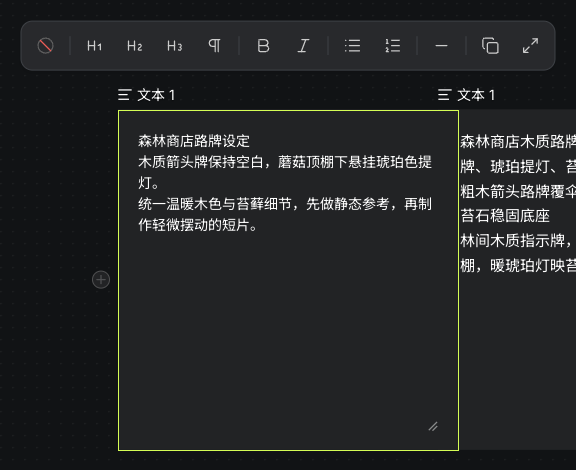
Text nodes hold briefs, prompts, scripts and notes. Put fixed character traits in the body for review and reuse.

Actual manually written sign brief and text editing toolbar
Actual Seagames screenshot (Chinese interface).

Add text content

Write manually or use AI

Both paths produce a body. AI instructions are separate from generated content.

Manual writing

  • Create Text, choose Write your own content, then type or paste the body.

    Actual manually written sign brief and text editing toolbar
    Actual Seagames screenshot (Chinese interface).

AI writing

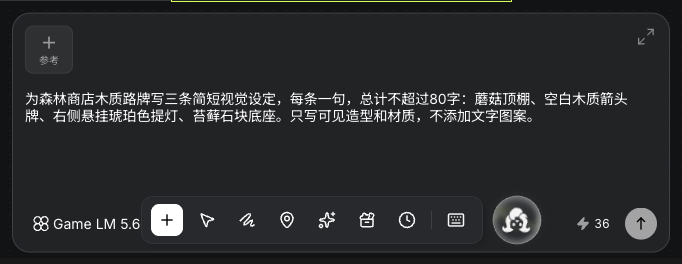
  • Enter script requirements, choose an available model, check the quote and generate. Review the body before referencing it downstream.

    Actual AI text instructions, model and quote composer
    Actual Seagames screenshot (Chinese interface).
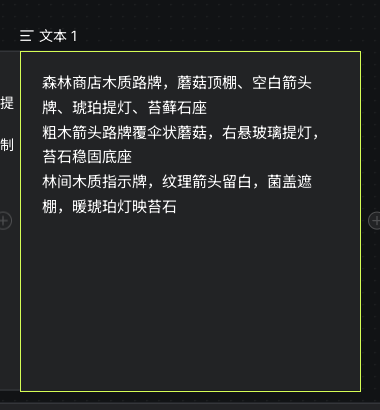
    Actual AI-generated text body for the sign brief
    Actual Seagames screenshot (Chinese interface).

Example: Write three visual notes for a Forest Shop sign, defining the mushroom roof, blank arrow board and lantern through visible forms and materials.


Image nodes 🎨

Image nodes hold references, characters, scenes and results. Select one to edit, reference or collect the asset.

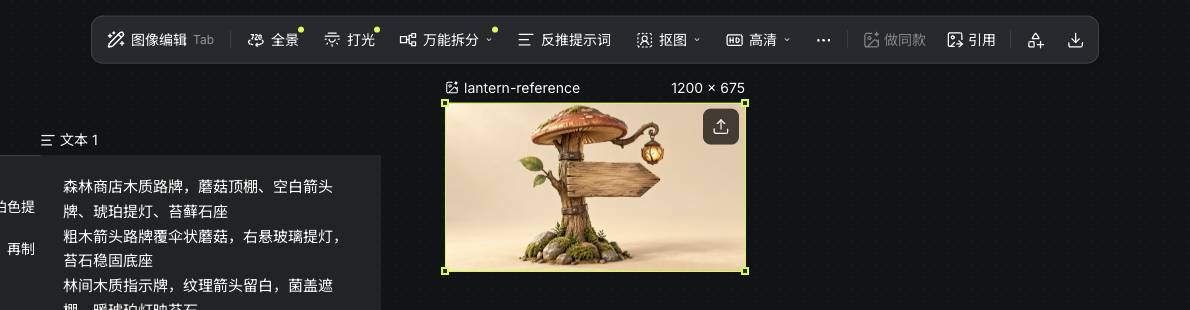
Actual image node and toolbar after uploading the original sign
Actual Seagames screenshot (Chinese interface).

Add image content

Upload or generate images

Upload an existing asset, or start a new design with a description and useful references.

  • Upload: choose Upload in the creation menu or drop a supported local file.

    Actual image node and toolbar after uploading the original sign
    Actual Seagames screenshot (Chinese interface).

Image model generation

  • Enter a description, add supported references, then choose model, ratio and resolution.

  • Create a character, prop or scene, beginning with one subject.

  • Check the quote and generate, then inspect silhouette, structure and extra objects.

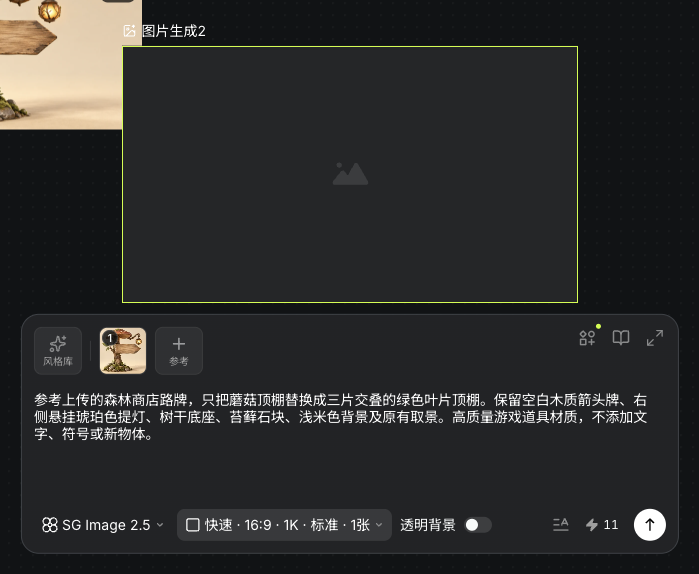
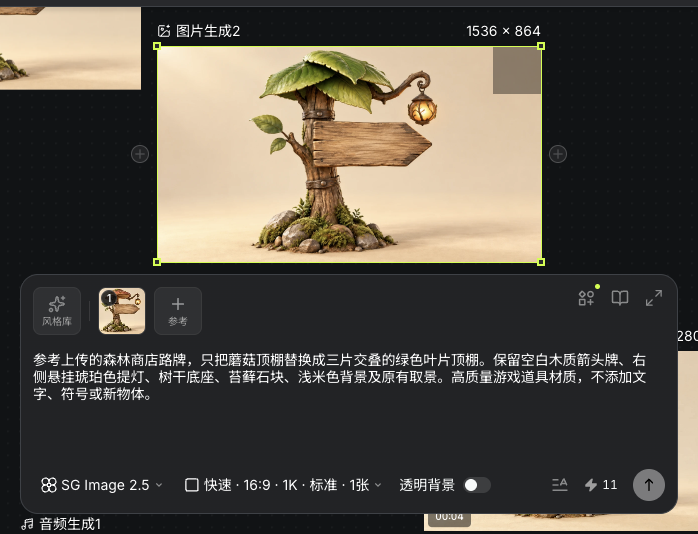
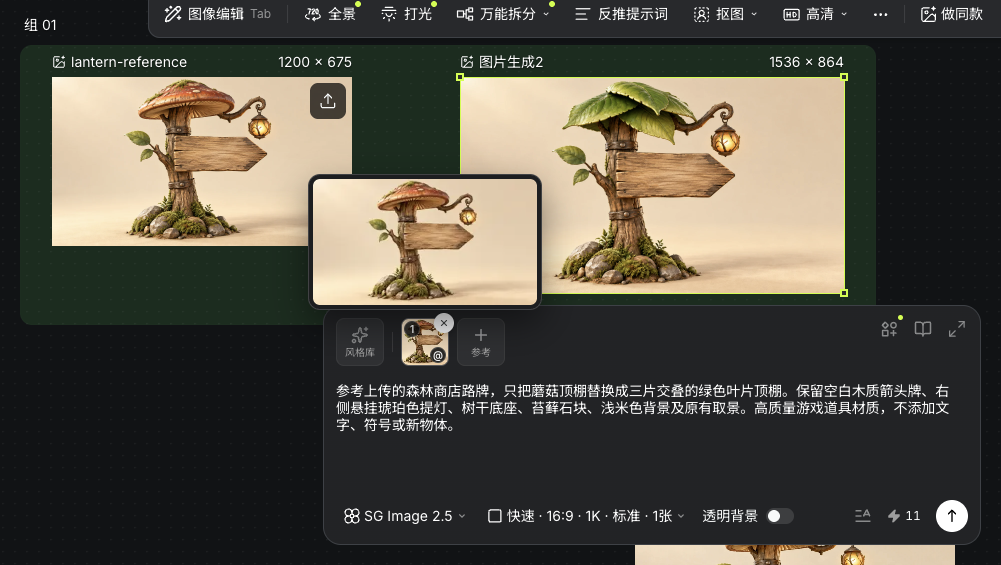
    Actual image task with a sign reference and leaf-canopy instructions
    Actual Seagames screenshot (Chinese interface).
    Actual Seagames leaf-canopy sign result generated from the reference
    Actual Seagames screenshot (Chinese interface).

Video nodes 🎥

Video nodes hold motion references and generated clips. Watch the whole clip to inspect movement, characters and boundaries.

Actual video node and playback/editing controls after upload
Actual Seagames screenshot (Chinese interface).

Add video content

Upload or generate video

Manual upload

  • Choose a supported video and wait for the resource to become ready.

    Actual video node and playback/editing controls after upload
    Actual Seagames screenshot (Chinese interface).

Video model generation

  • Create Video and choose an available model that accepts the intended references.

  • Add references and action instructions, review settings and quote, then preview the node’s output.

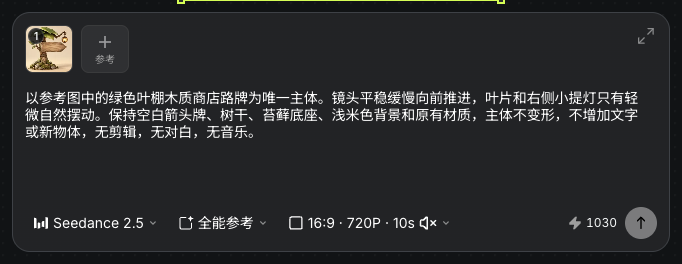
    Actual video task with an image reference, motion instructions and settings
    Actual Seagames screenshot (Chinese interface).
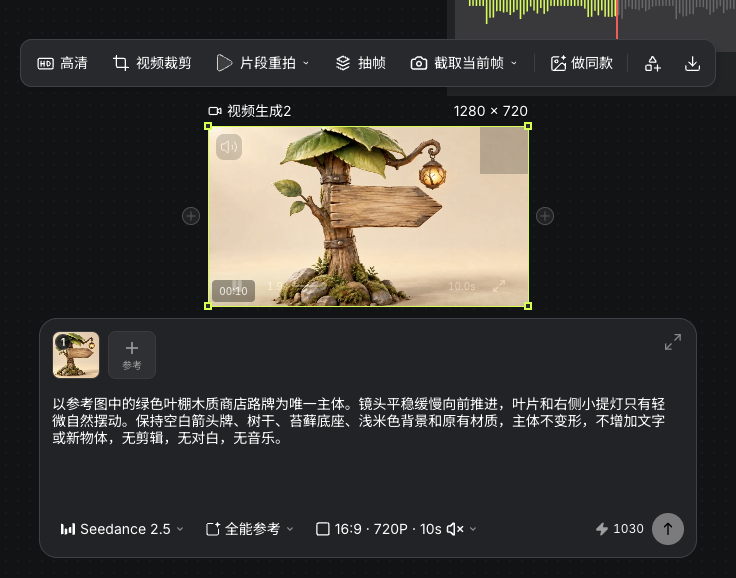
    Actual generated video result using the leaf-canopy sign reference
    Actual Seagames screenshot (Chinese interface).
  • Choose a supported approach:

    • Generate video from text.

    • Combine image references with action instructions.

    • Use First & last frames.

    • Use media types accepted by Omni reference.

    Original generated clip for observing composition and motion, not a feature recording.

Audio nodes 🎵

Music, effects and speech become sound assets. Name them for their destination and listen to their content and decay.

Actual audio playback and trim controls after uploading music
Actual Seagames screenshot (Chinese interface).

Add audio content

Upload or generate sound

Manual upload

  • Choose an audio file and listen once it is ready.

    Actual audio playback and trim controls after uploading music
    Actual Seagames screenshot (Chinese interface).

Audio model generation

  • Music, effects and speech use separate nodes. Choose the task before entering a description or spoken text.

  • Review settings and quote, then generate and listen for clarity and decay.

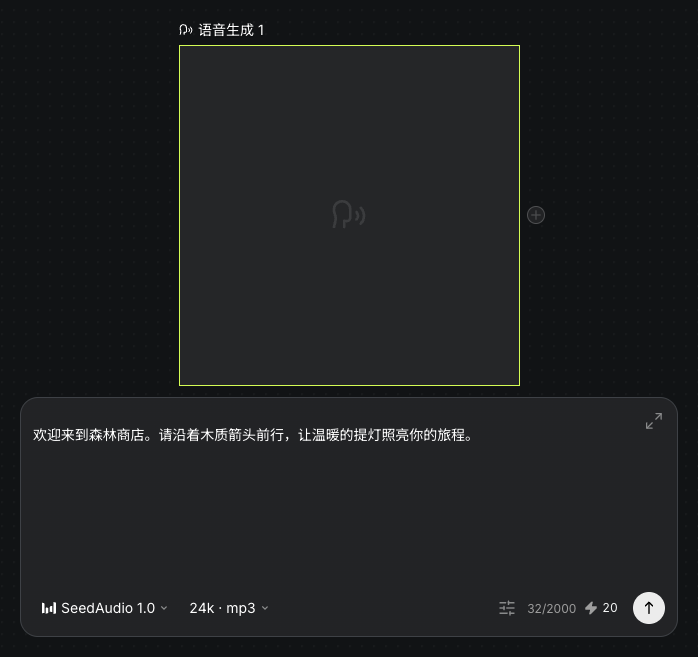
    Actual speech task with the Forest Shop greeting text
    Actual Seagames screenshot (Chinese interface).
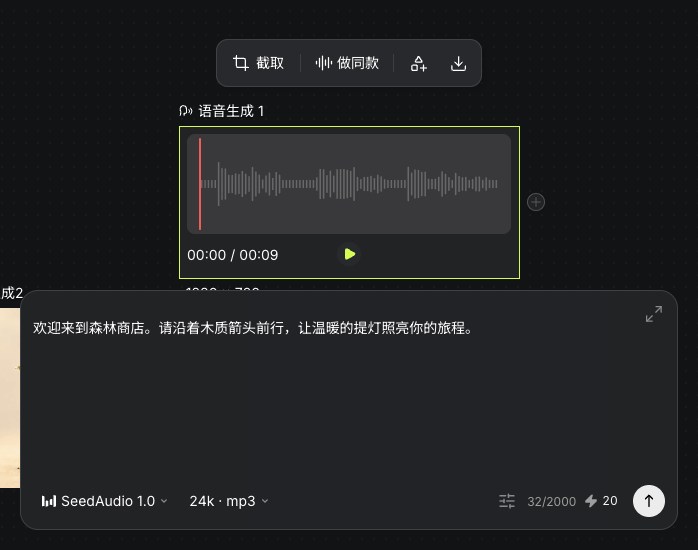
    Actual generated Forest Shop greeting and playback controls
    Actual Seagames screenshot (Chinese interface).

Review structure in images, continuity in video and listen to sound. A completed task still needs a quality review.

Try it yourself

Open your projects, create a canvas, and apply this tutorial to your own work.

Open Projects to create
Back to illustrated tutorials

Workflows

Features: workflows, groups, assets and reference connections

Connected nodes make each task’s inputs and outputs visible. Build a reference-to-image-to-video workflow that you can keep revising.


What is a workflow?

Connect tasks in dependency order

Reference connections pass upstream assets to downstream tasks. Connections do not start paid generation: review references before generating a node or running a ready group.

Basic workflow showcase

Upload an original mushroom-roof sign, generate a leaf-canopy variation, then use that image for a gently moving video. The connections and group shown were organized after generation for reuse. Review each result separately.

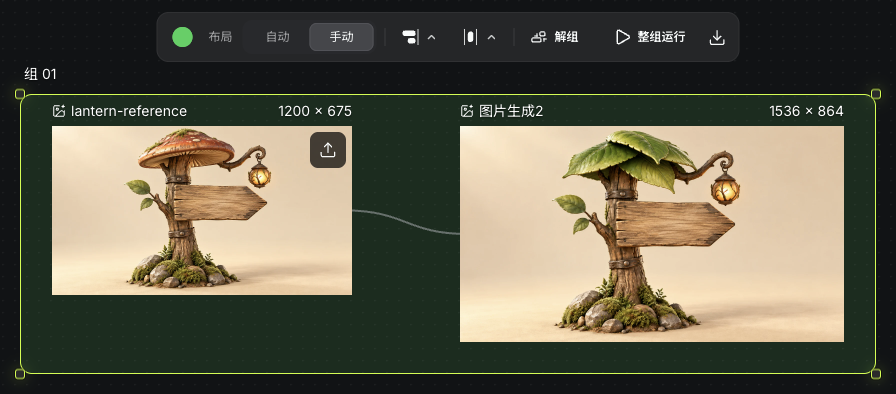
Reference and leaf-canopy result connected in a reusable group with Run group available
Actual Seagames screenshot (Chinese interface).
Actual generated video node and playback controls for the leaf-canopy sign
Actual Seagames screenshot (Chinese interface).

How to build the workflow

From a reference image to video

1. Upload a style reference

Upload a reference you may use. Create an image node and add it through the reference list or a connection, then verify the input.

Original mushroom-roof sign reference uploaded to the actual canvas
Actual Seagames screenshot (Chinese interface).

2. Add a character or prop brief

Create Text and choose Write your own content. For AI writing, generate and review the body first. This example copies the short sign brief into the image prompt. Text references read the body, not the AI instructions.

Actual text node containing the Forest Shop sign brief
Actual Seagames screenshot (Chinese interface).

3. Generate the image

Describe what to make and how to use the reference. Choose a model, ratio and supported settings, then review the quote.

Example: Use the uploaded Forest Shop sign and replace only the mushroom roof with three overlapping green leaves. Keep the blank wooden arrow, right-hand lantern, trunk, mossy base and pale beige background. Add no lettering or new objects.

A short brief can go directly in the image node. Keep the previous output and description; change one dimension per round.

Actual image task using the mushroom sign and leaf-canopy edit instructions
Actual Seagames screenshot (Chinese interface).
Actual source reference, leaf-canopy result, reference thumbnail, prompt and settings
Actual Seagames screenshot (Chinese interface).

4. Generate the video

Create a video node separately and add the chosen image. An image’s Reference action creates another image node. Describe subject and camera movement, then review settings and quote.

Actual video task with the leaf-canopy reference, motion description and ten-second settings
Actual Seagames screenshot (Chinese interface).
Actual generated video node and playback controls for the leaf-canopy sign
Actual Seagames screenshot (Chinese interface).

Operate on a workflow

Organize connected nodes

Make individual tasks work first, then group them for clear organization and movement.

Group nodes

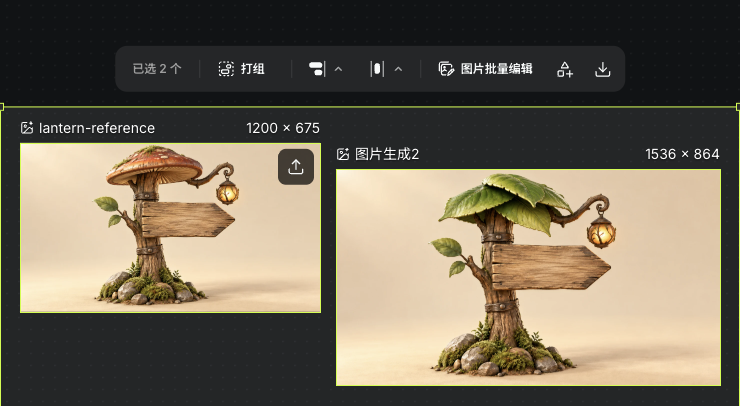
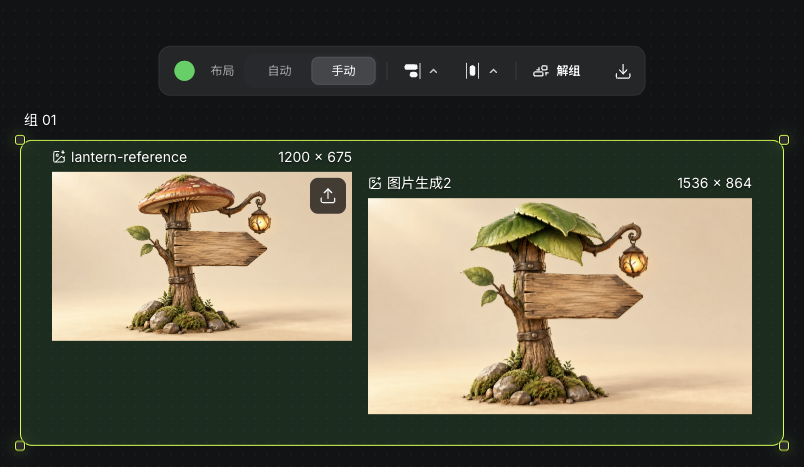
  • Hold Shift to select the intended nodes, then use Group in the selection toolbar.

  • Use Run group when a group contains a workflow; tasks run in dependency order.

  • Resolve cycles, incomplete inputs or unavailable quotes before running.

Actual Group, Align and Arrange toolbar after Shift-selecting two image nodes
Actual Seagames screenshot (Chinese interface).
Actual group frame, layout controls and Ungroup action
Actual Seagames screenshot (Chinese interface).

Keep a reusable workflow

  • Retain the brief, references, settings and approved outputs for the next session.

  • After replacing inputs, inspect downstream reference lists and current model support.

Reference and leaf-canopy result connected in a reusable group with Run group available
Actual Seagames screenshot (Chinese interface).

Asset management

Keep assets worth reusing

Separate approved assets from experiments and retain their origins. Generation records help reuse settings; uploads do not necessarily carry those records.

Find and reuse assets

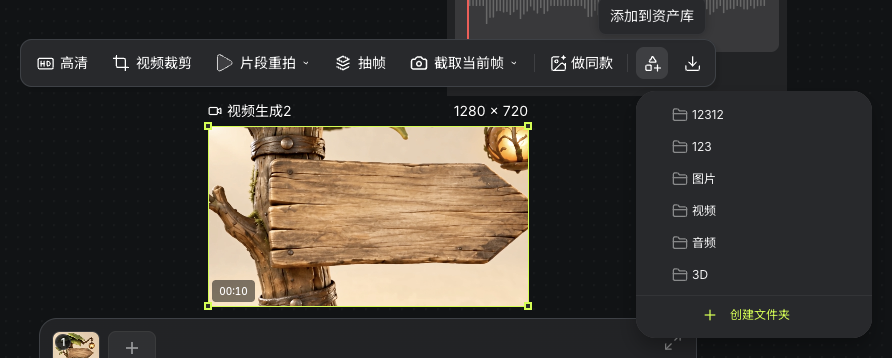
  • Choose Add to assets on an available media node and select a folder.

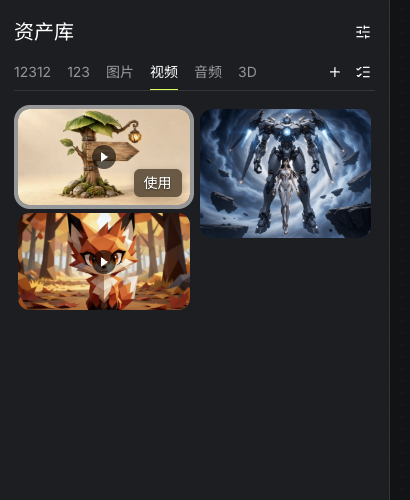
  • Open Assets from the top bar, choose a category, hover an asset and click Use to add it to the canvas.

  • Verify source content before reusing a preview as a reference.

Actual Add to assets action and save-location picker for the completed video
Actual Seagames screenshot (Chinese interface).
Saved leaf-canopy video in the actual asset library with Use visible on hover
Actual Seagames screenshot (Chinese interface).

References in prompts

Make the intended reference explicit

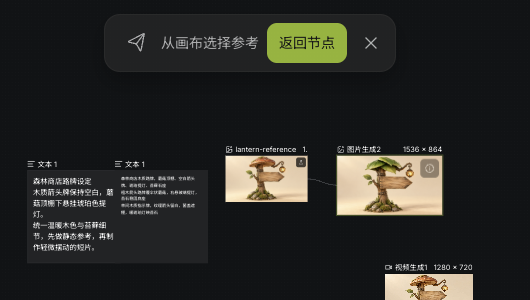
Use existing references and @ mentions supported by the composer. Follow its current suggestions; other platforms’ AutoLink confirmation shortcuts do not apply.

Actual canvas reference-picking mode and the leaf-canopy image to select
Actual Seagames screenshot (Chinese interface).

How to use references

  • Click Add reference on the destination and select an asset on the canvas, or use a reference connection. Do not add the same asset twice.

  • Specify the shape, palette or motion to preserve and choose the intended reference.

Before submission, verify reference identity, readiness and support by the selected model.

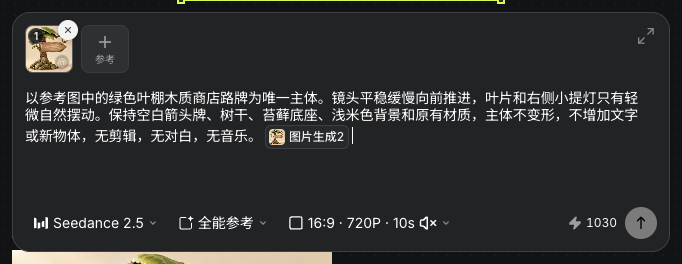
  • Hover a reference thumbnail and click @ to insert its tag in the prompt. The screenshot demonstrates an edit for the next iteration; no new generation was submitted.

  • When replacing an asset, remove the unwanted reference and check the new target against the description.

An image-reference tag inserted in the actual composer using the thumbnail’s @ action
Actual Seagames screenshot (Chinese interface).
Actual video task with the leaf-canopy reference, motion description and ten-second settings
Actual Seagames screenshot (Chinese interface).

Try it yourself

Open your projects, create a canvas, and apply this tutorial to your own work.

Open Projects to create
Back to illustrated tutorials

Text and story scripts: make each game shot clear

Text is both a creative note and a generation input. Fix character traits and the story’s purpose first, then split a long story into individual shots to reduce conflicting instructions.

Choose a small story

Open a project with a one-sentence premise, one character and one location. Start with a three-shot story instead of putting an entire world description in a single request.

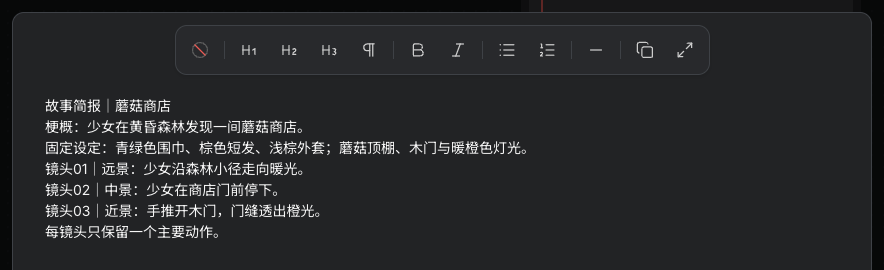
Actual handwritten Mushroom Shop story brief, fixed character traits and three shots
Actual Seagames screenshot (Chinese interface).

Write a brief in a text node

Double-click an empty area and choose Text. For a handwritten brief, choose Write your own content on the empty card. Describe visible events, fixed character traits, time of day and palette in the body. For longer text, use Expand editor in the text toolbar to review the premise and individual shots together.

For AI writing, enter the writing or script requirements, check the credit quote and generate. Review and edit the generated body. Downstream references use the body, not the AI prompt input.

Write a three-shot opening for a warm exploration game. A girl wearing a teal scarf discovers a mushroom shop in a forest at dusk. For each shot, list shot size, visible action, environmental details and mood. Keep one main action per shot.

Split the script into separate shots

Number shots and give each one a subject, shot size, action and background. Still images describe a visible state; video describes change over time. Replace abstract traits such as “brave” with visible actions such as “reaches out to open the wooden door”.

  1. Shot 01: wide view, the girl follows a forest path toward warm light.

  2. Shot 02: medium view, she stops outside the mushroom shop.

  3. Shot 03: close view, a hand opens the door and orange light spills through.

Keep character and scene rules together

Add a “Fixed traits” text node for scarf color, clothing, hair and shop shape. Repeat essential constraints in each shot, and use the same character reference to reduce variation.

Text reference support depends on the destination model. Include key instructions in the generation node too, so they do not remain only in a note outside the request.

Review before generating

Read the script for actions that fit within one shot, a logical sequence and abstract instructions that cannot be shown. Change one problem at a time, then use the revised description in an image or video node.

Text nodes help with writing and organization. This method does not require slash commands, and a script is not automatically executable code.

Check what the image communicates

Compare each generated shot with its script. Confirm character traits, action direction and time of day before producing the next shot.

Practice: write one visible description for each of three shots that works without narration. If the sequence needs extensive explanation, simplify the story or add a clear transition.

Try it yourself

Open your projects, create a canvas, and apply this tutorial to your own work.

Open Projects to write a story
Back to illustrated tutorials

Image node tools

Features: panorama, viewpoints, lighting, image editing, splitting and groups

After generation, refine a viewpoint, lighting or local detail. Identify whether the issue is composition, color or structure before choosing a tool.

Explore follow-up tools by type. Preserve the original and compare changes separately.


How to use image tools

Select a populated image node for its toolbar. Tools can be pinned or found in More editing; availability depends on resource readiness.

Actual image node and image toolbar
Actual Seagames screenshot (Chinese interface).

Panorama

Explore a surrounding scene

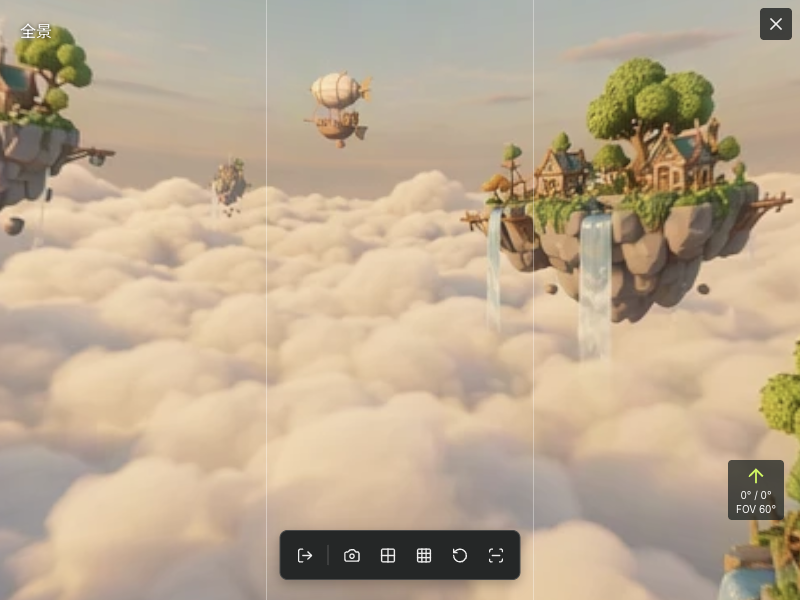
Use Panorama to prepare a surrounding scene and inspect its directions. The result is not automatically a physically accurate 3D space.

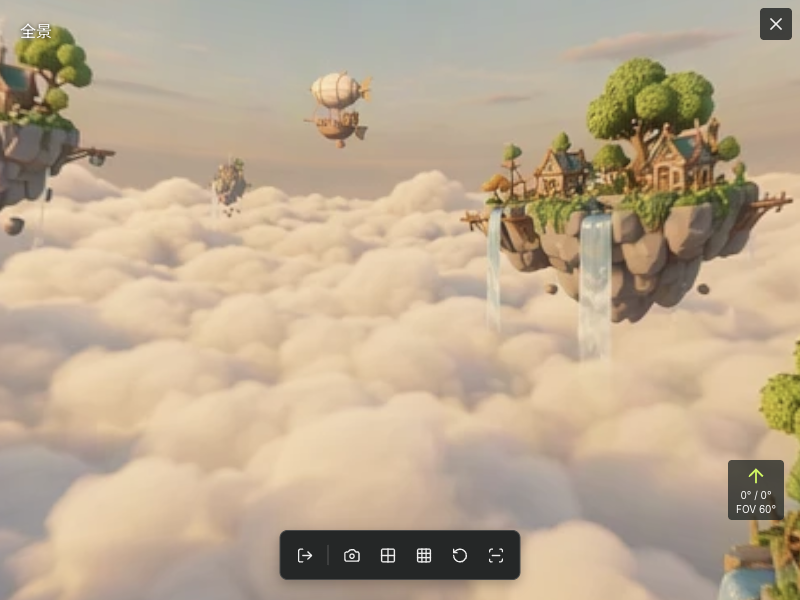
Actual generated floating-island panorama and native fullscreen controls
Actual Seagames screenshot (Chinese interface).

Tips for useful results

  • Use a scene with clear depth and a readable ground, subject and background.

  • Review spatial continuity:

    • Inspect seams and stretched regions.

    • Choose readable views for later references.

How to use it

Where to start

  • Open Panorama from the image toolbar or More editing.

  • This example starts a panorama task from the selected environment reference. Open the completed preview and inspect the view, seams and subject shape.

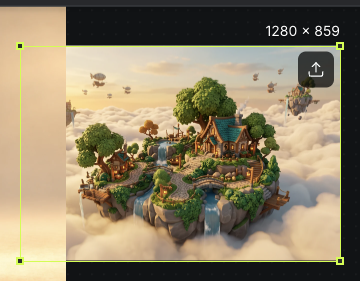
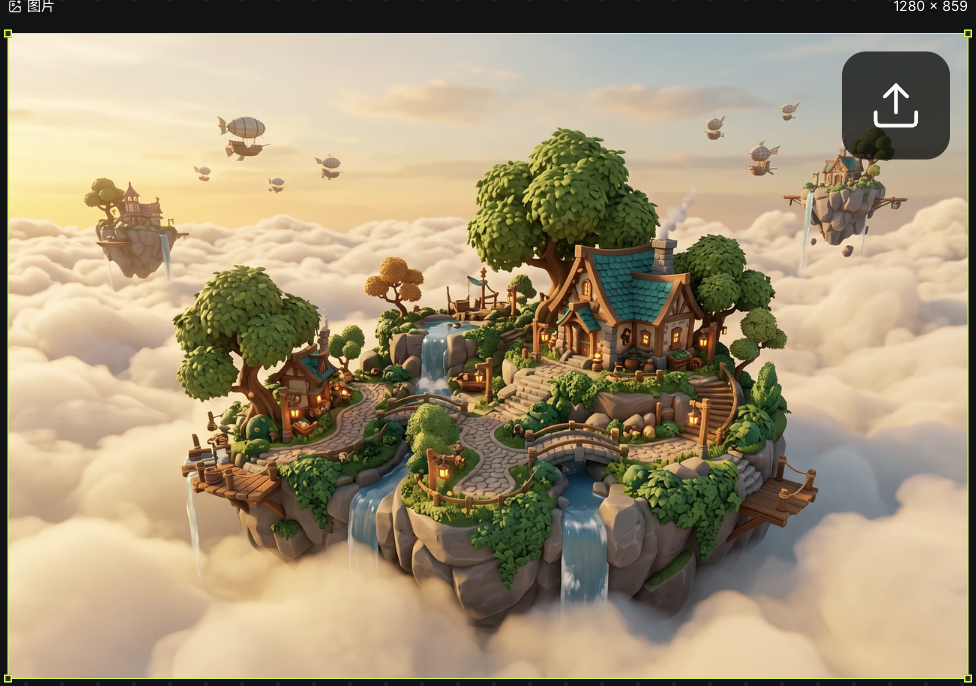
    Actual floating-island environment reference used for panorama generation
    Actual Seagames screenshot (Chinese interface).
    Actual generated floating-island panorama and native fullscreen controls
    Actual Seagames screenshot (Chinese interface).

What can you do with a panorama?

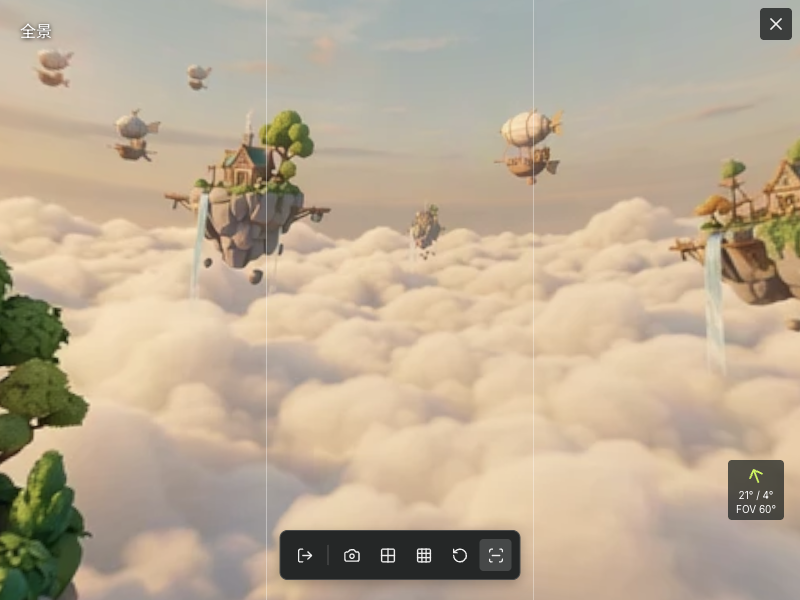
  • Explore directions: inspect different views for seams and spatial distortion.

    A changed viewing direction after dragging the actual panorama
    Actual Seagames screenshot (Chinese interface).
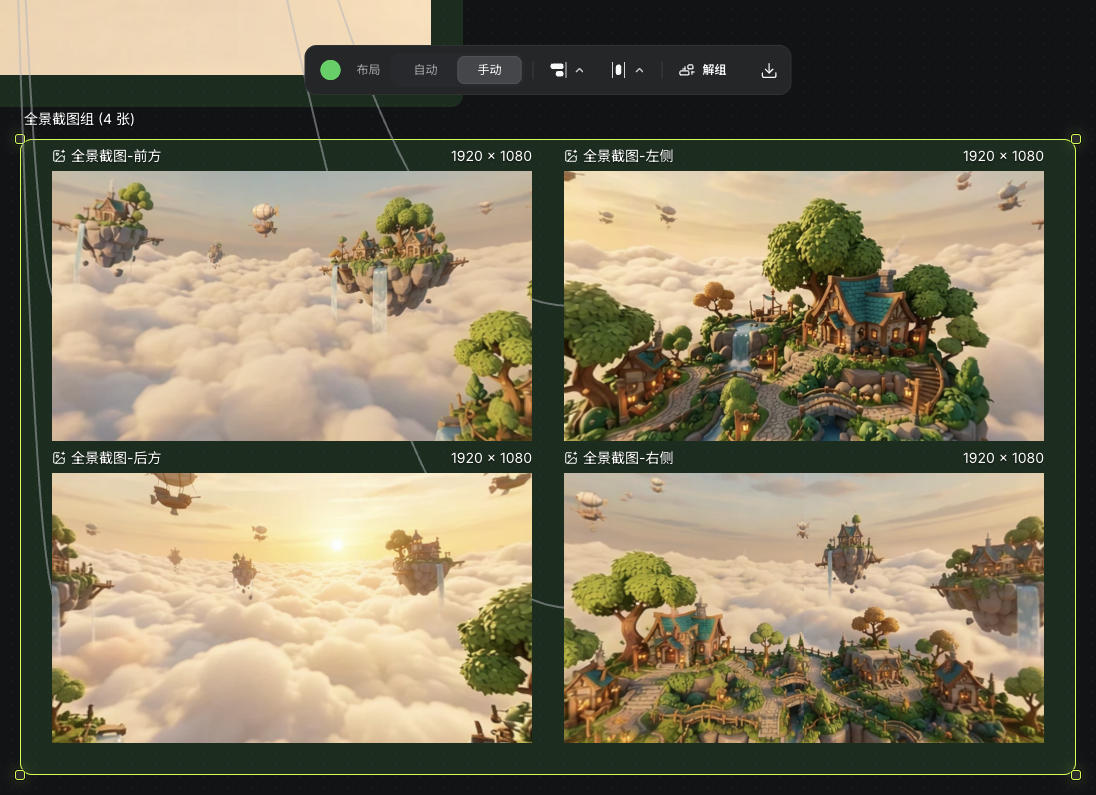
  • Capture: use the current view or available multiple-view captures for references.

    Four views exported from the same actual panorama and grouped on the canvas
    Actual Seagames screenshot (Chinese interface).
  • Composition guides: review subject placement and the horizon.

    Composition guides enabled in the actual panorama preview
    Actual Seagames screenshot (Chinese interface).
  • Reset the view: return to the initial direction for comparison.

    Actual generated floating-island panorama and native fullscreen controls
    Actual Seagames screenshot (Chinese interface).

Multiple viewpoints

Change the view and compare silhouettes

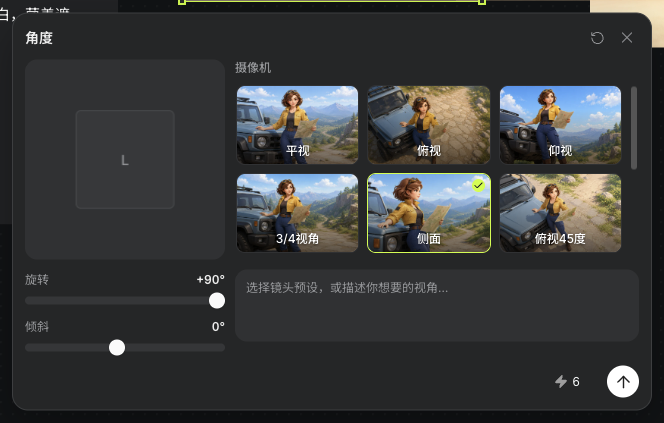
  • Use a preset or rotation and tilt to generate a new 2D viewpoint from the source. It is not a freely rotatable 3D model.

    Actual generated sign viewpoint saved on the canvas
    Actual Seagames screenshot (Chinese interface).

How to use it

Viewpoint settings

  • Choose a front, side or overhead goal and keep the subject complete.

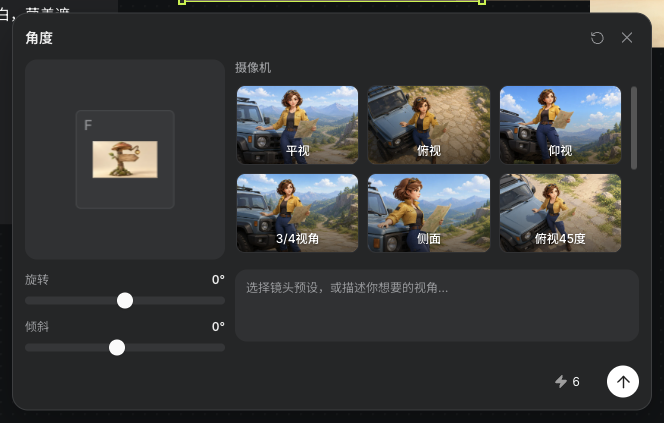
  • Use available presets or rotation and tilt sliders: rotation -90° to 90°, tilt -75° to 90°.

    Rotation, tilt and camera settings in the actual viewpoint panel
    Actual Seagames screenshot (Chinese interface).

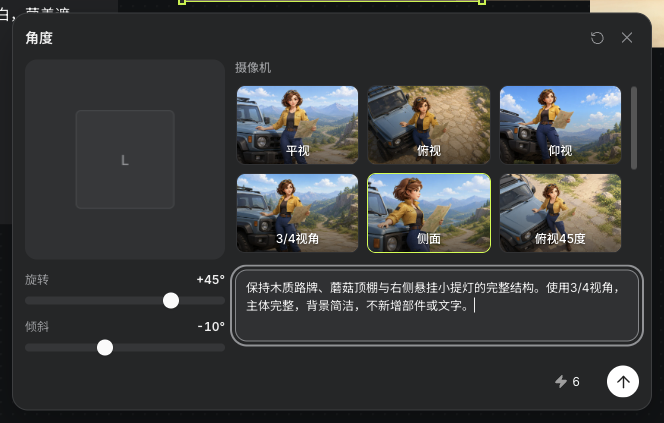
Additional prompt guidance

  • Describe framing, fixed parts and background extent, then inspect structural consistency.

    Actual three-quarter viewpoint settings, sign constraints and quote
    Actual Seagames screenshot (Chinese interface).

Example: Preserve the wooden sign, mushroom canopy and hanging lantern. Use a three-quarter viewpoint with a complete prop and simple background, adding no parts or lettering.

Viewpoint presets

  • Choose a current preset and review settings and quote. Compare accessories, proportions and occlusion against the source.

    Actual viewpoint panel after selecting the Side preset
    Actual Seagames screenshot (Chinese interface).

Lighting

Shape materials and mood with light

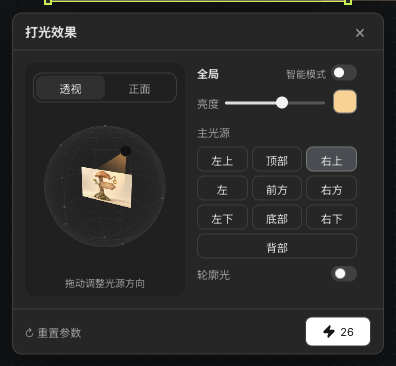
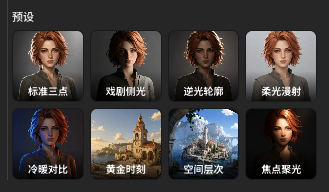
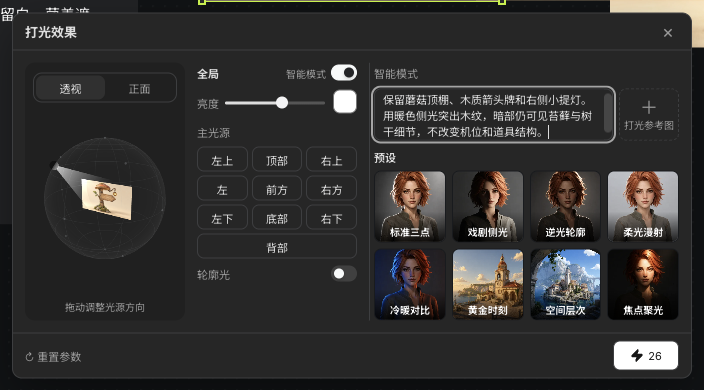
Relighting provides direction, brightness, color and rim light. Smart mode adds descriptions, reference images and presets. Review the generated wood grain, shadows and lantern details.

Actual sign result after parameter-based relighting
Actual Seagames screenshot (Chinese interface).

How to use it

Direction and rim light

  • Turn off Smart mode to adjust the key direction and enable rim light when needed.

  • Keep the subject and viewpoint fixed while comparing light, without changing material and composition together.

    Actual key direction, brightness, warm color and rim-light controls
    Actual Seagames screenshot (Chinese interface).

Brightness and shadows

  • Adjust brightness gradually and inspect tonal transitions and shadow edges.

  • Check clipped highlights and lost shadows, keeping the same input for comparison.

    Actual key direction, brightness, warm color and rim-light controls
    Actual Seagames screenshot (Chinese interface).

Color

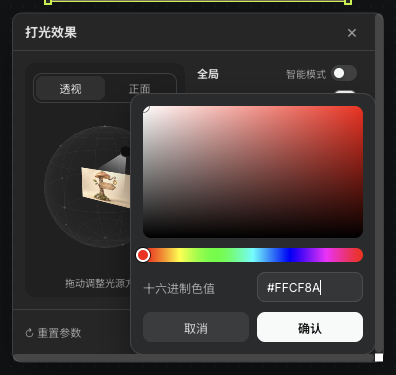
  • Set the light color and distinguish it from the material’s own color.

  • Check that character colors and key accessories remain recognizable.

    Warm hexadecimal light color in the actual color picker
    Actual Seagames screenshot (Chinese interface).

Presets, descriptions and references

  • Turn off Smart mode for direction, brightness and color. Turn it on for presets, descriptions or reference images.

  • A description can state mood, main light direction and fixed subject traits.

    Example: Keep the mushroom roof, wooden arrow and right-hand lantern. Use warm side light on the wood grain, retain moss and trunk detail in shadow and keep the viewpoint fixed.

  • In reference mode, verify the added image and review the quote before submitting.

  • Presets help explore a direction, but their results still need comparison.

    Eight preset entries in the actual relighting panel
    Actual Seagames screenshot (Chinese interface).
    Actual smart-lighting description, reference-image entry and presets
    Actual Seagames screenshot (Chinese interface).

Grid art and sprite sheets

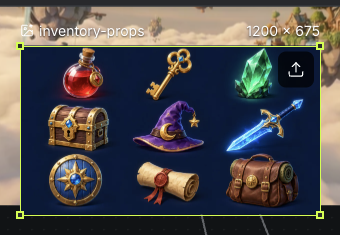
For grid assets, make cells and spacing clear before splitting. Sprite sheets also need stable scale and baselines before game use.

Actual uploaded nine-cell prop image node
Actual Seagames screenshot (Chinese interface).

Basic image editing

Image processing tools and the separate Image edit workspace serve different needs. Open the appropriate current toolbar entry.

  • Upscale: review settings and quote before generative enhancement.

  • Resize: change the 2D image dimensions for the intended use, then check clarity.

  • Outpaint: extend the image and inspect the join.

  • Inpaint: select an area with brush, rectangle or lasso, then describe its change.

  • Cutout: remove an image background and inspect transparent edges.

  • Crop: change the retained area without reconstructing hidden content.


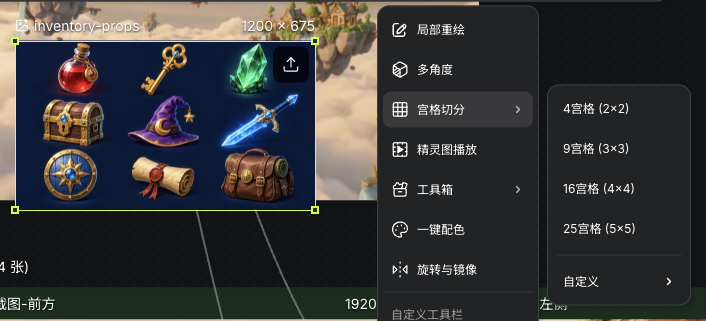
Split a grid

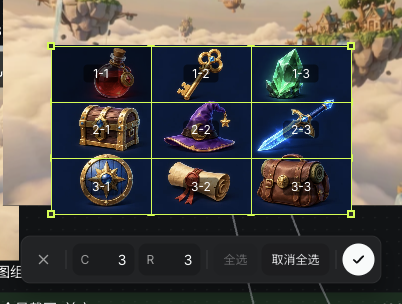
Split a grid into independent assets. Set cells from the actual boundaries and check that no subject is cut off.

Actual grid-splitting menu and nine-cell source
Actual Seagames screenshot (Chinese interface).
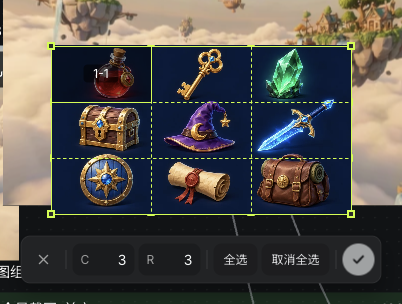
Actual 3×3 boundaries, row and column counts, and selected cells
Actual Seagames screenshot (Chinese interface).

How to use it

  • Open grid splitting from the toolbar or More editing and set the grid.

  • Review boundaries and previews before outputting the selected slices.

  • Check transparency, padding and completeness in every slice.

    Selecting an individual cell in the actual grid editor
    Actual Seagames screenshot (Chinese interface).
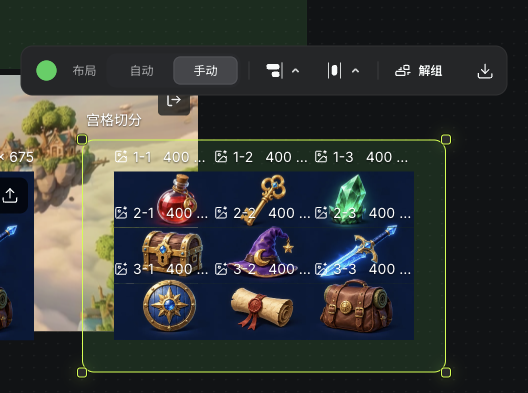
    Nine actual sliced image nodes grouped on the canvas
    Actual Seagames screenshot (Chinese interface).

Local notes and edits

Describe the exact area to change

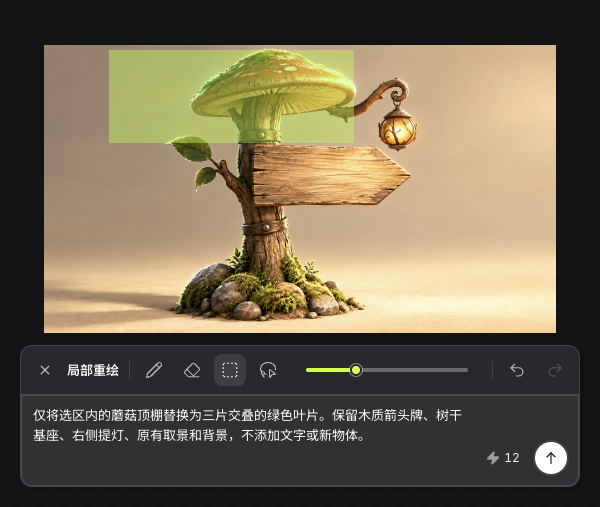
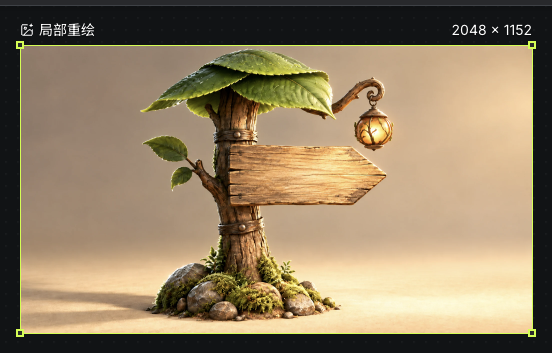
  • Open Inpaint from More editing in the image toolbar and state the location, replacement and fixed traits. This example edits the roof of the relit sign.

  • Choose the edit area with brush, rectangle or lasso and describe the change.

  • Compare both inside and outside the selection against the original; nearby details may also change.

    Actual inpainting selection over the mushroom roof and leaf-replacement instructions
    Actual Seagames screenshot (Chinese interface).
    Actual leaf-canopy inpainting result generated from the selection and description
    Actual Seagames screenshot (Chinese interface).

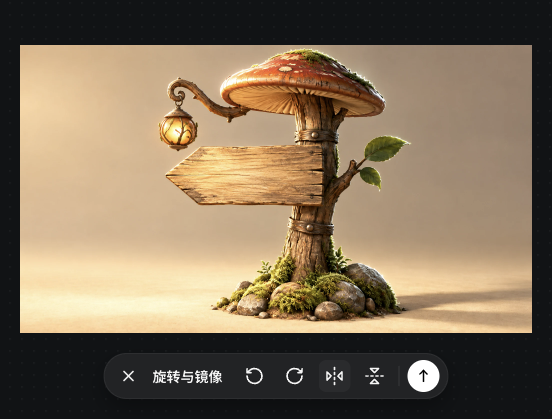
Rotate and mirror

  • Preview a 2D rotation or mirror, then confirm or cancel. Inspect lettering, accessories and handedness after a flip.

    Actual horizontal-mirror preview with rotation, flip, confirm and cancel controls
    Actual Seagames screenshot (Chinese interface).

Image groups

Compare references and results together

Use regular groups to organize images with clear ordering and names. A group is not a dedicated storyboard table or automatic video editor.

Reference, generated result and layout controls in an actual image group
Actual Seagames screenshot (Chinese interface).

How to use it

Create a regular group

  • Select related images and group them as references, trials and approved work.

    Actual Group and Arrange toolbar for multiple selected images
    Actual Seagames screenshot (Chinese interface).

Organize an existing group

  • Name references, trials and approved work separately and inspect their connections.

    Actual image inputs, outputs and reference connection within a regular group
    Actual Seagames screenshot (Chinese interface).

Organize sliced outputs

  • Keep reusable slices as independent assets and group them by purpose.

    Nine actual sliced image nodes grouped on the canvas
    Actual Seagames screenshot (Chinese interface).

What to review after grouping

  • Image order, names and reference connections are clear.

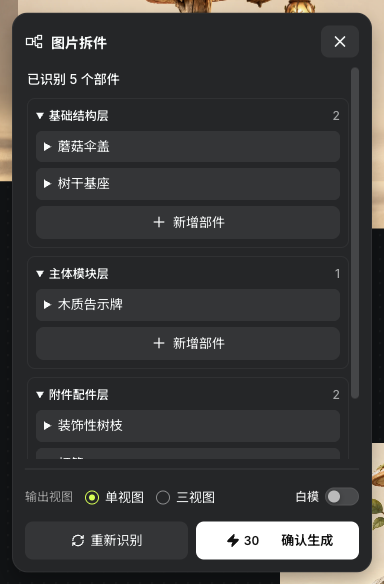
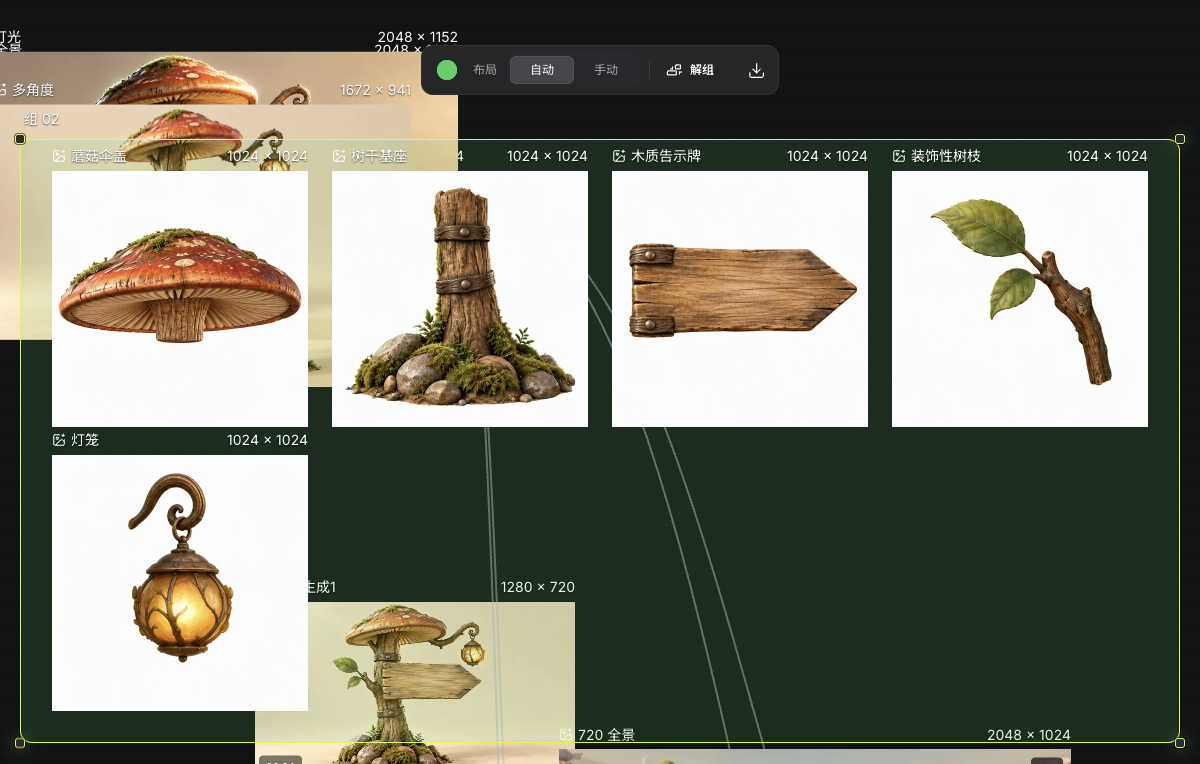
  • Review occlusion, incomplete edges and connections in decomposed assets; they are not automatically hand-finished layers.

    Five actual identified sign parts and output settings
    Actual Seagames screenshot (Chinese interface).
    Five actual generated sign parts grouped on the canvas
    Actual Seagames screenshot (Chinese interface).

Try it yourself

Open your projects, create a canvas, and apply this tutorial to your own work.

Open Projects to create
Back to illustrated tutorials

Video node tools

Features: video enhancement, retakes, continuation, frame extraction, capture and trimming

Enhance an existing clip, revise selected ranges or create a continuation. Keep the source before choosing a follow-up tool.

Select a ready video for its toolbar. This guide also identifies related features that are not currently available in Seagames.


Video enhancement

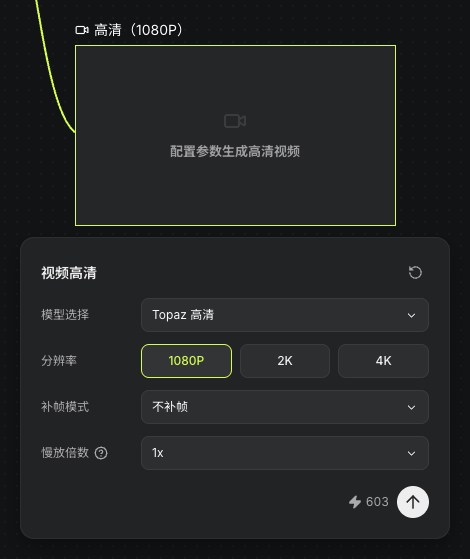
Choose Enhance, then an available model and resolution. Interpolation, target frame rate and slow motion depend on the selected option.

Review source details and quote before submitting. Inspect detail, edges and motion afterward; enhancement does not guarantee corrected geometry.

Actual Topaz enhancement panel: 1080P, no interpolation, 1x and quote
Actual Seagames screenshot (Chinese interface).
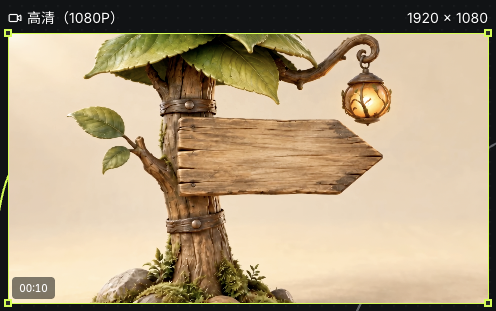
Actual completed ten-second 1920×1080 enhancement result
Actual Seagames screenshot (Chinese interface).

Retake a segment

Describe changes for a selected time range

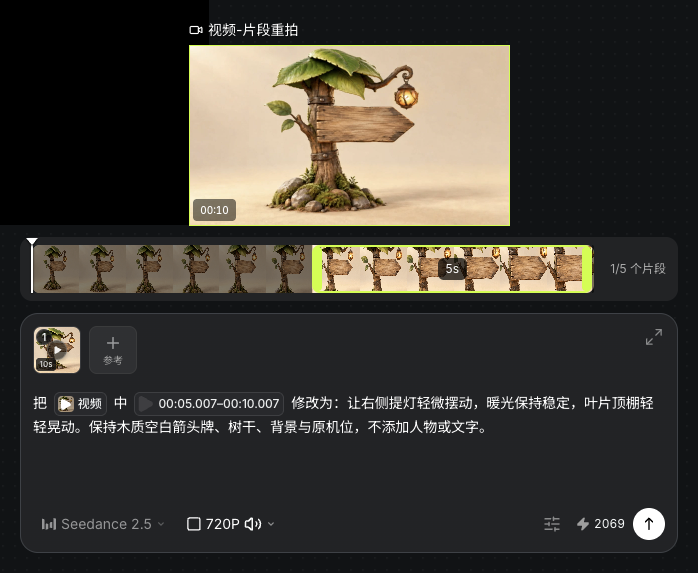
Open Retake and describe each selected range separately. Current sources are 4–30 seconds, with up to five ranges of at least four seconds each.

Review ranges, instructions and quote. This example selects 5.007–10.007 seconds and requests subtle lamp and leaf motion. Inspect the revised range and the remaining picture and sound.

Actual retake range, video reference, instructions and quote
Actual Seagames screenshot (Chinese interface).
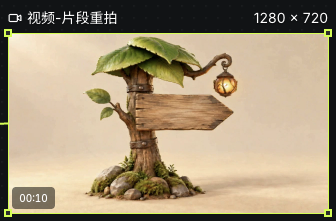
Actual completed ten-second retake result saved on the canvas
Actual Seagames screenshot (Chinese interface).

Video continuation

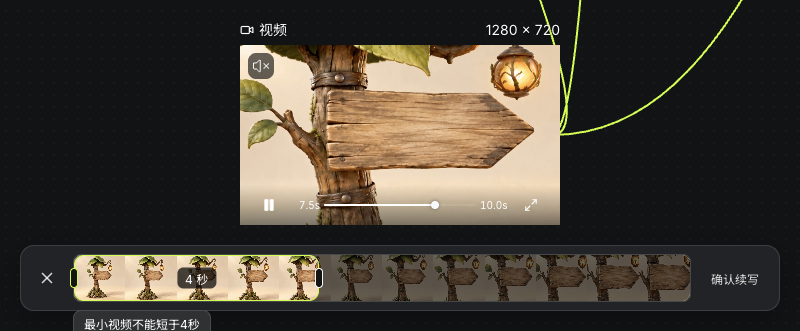
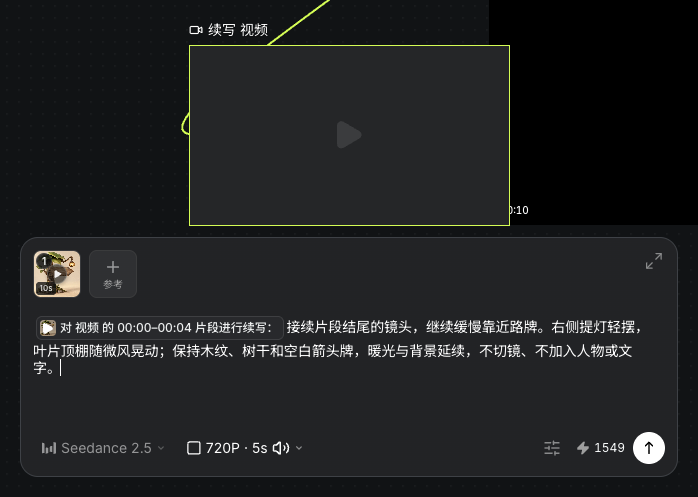
Choose Continuation from the Retake menu and select at least four seconds. This example uses 0–4 seconds, then requests a continued push-in with subtle lamp and leaf motion in a new node, at 720P for five seconds.

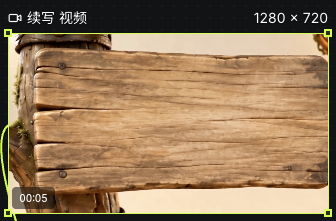
Continuation requests new footage after the selected range. It does not automatically join the source and result; review character, scene and motion continuity.

Actual selection of the zero-to-four-second continuation reference
Actual Seagames screenshot (Chinese interface).
Actual continuation reference tag, next-action instructions and five-second settings
Actual Seagames screenshot (Chinese interface).
Actual generated five-second continuation as a separate clip
Actual Seagames screenshot (Chinese interface).

Extract and review frames

Inspect movement frame by frame

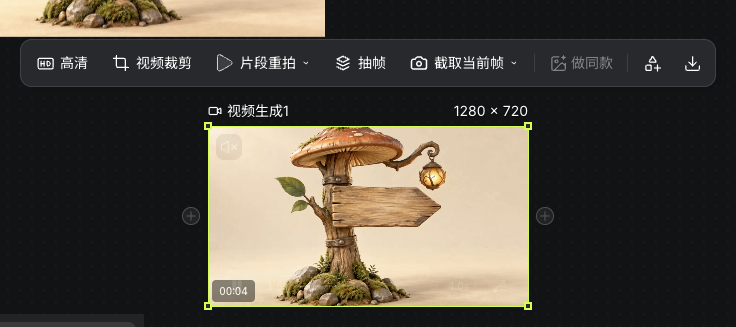
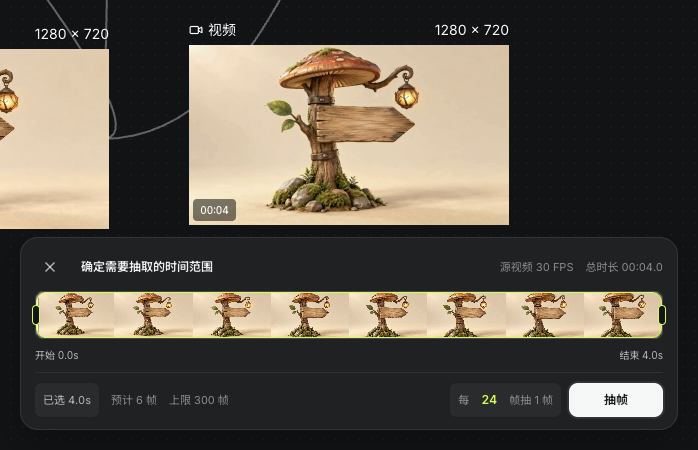
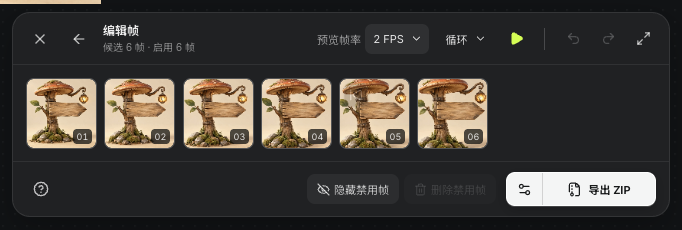
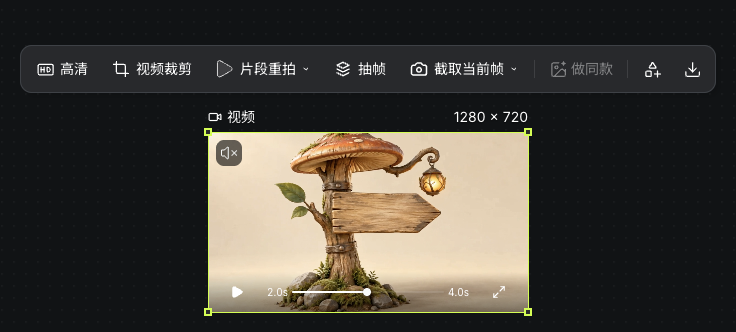
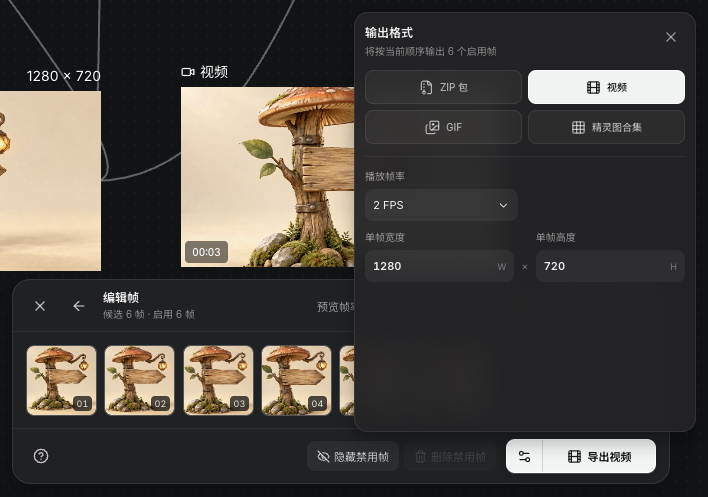
Extract frames provides range and sampling controls. This example uses a separately uploaded four-second mushroom-sign clip at 30FPS. Sampling every 24 frames produces six candidates for review and export.

Actual extraction range and 24-frame sampling interval for the four-second mushroom-sign source
Actual Seagames screenshot (Chinese interface).
Six actual extracted candidate frames in the frame editor
Actual Seagames screenshot (Chinese interface).

Trim a clip

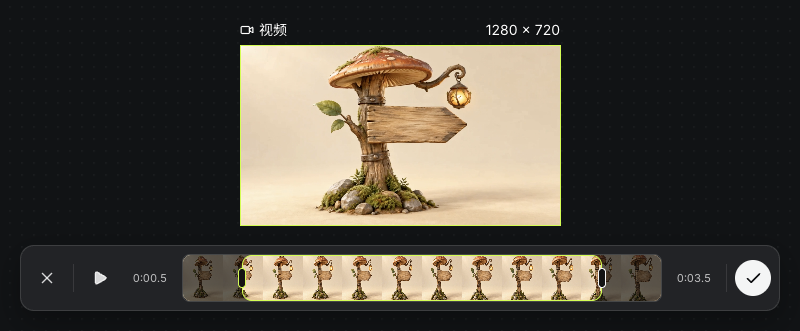
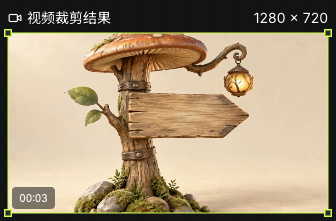
Open Trim video, set start and end, and preview. This example retains a separate source and saves 0.5–3.5 seconds of the four-second clip as a new result, approximately 3.1 seconds long. The pending node may still show the source preview; check the actual duration and picture after processing ends.

Actual trim range set to 0.5–3.5 seconds of the four-second source
Actual Seagames screenshot (Chinese interface).

Trim and review

  • Choose a stable start before the action.

  • Keep a short hold after the action without cutting it off.

  • Preview the range before confirming the output.

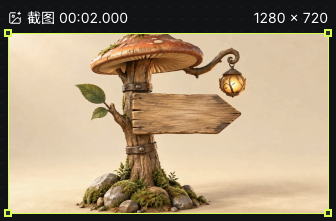
  • Use current-frame capture for stills or frame extraction for animation assets.

    Actual completed trimmed result of approximately 3.1 seconds
    Actual Seagames screenshot (Chinese interface).
    Independent image node captured from the actual uploaded four-second source
    Actual Seagames screenshot (Chinese interface).

Motion references

Use motion references to clarify movement

The video toolbar does not provide the reference site’s depth-motion capture. Use a model that accepts video references, or prepare movement with Motion and Pose editing.

How to use it

Choose a reference

  • Check the model’s accepted reference types, then choose readable character and movement assets.

    Actual four-second mushroom-sign video and native video toolbar
    Actual Seagames screenshot (Chinese interface).
    Independent image node captured from the actual uploaded four-second source
    Actual Seagames screenshot (Chinese interface).

Prepare movement or camera references

  • Use existing footage or the available Motion and Pose editor. A preview is not a completed character film.

    Actual selection of the zero-to-four-second continuation reference
    Actual Seagames screenshot (Chinese interface).
    Actual continuation reference tag, next-action instructions and five-second settings
    Actual Seagames screenshot (Chinese interface).

Use it downstream

  • Add the reference, describe the motion and camera to preserve, review settings and quote, then inspect the full output.

    Actual retake range, video reference, instructions and quote
    Actual Seagames screenshot (Chinese interface).
    Actual completed ten-second retake result saved on the canvas
    Actual Seagames screenshot (Chinese interface).

Silent video and sound assets

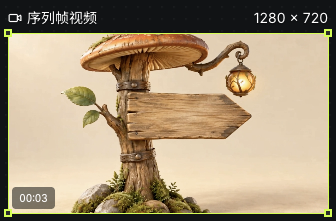
MP4 from frame extraction has no original audio track. Set preview and export frame rates separately. This example exports six frames at 2FPS as a three-second video. Keep dialogue, music and effects separately when sound is needed.

Actual sequence-video export format, 2FPS and 1280×720 settings
Actual Seagames screenshot (Chinese interface).
Actual silent three-second video exported from six frames at 2FPS
Actual Seagames screenshot (Chinese interface).

Plan voice and background sound

There is no voice or background-stem extraction tool here. Retain separate dialogue, music and effect sources for an appropriate editing workflow.

Text, voice and generation settings in the actual separate speech node
Actual Seagames screenshot (Chinese interface).
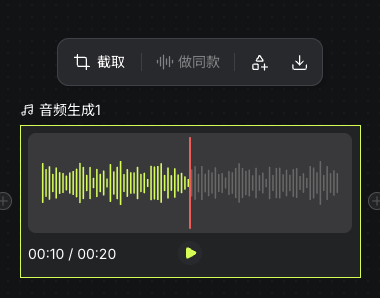
Actual uploaded twenty-second music asset and audio toolbar
Actual Seagames screenshot (Chinese interface).

Organize assets for editing

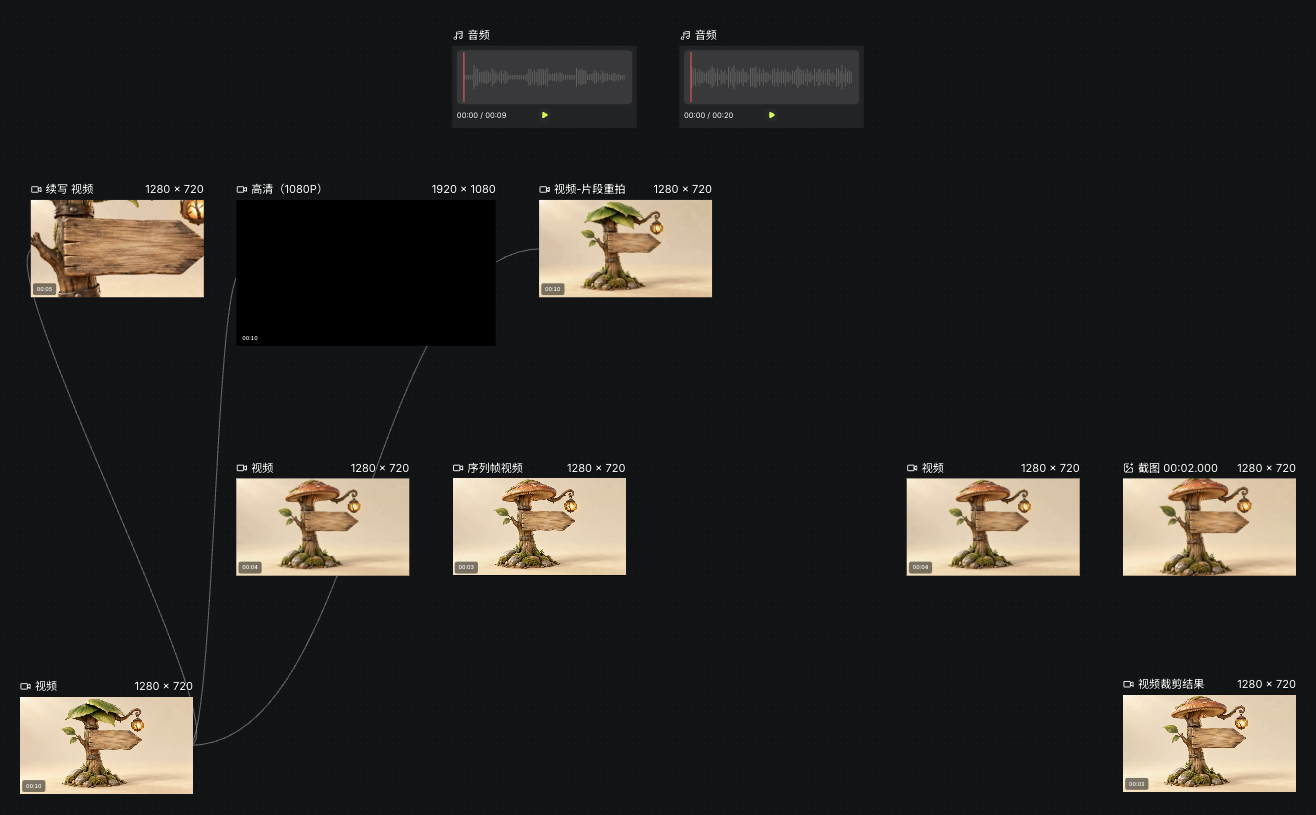
Seagames creates and processes individual assets; the canvas is not a complete automatic multitrack editor. Approve clips before assembling a film in a suitable workflow.

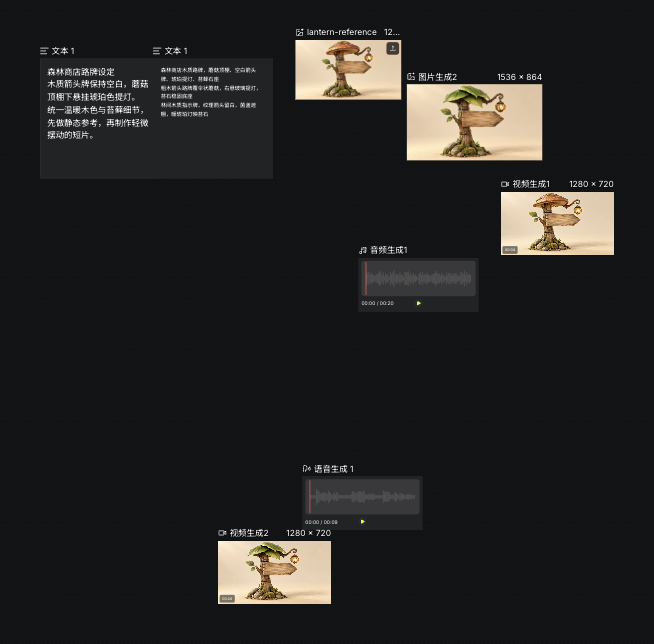
Source clips, processed results, separate speech and music in the actual video-tools canvas
Actual Seagames screenshot (Chinese interface).

What to hand off

  • Name approved clips in shot order.

  • Check boundaries, movement and aspect ratio.

  • List dialogue, music and effects separately.

  • Record outstanding issues; task success is not content approval.

Try it yourself

Open your projects, create a canvas, and apply this tutorial to your own work.

Open Projects to create
Back to illustrated tutorials

Audio node tools

Features: trimming, speech speed, music, effects and text to speech

Music sets mood, effects mark events and speech reads words. Start with an existing audio asset or create one in the matching node.

Explore trimming, speed, segment organization and speech. Where a tool is unavailable, use an existing workflow instead.


Trim audio

Select a ready audio node and choose Trim. Listen before setting a range with natural onset and decay.

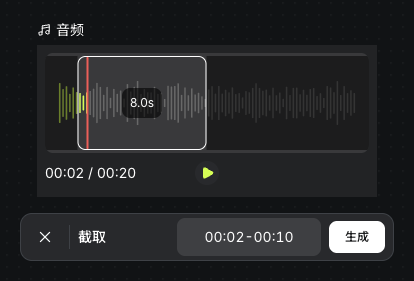
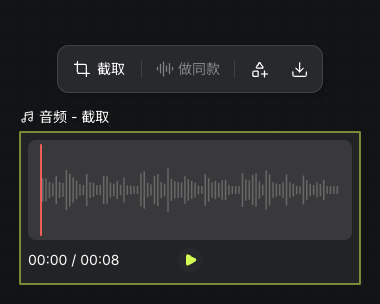
Check for cut syllables, lost transients or interrupted phrases. This example saves seconds 2–10 of the twenty-second music as a separate eight-second segment, retaining the source.

Actual two-to-ten-second trim range and waveform in the twenty-second music source
Actual Seagames screenshot (Chinese interface).
Actual eight-second music segment trimmed and saved on the canvas
Actual Seagames screenshot (Chinese interface).

Speech speed

Existing audio has no standalone speed tool. To change narration pace, adjust speed in Speech generation before generating again.

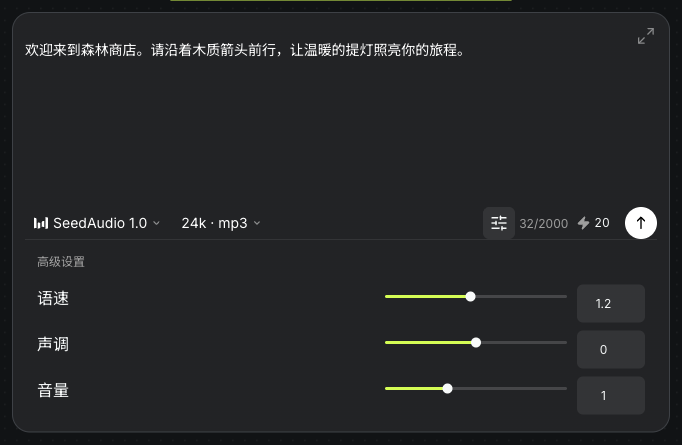
Speed and volume range from 0.5 to 2; pitch ranges from -12 to 12. This example uses speed 1.2, volume 1, pitch 0 and 24kHz MP3. These controls are not voice cloning.

Actual speech settings: speed 1.2, pitch 0 and volume 1
Actual Seagames screenshot (Chinese interface).

Choose and organize segments

There is no lyric-based splitting or text-command batch cutting. Trim and name individual segments, noting their purpose and source positions.

Listen and record intended time ranges before trimming each segment. These notes are a plan, not executable commands.

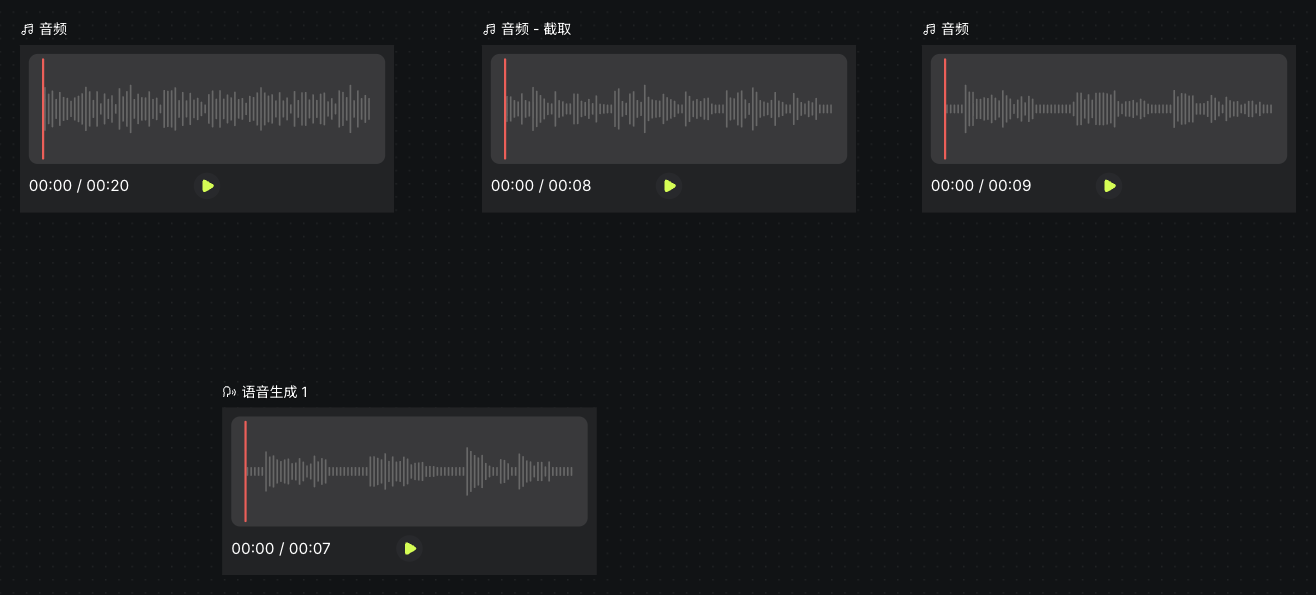
Practice: retain the source music and organize its two-to-ten-second segment separately from speech. Check the boundaries for abrupt cuts.

Source music, trimmed segment and separate speech versions in the actual audio canvas
Actual Seagames screenshot (Chinese interface).

Speech generation

Turn approved dialogue into a sound asset

What it does

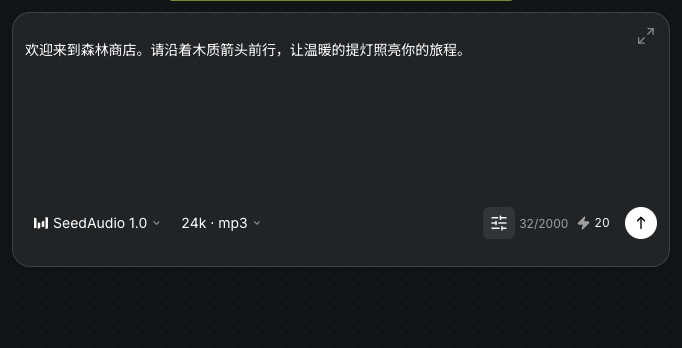
Current SeedAudio 1.0 accepts up to 2,000 plain-text characters, with no resource references, voice selection or cloning. Enter the words to speak, not stage directions.

How to create speech

  • Create Speech generation and enter approved dialogue.

  • Choose sample rate and format, then speed, volume and pitch.

  • Review the quote and test a short sentence before the full text.

    Actual plain-text dialogue, SeedAudio 1.0, 24kHz MP3 and generation quote
    Actual Seagames screenshot (Chinese interface).

Generate and review

  1. Prepare text: review punctuation, numbers and pauses.

  2. Choose output: 8, 16, 24 or 48 kHz; mp3, wav, pcm or ogg_opus.

  3. Listen: inspect pronunciation, clarity, phrasing and volume.

  4. Organize: name the approved version and keep it separate from music and effects.

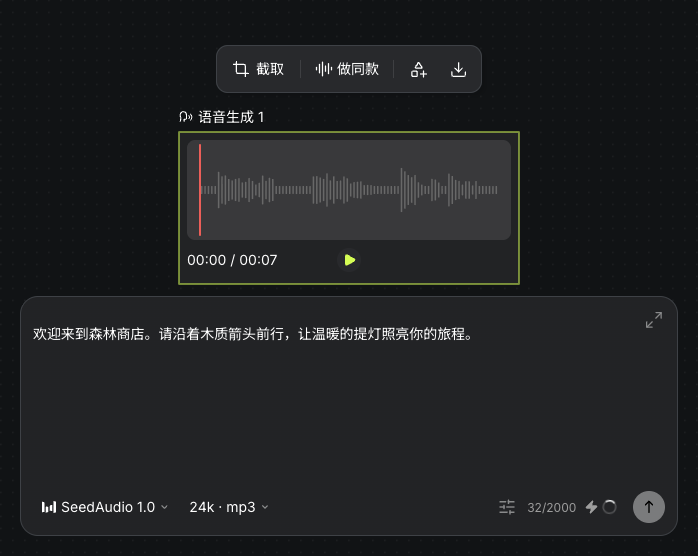
Example dialogue: Welcome to the forest shop. Follow the wooden arrow and let the warm lantern light your journey.

Actual speech waveform, player and dialogue generated at speed 1.2
Actual Seagames screenshot (Chinese interface).

Music and effects have separate nodes. SeaArt effects currently allow 1–5 seconds; music duration follows the current model options. Listen at the intended playback volume.

Try it yourself

Open your projects, create a canvas, and apply this tutorial to your own work.

Open Projects to create
Back to illustrated tutorials

Image generator

Features: explicit descriptions, style references, local edits and composition

References and precise descriptions help guide an image. Name the traits to preserve before choosing a model and settings.

Explore elements, style, local detail and camera language using existing Seagames workflows rather than another platform’s generator controls.

Element references

Identify what to preserve

Add an image reference and describe its subject, materials and accessories. This does not imply a dedicated click-to-identify element extraction control.

How to use it

  • Create an image node and verify the source reference. After selecting it from the canvas, close the selection toolbar before generating.

  • State what to preserve and change; crop a clear reference if only one part is needed.

  • Choose a reference-capable model and review ratio, resolution and quote.

    Actual source reference, edit description, image model and quote
    Actual Seagames screenshot (Chinese interface).

Style references

Align the brief with a visual direction

The style library and references help choose art direction. Results depend on the model and input; support is not universal across the catalog.

How to use it

Use the library or a style reference

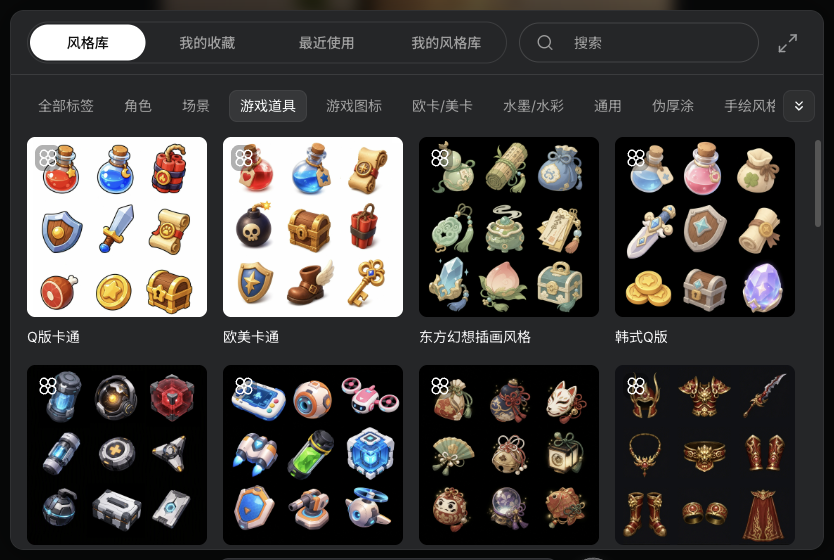
  • Open Style library at the bottom of the canvas, browse tags and choose Use. This example selects the Western isometric scene objects preset.

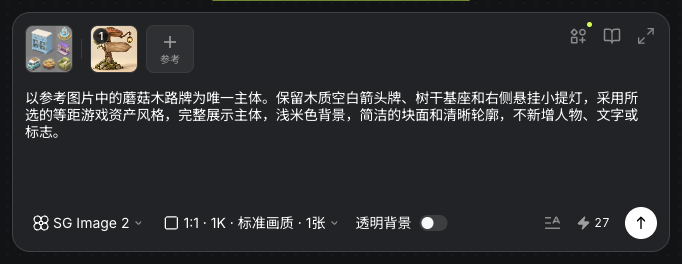
  • Keep the preset reference and add the original mushroom sign. Request its blank arrow board, trunk base and lantern on the right.

  • This run uses SG Image 2, 1:1, 1K, standard quality and one image. Review the current quote, 27 credits in this run, then compare the output with the input.

    Actual style-library views, tags and preset cards
    Actual Seagames screenshot (Chinese interface).
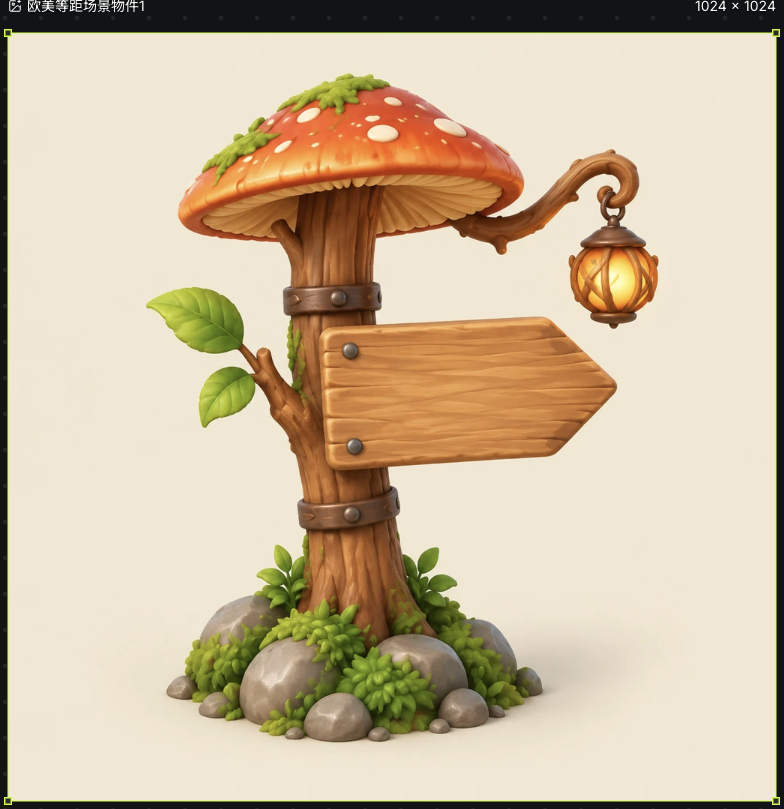
    Actual isometric-objects style reference, source sign and SG Image 2 settings
    Actual Seagames screenshot (Chinese interface).
    Actual sign generated with the style-library reference and saved on the canvas
    Actual Seagames screenshot (Chinese interface).

Keep your own style references

Save permitted, visually consistent references in My styles for later image work. This stores reference images rather than training a model or uploading a LoRA.

How to organize them

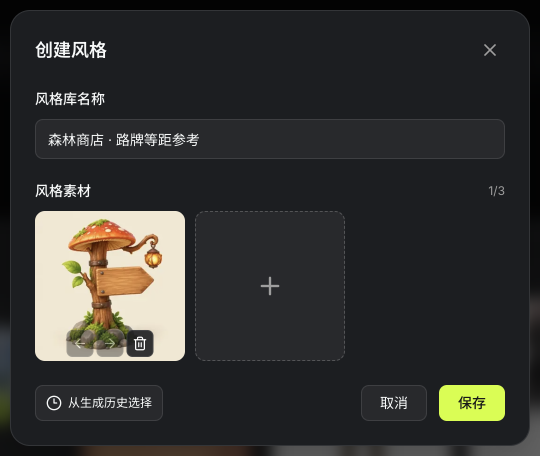
  • In My styles, choose Create style, name it and upload one to three references or select them from generation history. This example adds the newly generated sign as Forest shop · Isometric sign reference.

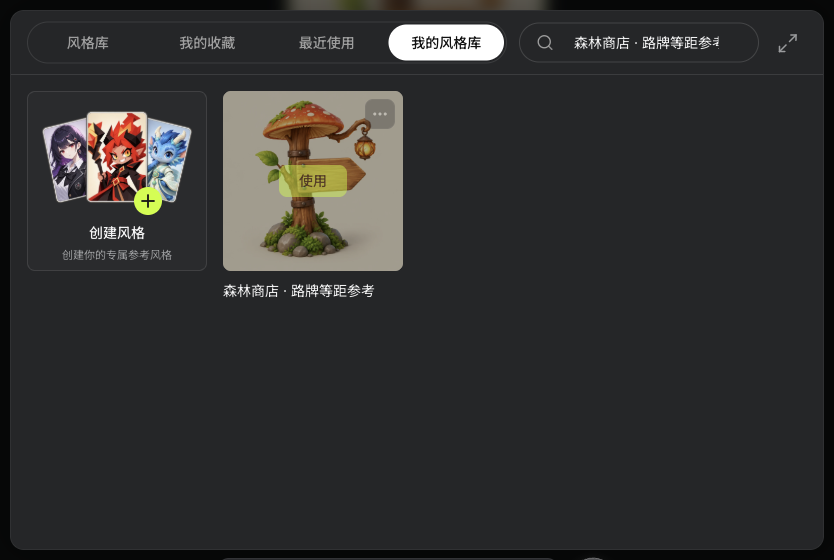
  • Save the entry and find its card in My styles. Hover to reveal Use, then review the current model, reference count and quote when reusing it.

    Actual private-style form with a name and the newly generated sign reference
    Actual Seagames screenshot (Chinese interface).
    Actual saved entry in My styles, hovered to reveal Use
    Actual Seagames screenshot (Chinese interface).

Local detail and close views

Choose an area before describing a change

Use Inpaint for local changes. Crop for detail inspection, or request a close-up in the prompt. These are not a dedicated generator Focus button.

How to use it

  • Select the image, open Inpaint and choose an area with brush, rectangle or lasso.

  • Describe the edit: replace the mushroom roof with a leaf canopy, preserving the blank arrow board, trunk, small lantern on the right and background.

  • Inspect both inside and outside the selection against the original.

    Actual mushroom-canopy selection and leaf-canopy inpainting description
    Actual Seagames screenshot (Chinese interface).
    Actual completed leaf-canopy sign from Inpaint
    Actual Seagames screenshot (Chinese interface).

Viewpoint and composition

Guide the image with clear camera language

Describe front, side, overhead, close or wide views. Explore existing images with Multi-angle. This does not imply camera-brand, focal-length or aperture controls in the generator.

How to use it

  • Specify subject size, viewing direction and background extent.

  • This example uses the three-quarter preset in Multi-angle, preserving the sign structure. Review the current quote, 6 credits in this run; the output remains a 2D image.

    Actual three-quarter-view input and quote in Multi-angle
    Actual Seagames screenshot (Chinese interface).
    Actual sign viewpoint generated by Multi-angle
    Actual Seagames screenshot (Chinese interface).

Example direction

  • Workflow: the style example above uses SG Image 2. The viewpoint example below uses Multi-angle on the original, with a separate lighting result for comparison.

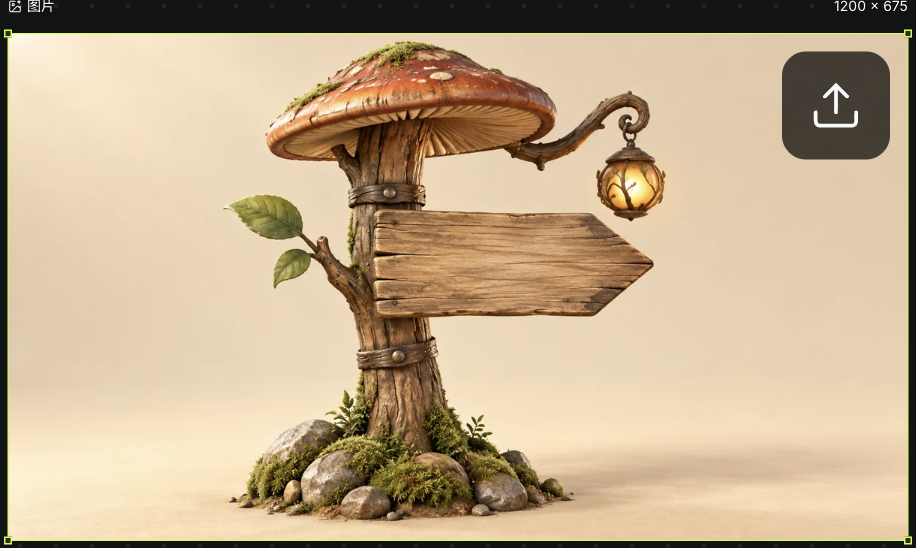
  • Prompt: Preserve the complete wooden sign, mushroom canopy and small lantern hanging on the right. Use a three-quarter view, keep the subject complete and the background simple, and add no parts or lettering.

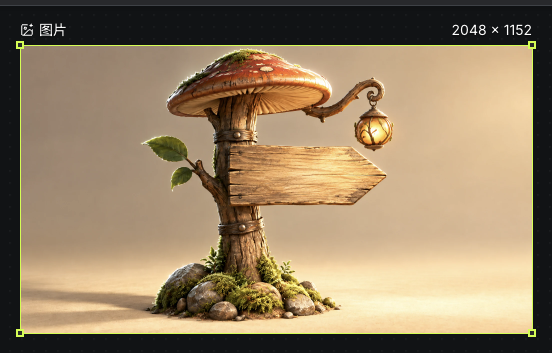
  • Review the original, three-quarter view and warm-light result in order. Check proportions, edges, part connections and readability at small sizes.

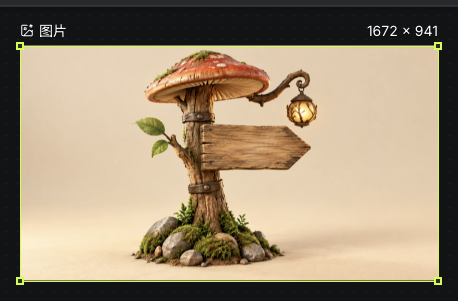
    Actual original mushroom sign before Multi-angle and lighting
    Actual Seagames screenshot (Chinese interface).
    Actual sign viewpoint generated by Multi-angle
    Actual Seagames screenshot (Chinese interface).
    Actual warm-light result for reviewing the sign, lantern and shadows
    Actual Seagames screenshot (Chinese interface).

Try it yourself

Open your projects, create a canvas, and apply this tutorial to your own work.

Open Projects to create
Back to illustrated tutorials

Video generator

Features: reusable character references, Omni reference, first/last frames and camera descriptions

For consistency, keep references and character traits stable. For camera motion, separate subject movement from the camera’s change.

Explore character reuse and camera direction through reference lists and written descriptions, rather than an identity library or camera-preset favorites system.

Character references for video

Reuse a consistent visual reference

Reuse a clear approved character image in later video nodes. A reference guides output without guaranteeing identical identity, clothing or every detail.

Prepare character references

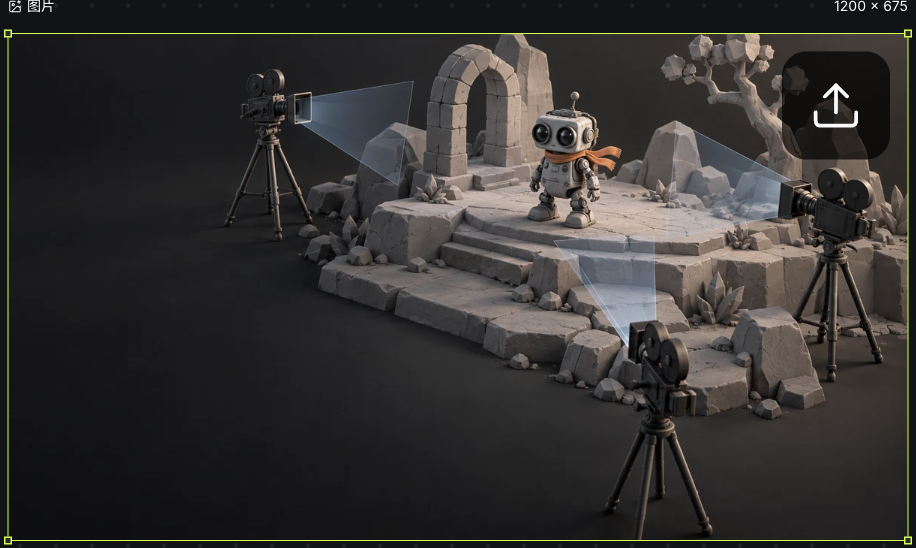
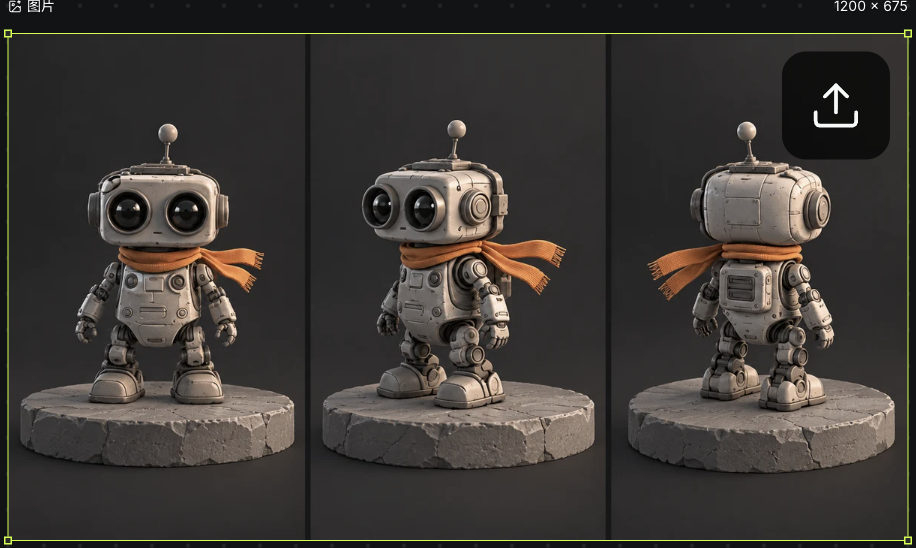
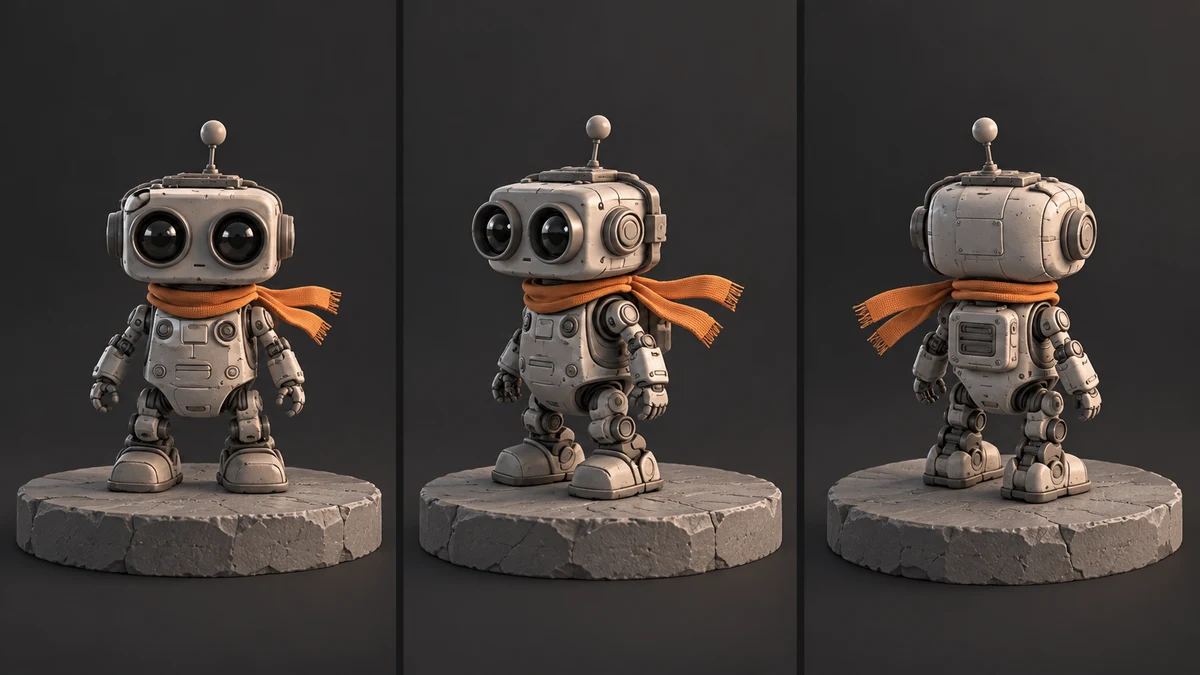
  1. Add a complete character and inspect the face, outfit and accessories. This example saves original robot-stage art and a triptych separately. The triptych is for appearance review and is not an input to this video.

    Actual original robot-stage reference saved on the video canvas
    Actual Seagames screenshot (Chinese interface).
    Actual original robot triptych on the canvas for inspecting appearance
    Actual Seagames screenshot (Chinese interface).
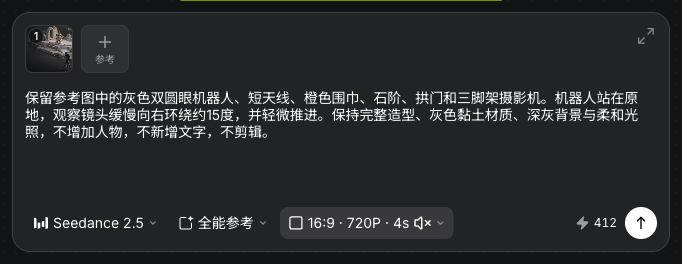
  2. Create Video from Add node and select the robot-stage image. Close the canvas selection toolbar after choosing it. This run uses Seedance 2.5 in Omni reference mode.

    Actual robot reference, subject and camera prompt, and four-second video settings
    Actual Seagames screenshot (Chinese interface).
  • Repeat the character’s main colors, outfit and held objects. Audio assets do not create a personal voice identity here.

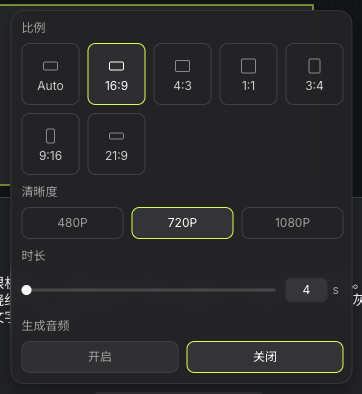
  • After a model change, recheck reference types, counts, duration, ratio and resolution. This run uses 16:9, 720P and four seconds with generated audio off.

    Actual 16:9, 720P, four-second settings with generated audio off
    Actual Seagames screenshot (Chinese interface).
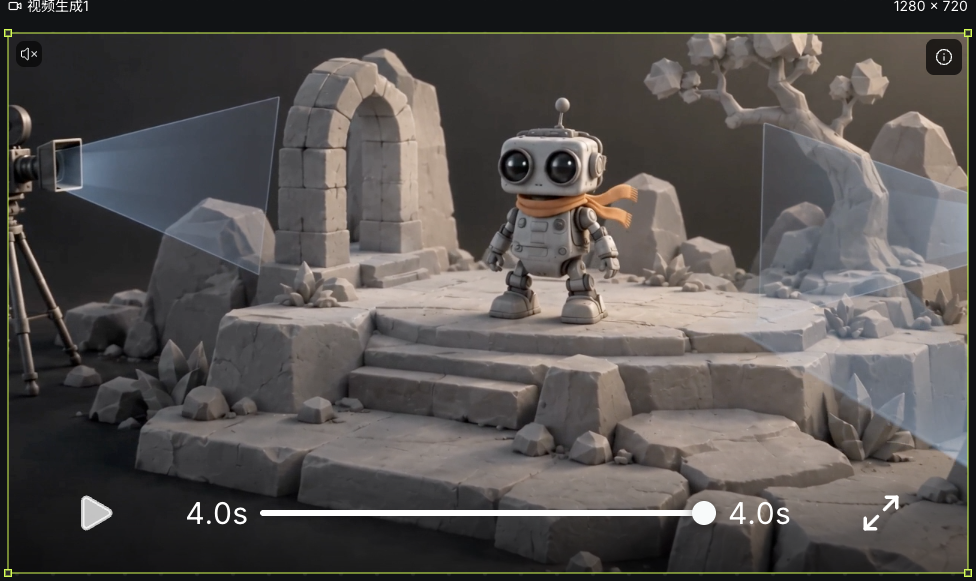
  1. Define subject and camera movement, then review the current quote, 412 credits in this run. The robot stays still while the observing camera slowly orbits about 15 degrees to the right with a slight push-in. Review the full completed clip for consistency.

    Actual completed robot orbit video node and player
    Actual Seagames screenshot (Chinese interface).

Camera motion

Separate subject movement from camera movement

When requesting a push-in, pull-back, lateral move or orbit, also define the subject action. Test a fixed camera before adding movement.

How to direct motion

Common camera descriptions

  • Fixed: small subject action, camera remains in place.

  • Push-in: approach the subject slowly while preserving direction.

  • Lateral: move slowly in one direction without complex rotation.

    Actual robot reference, subject and camera prompt, and four-second video settings
    Actual Seagames screenshot (Chinese interface).
    Actual completed robot orbit video node and player
    Actual Seagames screenshot (Chinese interface).

Write your own camera direction

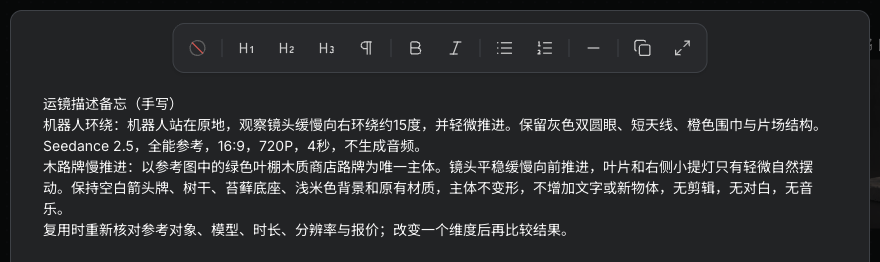
  • Keep useful directions in Text. Choose Write your own content and expand the editor to record the robot orbit and leaf-canopy-sign push-in separately. These are handwritten notes.

  • Direction: A green leaf-canopy wooden shop sign is the only subject. The camera pushes in slowly and steadily, with slight natural movement in the leaves and right-hand lantern. Preserve the blank arrow board, trunk, mossy base, pale cream background and materials. No deformation, added objects or lettering, cuts, dialogue or music. The screenshot shows the earlier completed task input; it was not generated again for this article.

    Actual handwritten robot-orbit and leaf-canopy-sign push-in notes
    Actual Seagames screenshot (Chinese interface).
    Reference, prompt and settings from the earlier actual leaf-canopy sign push-in task
    Actual Seagames screenshot (Chinese interface).

Camera direction tips

  • Keep framing and movement compatible; a tight close-up conflicts with a broad aerial view.

  • Reduce motion when deformation appears and change one subject or camera dimension at a time.

  • First & last frames is model-specific and accepts at most two images. Matching endpoints do not guarantee a seamless loop.

  • Inspect faces, hands, background drift and object changes before trimming or regenerating.

Try it yourself

Open your projects, create a canvas, and apply this tutorial to your own work.

Open Projects to create
Back to illustrated tutorials

3D Director

Topics: 3D director concepts, scene and character planning, viewpoints, movement and camera motion

The 3D director is being integrated into Seagames. Composition sections retain original illustrations; preparation with the existing canvas, pose and panorama tools uses actual screenshots. Follow the released director version for its entry point.

Plan positions, sightlines and viewing direction before preparing image or video references. These illustrations explain composition, not a shipped interface.


Overview

Plan the scene before choosing the shot

A 3D composition treats characters, props, surroundings and cameras separately. Establish their spatial relationships, then inspect framing and occlusion in still views.


What does director-style planning help with?

  • Positions and views: compare depth, character scale and occlusion.

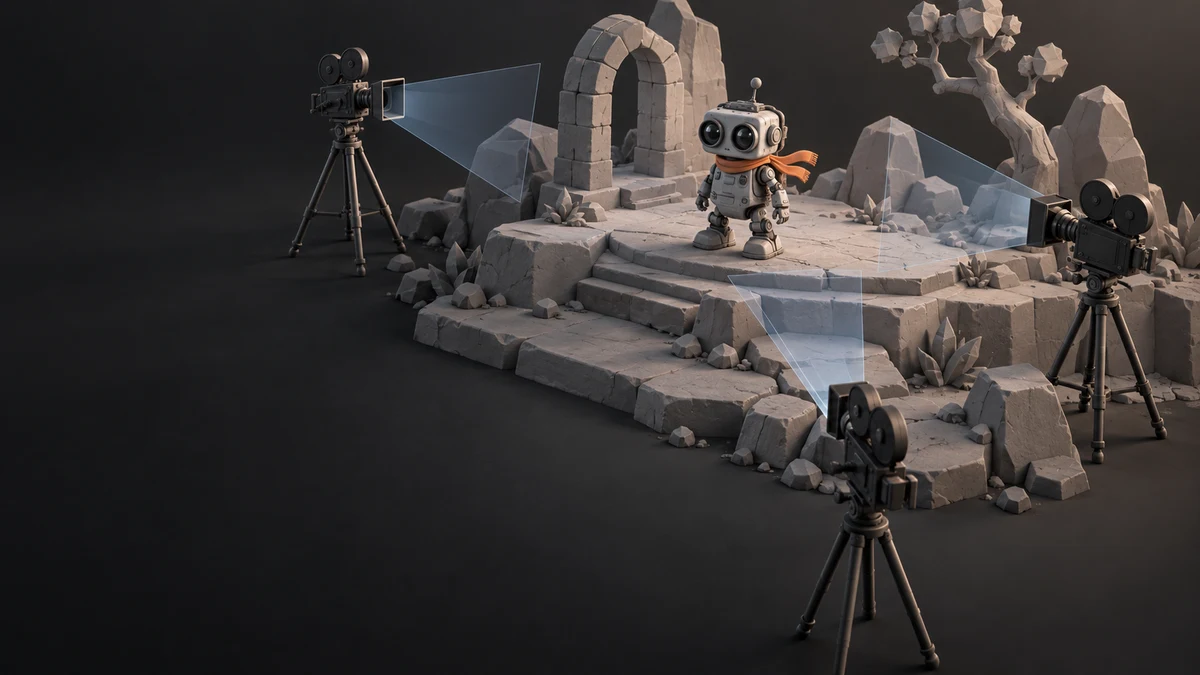
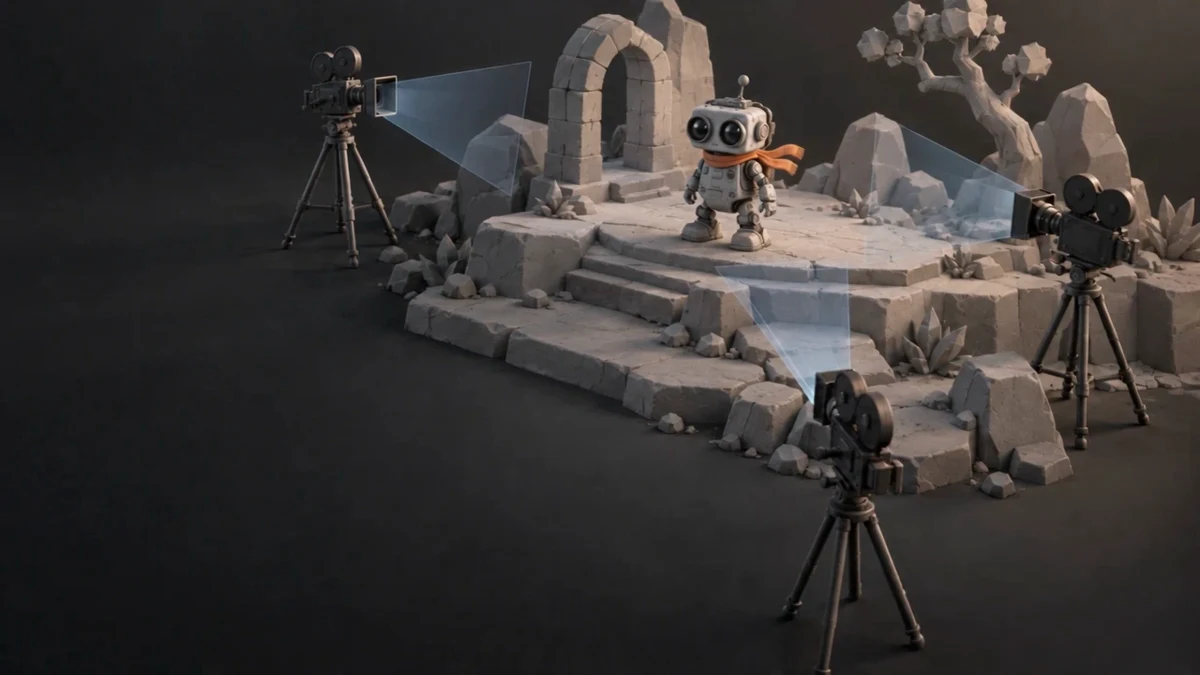
    Original virtual-set illustration with character, props and space
    Original teaching illustration, not an interface screenshot or feature recording.
    Still from the original orbit clip of the same set
    Original teaching illustration, not an interface screenshot or feature recording.
    Triptych of front, three-quarter front and three-quarter rear views of the same original robot
    Original teaching illustration, not an interface screenshot or feature recording.
  • Character and scene relationships: decide what a character faces and where the camera observes from.

    Original set illustration of character and camera placement
    Original teaching illustration, not an interface screenshot or feature recording.
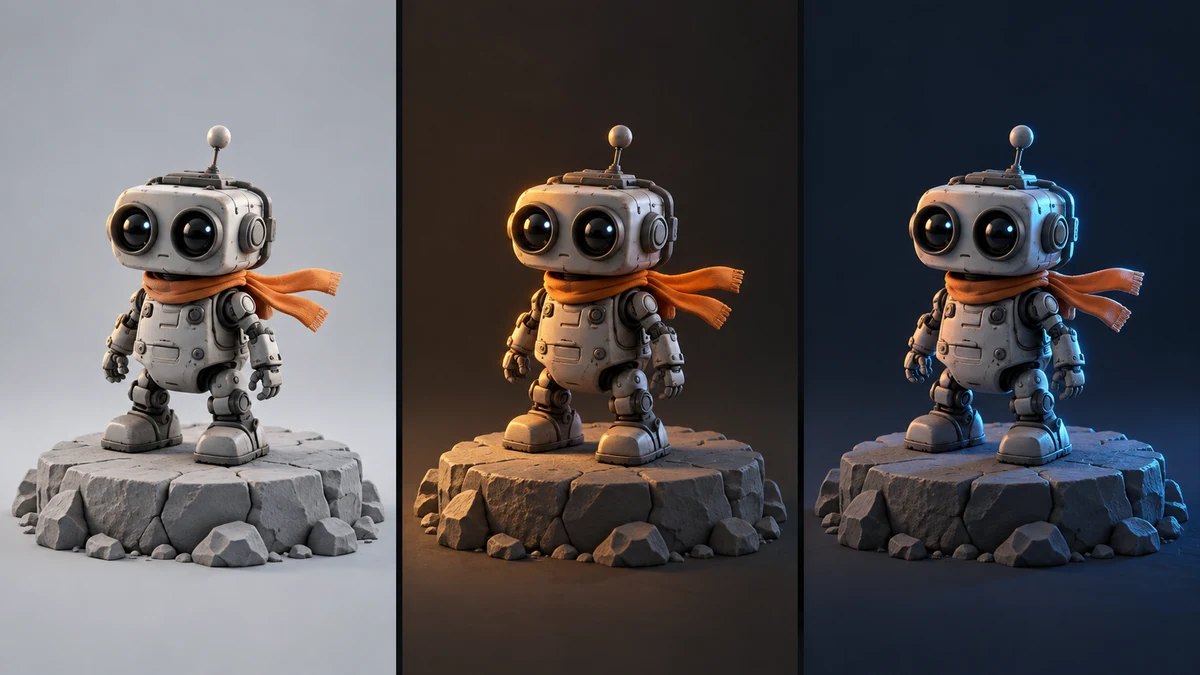
    The same robot under different lighting for appearance recognition
    Original teaching illustration, not an interface screenshot or feature recording.
    Original generated clip for observing composition and motion, not a feature recording.

Prepare composition references ✨

Prepare a project

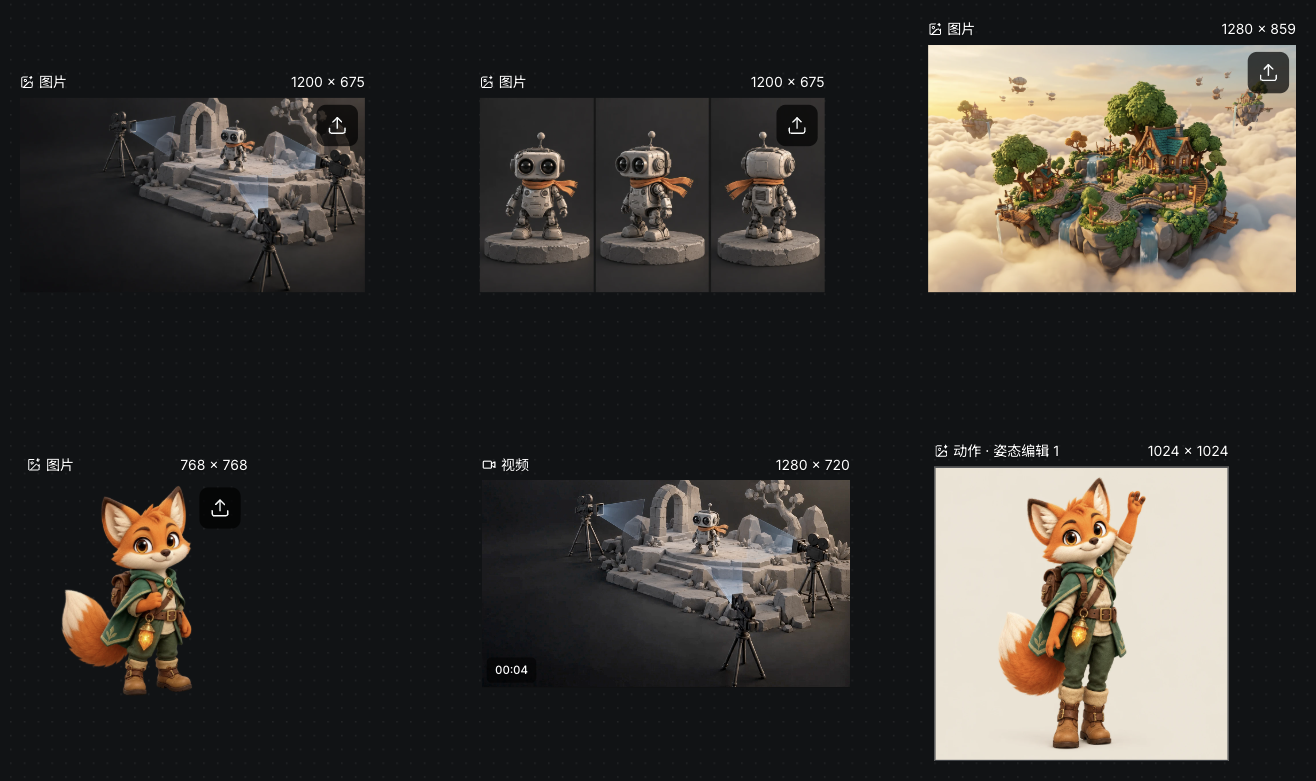
The current menu has no separate director entry. Organize stage art, a triptych, environment art and completed video on a project canvas. This example also keeps the source fox and its pose result; prepare 3D models with the separate model guide.

Actual preparation canvas with stage, triptych, environment, video and fox pose assets
Actual Seagames screenshot (Chinese interface).
Actual floating-island environment reference saved on the preparation canvas
Actual Seagames screenshot (Chinese interface).

1. Prepare models and objects

  • List characters, key props and surroundings; plan space with simple shapes first.

  • Prepare a model file or use the existing 3D generation node. The separate 3D model guide covers generation and preview.

  • This preview does not promise director support for model imports, crowd arrays or object-group panels.

    Original generated clip for observing composition and motion, not a feature recording.

2. Plan object positions

  • Record three relationships:

    • Position: what sits in front of or behind something else.

    • Direction: where the character faces and looks.

    • Scale: relative sizes of character, prop and setting.

  • Record colors and identifying traits in text or images; use released controls when available.

    Original generated clip for observing composition and motion, not a feature recording.
    Position relationships in the same original set illustration
    Original teaching illustration, not an interface screenshot or feature recording.

3. Plan viewpoints and reference captures

Camera view

  • Choose the final frame and camera height. Check that the subject, gaze and action are readable.

    Original generated clip for observing composition and motion, not a feature recording.

Scene overview

  • Check character, prop and camera positions in an overview, then judge the final frame.

    Original workflow diagram explaining inputs and results, not a recording of the product interface.

Camera adjustments

  • Wide views establish setting; closer views emphasize action or emotion. Avoid conflicting framing instructions.

  • Field-of-view controls, target binding and automatic follow are not presented as available operations.

    Three static views for comparing silhouette and occlusion of the same character
    Original teaching illustration, not an interface screenshot or feature recording.

4. Use reference images in creation

  • Prepare your own stills or exported views from another tool.

  • Upload to the canvas, create Image or Video and add references.

  • Describe positions and viewpoint to preserve, then check model support and quote. The screenshots show the actual robot-stage Omni reference input and completed four-second output.

    Actual robot-stage reference and orbit prompt in a standard video task
    Actual Seagames screenshot (Chinese interface).
    Actual completed four-second robot orbit from a standard video task
    Actual Seagames screenshot (Chinese interface).

Further planning

Character pose planning

Define body language

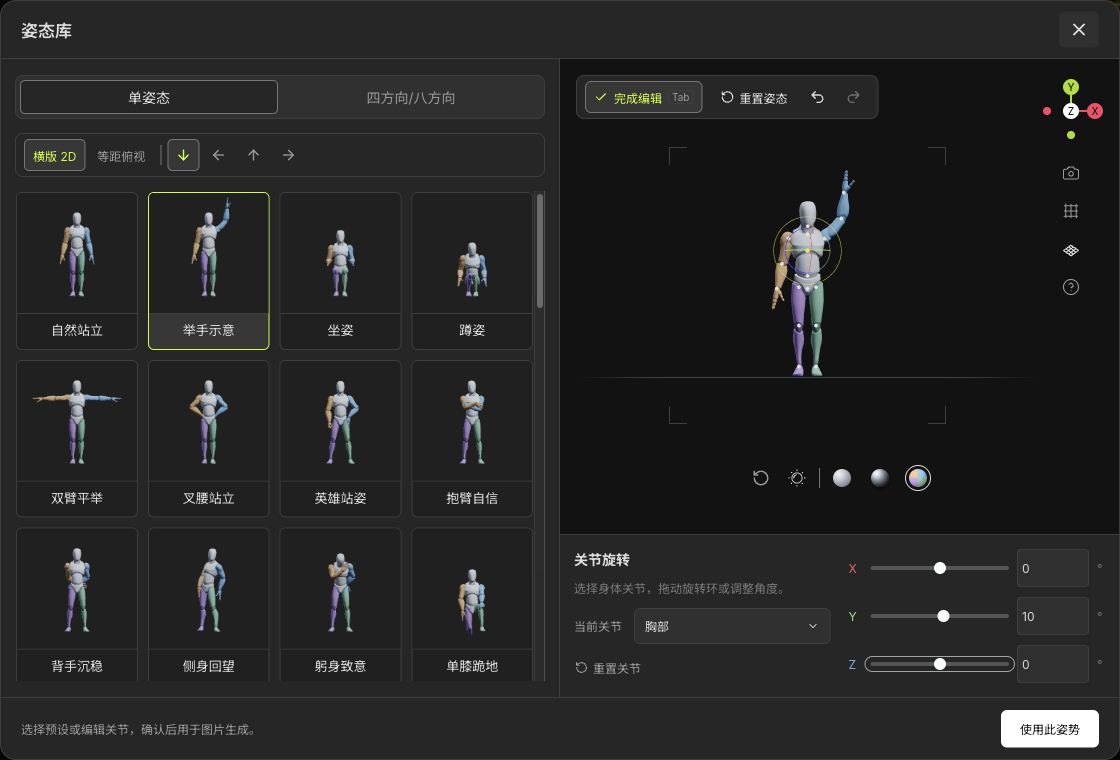
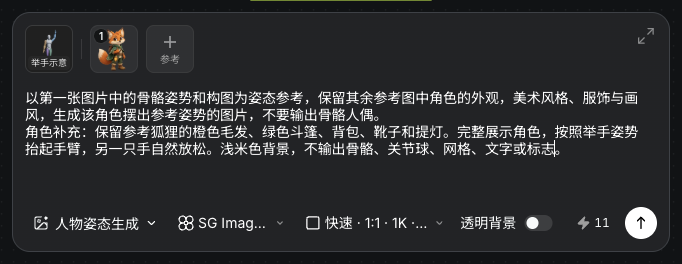
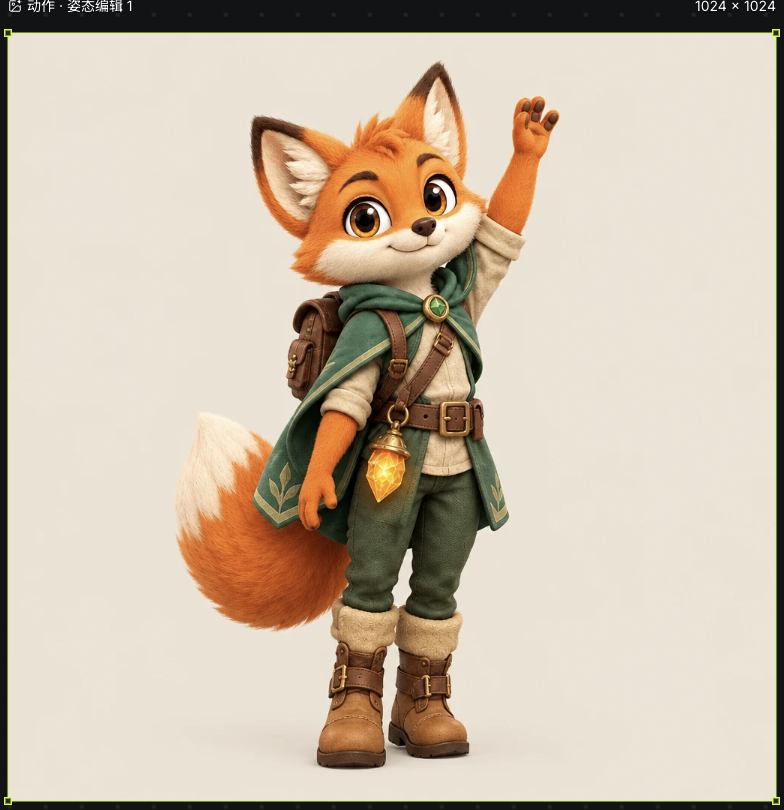
Plan stance, gestures and balance. Choose Motion and Pose editing from Add node, select Wave in the pose library, set chest Y rotation to ten degrees and use the pose. Add the original fox as its appearance reference. Review SG Image 2.5, 1:1, 1K, one image and the current quote before generating. This uses the existing independent pose tool; director character controls depend on the released version.

Actual independent pose library, Wave preset and chest Y rotation of ten degrees
Actual Seagames screenshot (Chinese interface).
Actual Wave pose, fox appearance reference, prompt and SG Image 2.5 settings
Actual Seagames screenshot (Chinese interface).
Actual generated waving fox image retaining its cloak, backpack and lantern
Actual Seagames screenshot (Chinese interface).

Panorama and environment planning

Keep character and environment in the same space

Prepare an environment with clear ground, horizon and lighting direction. This example uses the existing 720 panorama preview and four-direction captures to prepare 2D environment references. Panoramas, backgrounds and 3D environments are different inputs; the released director will determine accepted types.

Actual floating-island environment and view direction in the existing 720 panorama tool
Actual Seagames screenshot (Chinese interface).
Actual four completed 2D environment views exported by the existing panorama tool
Actual Seagames screenshot (Chinese interface).

Character and camera paths

Separate who moves from how the camera moves

1. Character movement

Describe a character’s start, destination, direction and action. Path drawing, keyframes and multicharacter timelines are not presented as current tools.

  1. Choose one action, such as approaching a doorway.

  2. State direction and the outfit and props to preserve.

  3. Use supported references in a video task and review the full result.

    Original exploration scene for planning movement direction
    Original teaching illustration, not an interface screenshot or feature recording.

2. Camera movement

Push-ins, pull-backs, lateral moves and orbits describe different camera paths. Begin with a small single-direction move. The screenshot shows an actual orbit prompt in a standard video task for checking that subject and camera instructions are separate.

  1. Define start/end composition and subject size.

  2. Describe camera and subject movement separately.

  3. Review speed, occlusion and background stability in the output.

Actual robot-stage reference and orbit prompt in a standard video task
Actual Seagames screenshot (Chinese interface).

3. Coordinate character and camera

A follow-shot brief aims to keep a character’s relative framing stable. It does not imply one-click binding, automatic distance maintenance or a camera group.

  1. Choose a clear character reference and test simple movement.

  2. Add a slow follow request without simultaneous rotation and elevation changes.

  3. Inspect subject size, direction, steps and camera smoothness.

    Illustration of relative character, ground and camera positions
    Original teaching illustration, not an interface screenshot or feature recording.

When planning a follow shot:

  • Character and camera paths are separate plans.

  • A ground-level character path does not determine camera height or angle.

  • References guide the result; continuity still needs manual review.


Controls and shortcut scope

Director controls, gestures and shortcuts are not finalized. Other products’ key combinations are not instructions for Seagames. Follow released help and interface hints.


External 3D files and references

Seagames does not claim a Blender director plug-in or one-click transfer here. Export permitted still or video files from an external tool, then upload and reference them on the canvas.

  • Check format, framing and clarity.

  • Pair references with a description and verify model support.

    Triptych of front, three-quarter front and three-quarter rear views of the same original robot
    Original teaching illustration, not an interface screenshot or feature recording.

Try it yourself

Collect scene art, characters and notes first; use the released director version for its entry point and controls.

Open Projects to prepare references
Back to illustrated tutorials

3D models and multiple views: start with clear references

3D inputs need to communicate shape clearly. Practice with a simple prop before complex characters. A 2D viewpoint image and a 3D model are different outputs.

Choose an object with a clear silhouette

Open a project and describe one complete wooden chest, including its lid, lock and four short feet. For single-image practice, prepare a clean reference with clear connections rather than multiple objects and complex lettering.

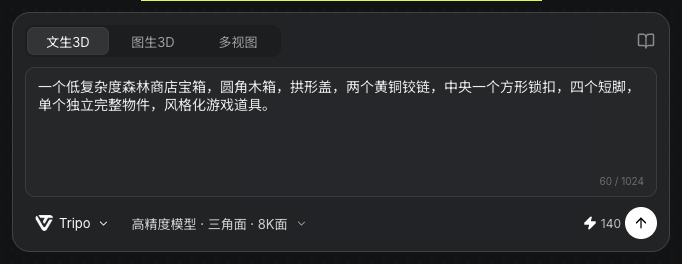
Actual forest-shop chest prompt, Tripo text-to-3D summary and 140-credit quote
Actual Seagames screenshot (Chinese interface).

Create a 3D node and choose its mode

Choose 3D model from Add node at the bottom of the canvas. This example uses Tripo text-to-3D. Text, single-image and multiview support varies by model; prepare inputs for the selected mode.

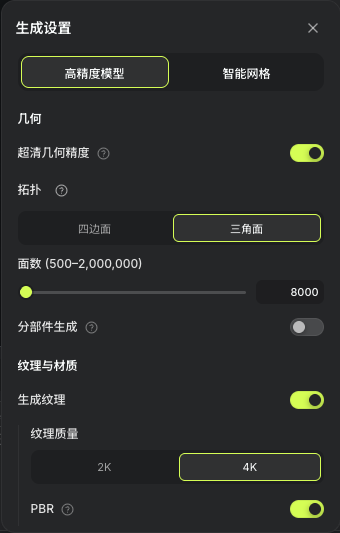
This run requests high fidelity, detailed geometry, triangular topology, 8000 faces, 4K textures and PBR, with a current quote of 140 credits. Requested and resulting face counts may differ; inspect the completed model statistics.

A simple forest shop treasure chest, rounded wooden box, arched lid, two brass hinges, one square lock in the center, four short feet, one complete standalone object, stylized game prop.

Actual high-fidelity, detailed geometry, triangles, requested 8000 faces, 4K texture and PBR settings
Actual Seagames screenshot (Chinese interface).

Use separate images for multiview

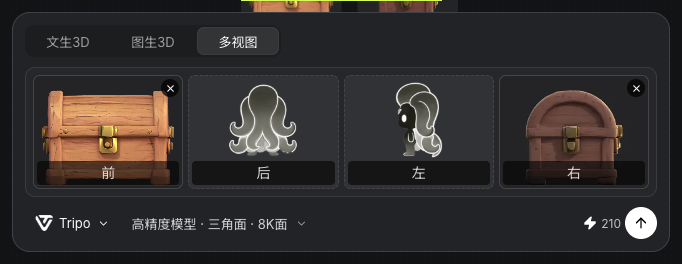
Add independent images in multiview mode, with the front first. Keep the object, scale and materials as consistent as possible. This example captures separate front and right views from the completed chest in the native 3D preview, saves them on the canvas and fills the Front and Right slots of a new draft. A composite picture is not multiple independent references.

If preparing references with Multi-angle, inspect every image: its 2D outputs do not guarantee a physically consistent 3D object. The multiview example here is a saved input draft, not a second submitted generation. The completed model comes from the text task above.

Actual separate front and right references in a multiview draft, not submitted
Actual Seagames screenshot (Chinese interface).

Rotate the preview to inspect hidden sides

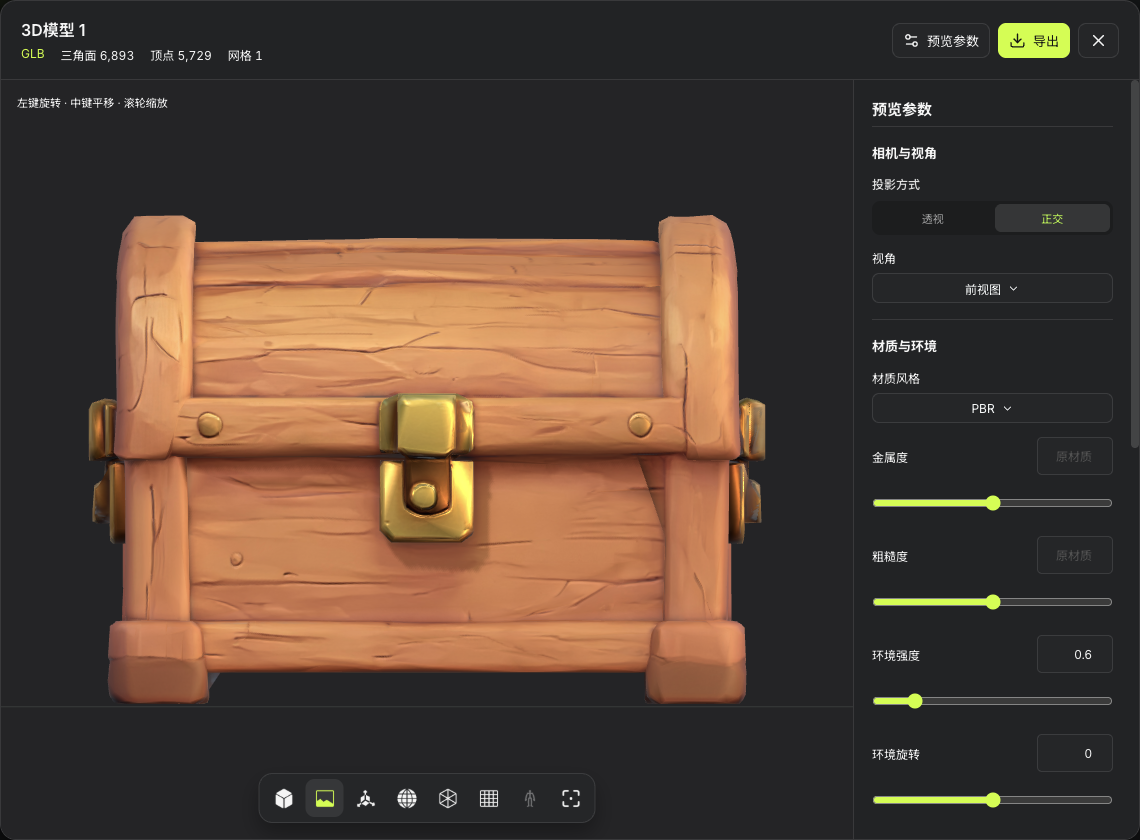
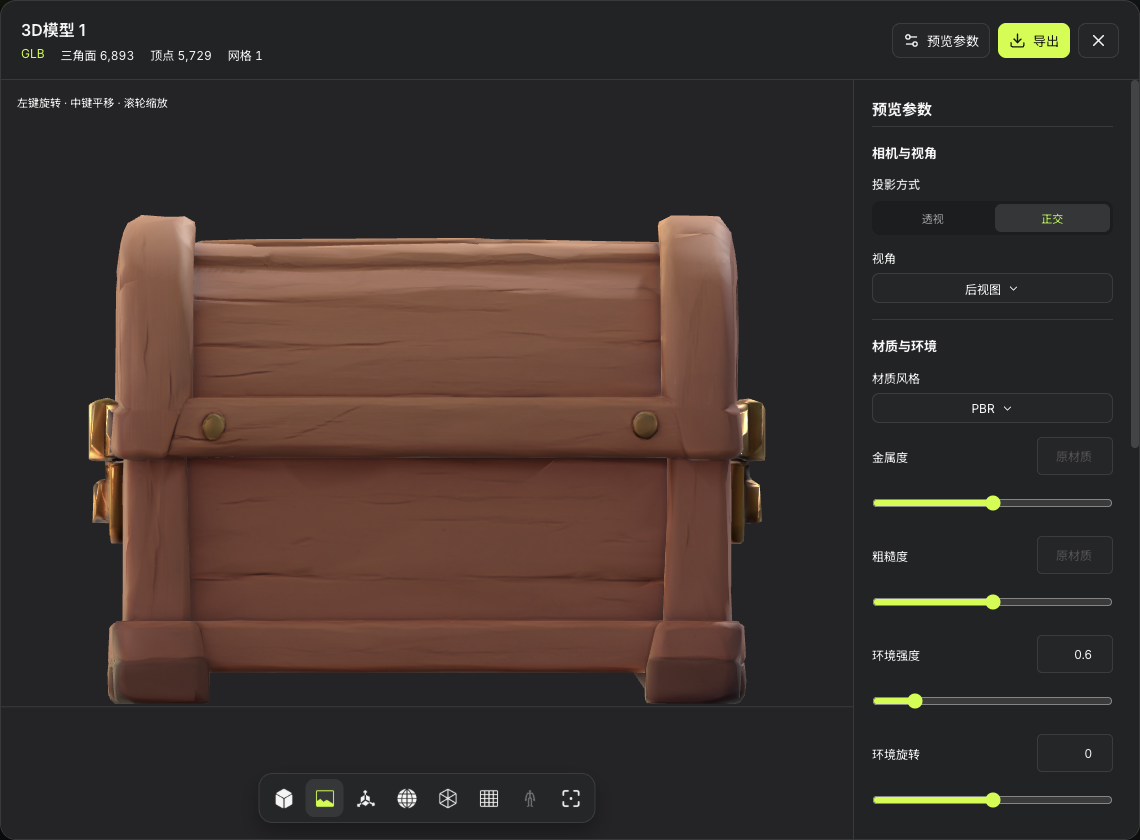
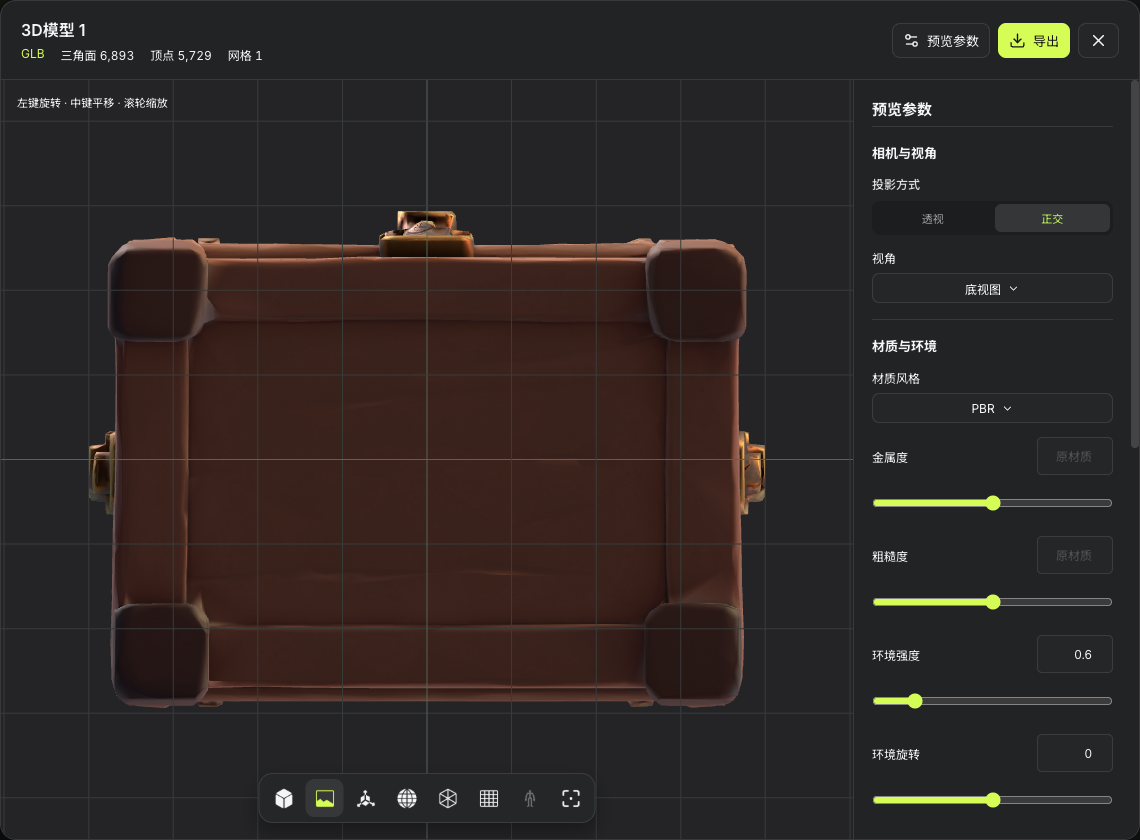
Open the completed model in the full viewer. Use orthographic front, rear and underside views, and rotate to inspect its sides. This GLB has 6893 triangles, 5729 vertices and one mesh. Check thin surfaces, holes, the lock, connections and four feet. A convincing front view does not replace rear and underside inspection.

Actual front view of the GLB chest with 6893 triangles and 5729 vertices
Actual Seagames screenshot (Chinese interface).
Actual rear view of the GLB chest for inspecting the body and connections
Actual Seagames screenshot (Chinese interface).
Actual underside view of the GLB chest for inspecting its four feet and base
Actual Seagames screenshot (Chinese interface).

Choose follow-up work for the destination

Use available retopology, rigging or texture tools according to the intended use. Decide whether the result is a static prop or an animated character before running additional tasks.

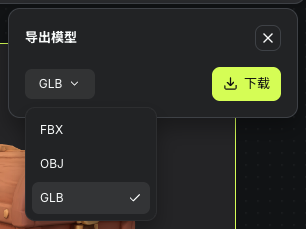
Use the formats shown in the interface. This example downloads GLB from the node toolbar, with three embedded 4K textures. After importing into the target software, still review size, orientation, materials and mesh before assessing game performance and animation requirements.

Actual node-toolbar export menu with GLB selected and FBX and OBJ options
Actual Seagames screenshot (Chinese interface).

Compare the model with the references

Review silhouette, part count, symmetry and material regions. Record defects before adjusting inputs or trying an available model. One prompt change will not necessarily fix every mesh issue.

Practice: try text and single-image input for the same chest. Compare its back structure and lock detail, then decide whether preparing separate multiview images is useful.

Try it yourself

Open your projects, create a canvas, and apply this tutorial to your own work.

Open Projects to create a 3D model