
Back to illustrated tutorials

Image generator

Features: explicit descriptions, style references, local edits and composition

References and precise descriptions help guide an image. Name the traits to preserve before choosing a model and settings.

Explore elements, style, local detail and camera language using existing Seagames workflows rather than another platform’s generator controls.

Element references

Identify what to preserve

Add an image reference and describe its subject, materials and accessories. This does not imply a dedicated click-to-identify element extraction control.

How to use it

  • Create an image node and verify the source reference. After selecting it from the canvas, close the selection toolbar before generating.

  • State what to preserve and change; crop a clear reference if only one part is needed.

  • Choose a reference-capable model and review ratio, resolution and quote.

    Actual source reference, edit description, image model and quote
    Actual Seagames screenshot (Chinese interface).

Style references

Align the brief with a visual direction

The style library and references help choose art direction. Results depend on the model and input; support is not universal across the catalog.

How to use it

Use the library or a style reference

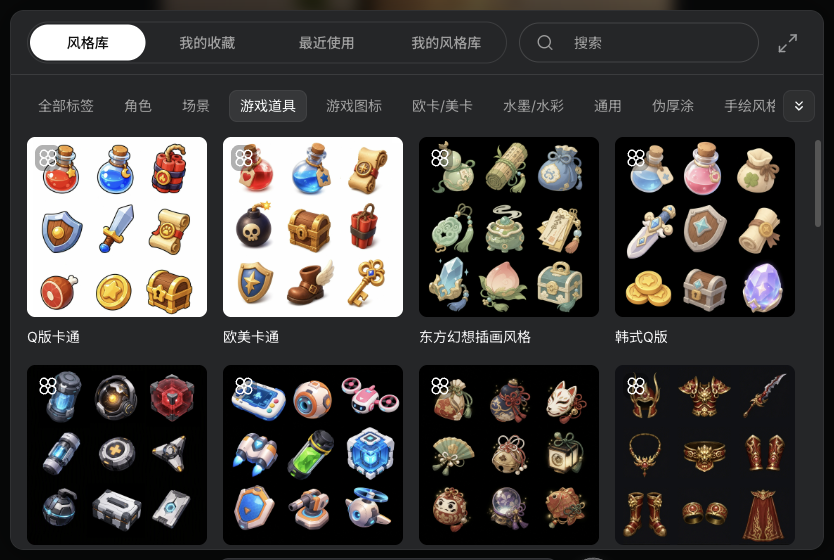
  • Open Style library at the bottom of the canvas, browse tags and choose Use. This example selects the Western isometric scene objects preset.

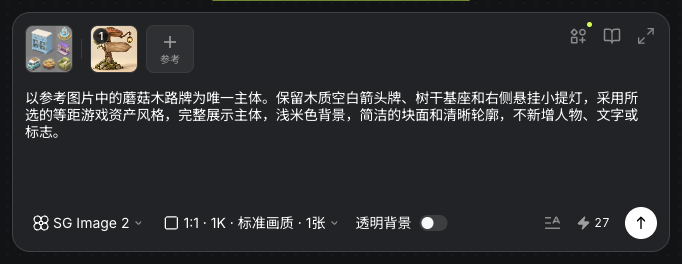
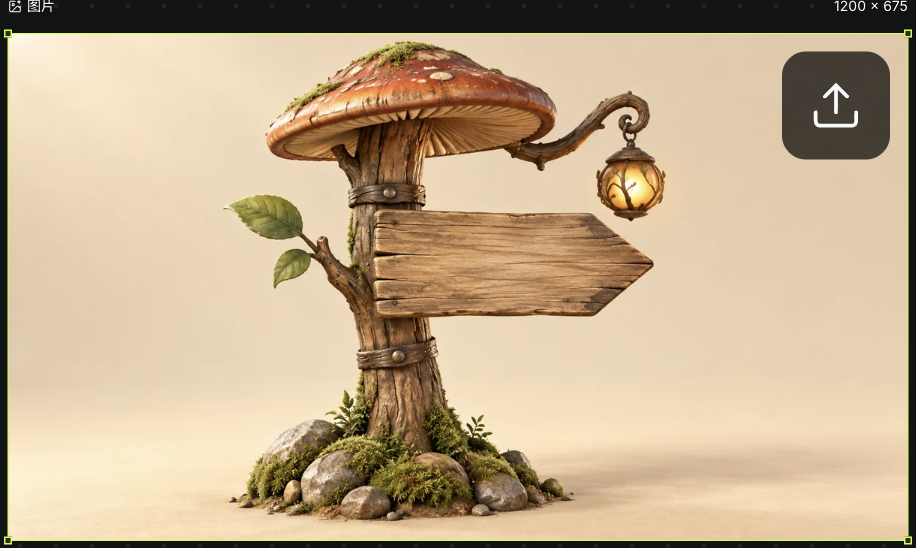
  • Keep the preset reference and add the original mushroom sign. Request its blank arrow board, trunk base and lantern on the right.

  • This run uses SG Image 2, 1:1, 1K, standard quality and one image. Review the current quote, 27 credits in this run, then compare the output with the input.

    Actual style-library views, tags and preset cards
    Actual Seagames screenshot (Chinese interface).
    Actual isometric-objects style reference, source sign and SG Image 2 settings
    Actual Seagames screenshot (Chinese interface).
    Actual sign generated with the style-library reference and saved on the canvas
    Actual Seagames screenshot (Chinese interface).

Keep your own style references

Save permitted, visually consistent references in My styles for later image work. This stores reference images rather than training a model or uploading a LoRA.

How to organize them

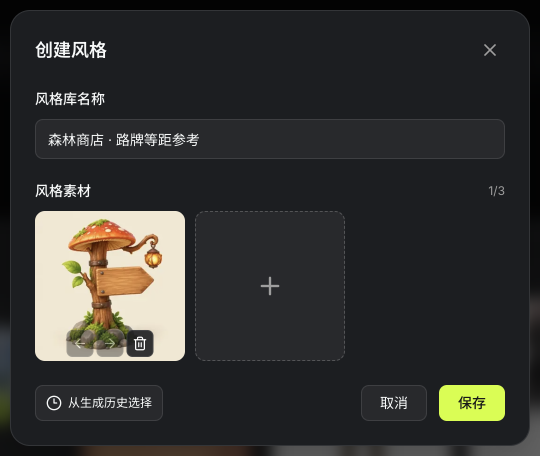
  • In My styles, choose Create style, name it and upload one to three references or select them from generation history. This example adds the newly generated sign as Forest shop · Isometric sign reference.

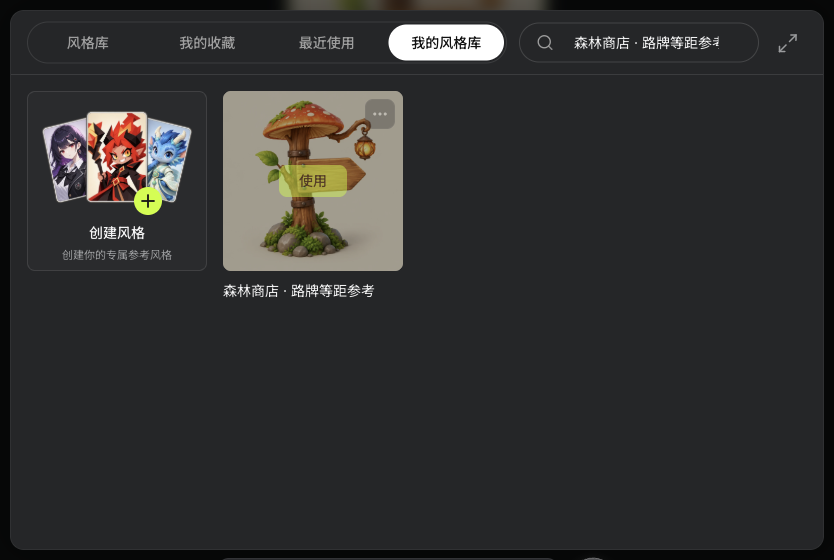
  • Save the entry and find its card in My styles. Hover to reveal Use, then review the current model, reference count and quote when reusing it.

    Actual private-style form with a name and the newly generated sign reference
    Actual Seagames screenshot (Chinese interface).
    Actual saved entry in My styles, hovered to reveal Use
    Actual Seagames screenshot (Chinese interface).

Local detail and close views

Choose an area before describing a change

Use Inpaint for local changes. Crop for detail inspection, or request a close-up in the prompt. These are not a dedicated generator Focus button.

How to use it

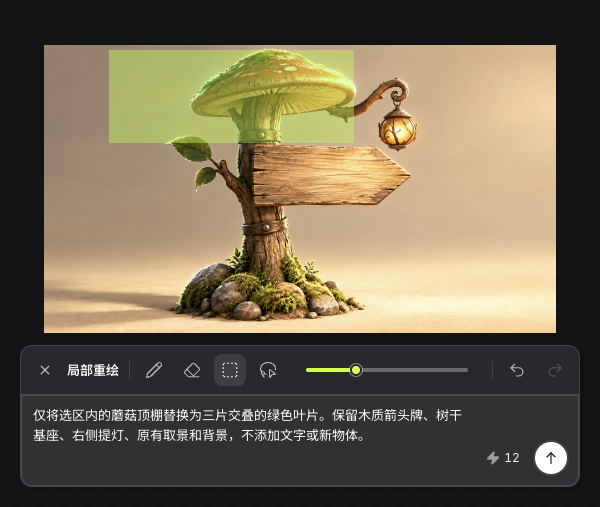
  • Select the image, open Inpaint and choose an area with brush, rectangle or lasso.

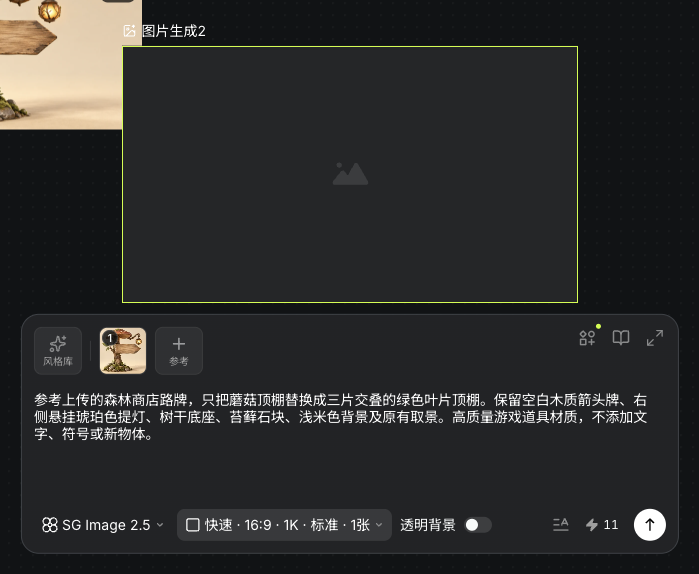
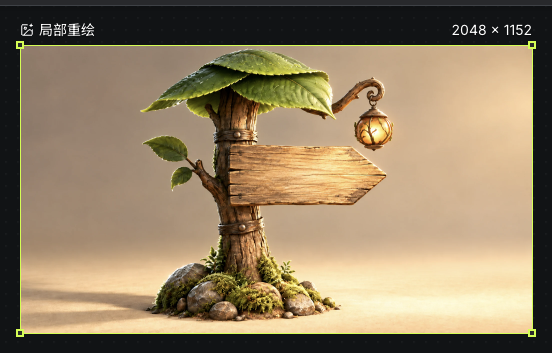
  • Describe the edit: replace the mushroom roof with a leaf canopy, preserving the blank arrow board, trunk, small lantern on the right and background.

  • Inspect both inside and outside the selection against the original.

    Actual mushroom-canopy selection and leaf-canopy inpainting description
    Actual Seagames screenshot (Chinese interface).
    Actual completed leaf-canopy sign from Inpaint
    Actual Seagames screenshot (Chinese interface).

Viewpoint and composition

Guide the image with clear camera language

Describe front, side, overhead, close or wide views. Explore existing images with Multi-angle. This does not imply camera-brand, focal-length or aperture controls in the generator.

How to use it

  • Specify subject size, viewing direction and background extent.

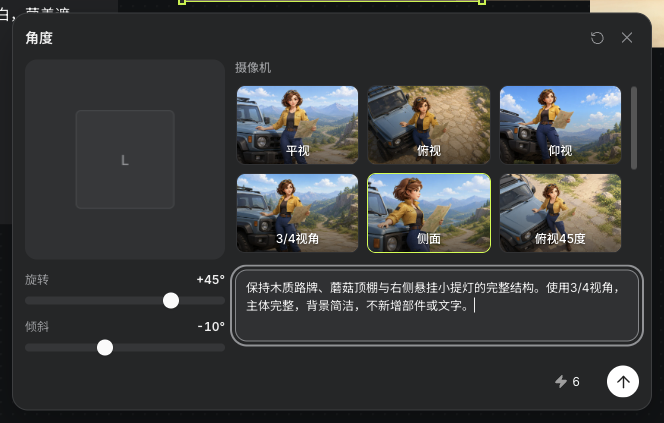
  • This example uses the three-quarter preset in Multi-angle, preserving the sign structure. Review the current quote, 6 credits in this run; the output remains a 2D image.

    Actual three-quarter-view input and quote in Multi-angle
    Actual Seagames screenshot (Chinese interface).
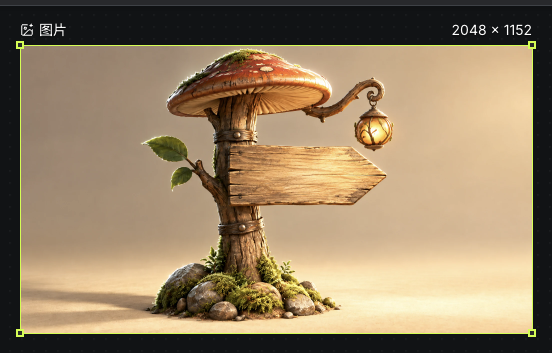
    Actual sign viewpoint generated by Multi-angle
    Actual Seagames screenshot (Chinese interface).

Example direction

  • Workflow: the style example above uses SG Image 2. The viewpoint example below uses Multi-angle on the original, with a separate lighting result for comparison.

  • Prompt: Preserve the complete wooden sign, mushroom canopy and small lantern hanging on the right. Use a three-quarter view, keep the subject complete and the background simple, and add no parts or lettering.

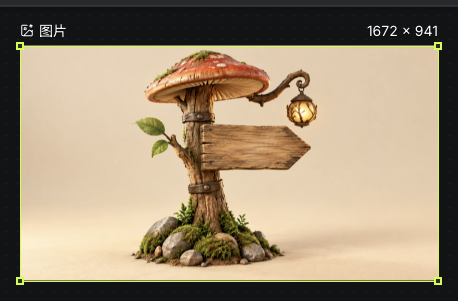
  • Review the original, three-quarter view and warm-light result in order. Check proportions, edges, part connections and readability at small sizes.

    Actual original mushroom sign before Multi-angle and lighting
    Actual Seagames screenshot (Chinese interface).
    Actual sign viewpoint generated by Multi-angle
    Actual Seagames screenshot (Chinese interface).
    Actual warm-light result for reviewing the sign, lantern and shadows
    Actual Seagames screenshot (Chinese interface).

Try it yourself

Open your projects, create a canvas, and apply this tutorial to your own work.

Open Projects to create