
Back to illustrated tutorials

Workflows

Features: workflows, groups, assets and reference connections

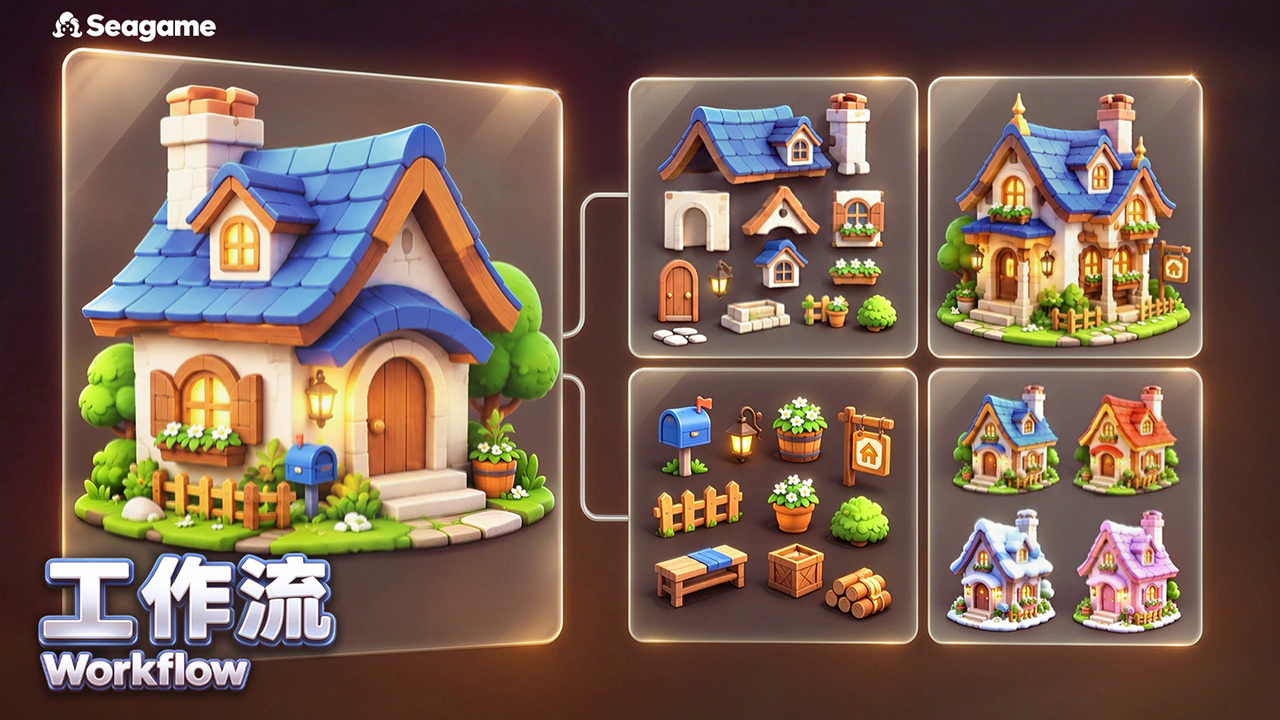
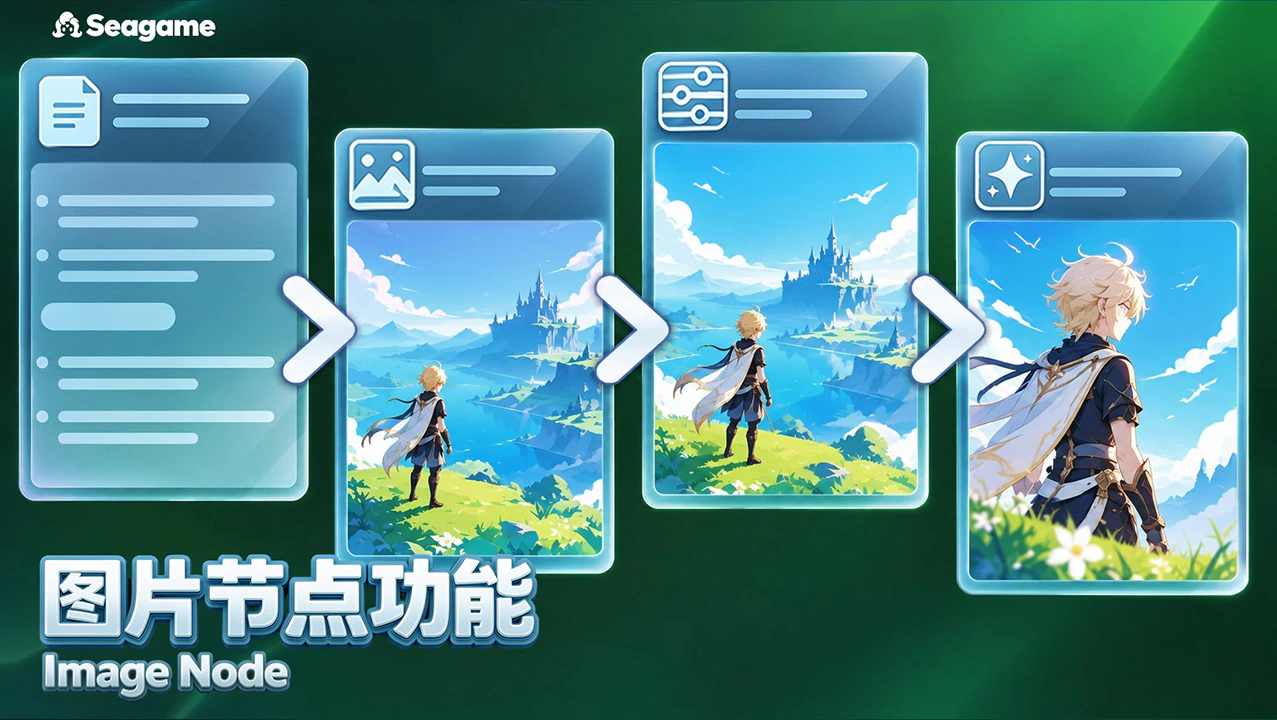
Connected nodes make each task’s inputs and outputs visible. Build a reference-to-image-to-video workflow that you can keep revising.


What is a workflow?

Connect tasks in dependency order

Reference connections pass upstream assets to downstream tasks. Connections do not start paid generation: review references before generating a node or running a ready group.

Basic workflow showcase

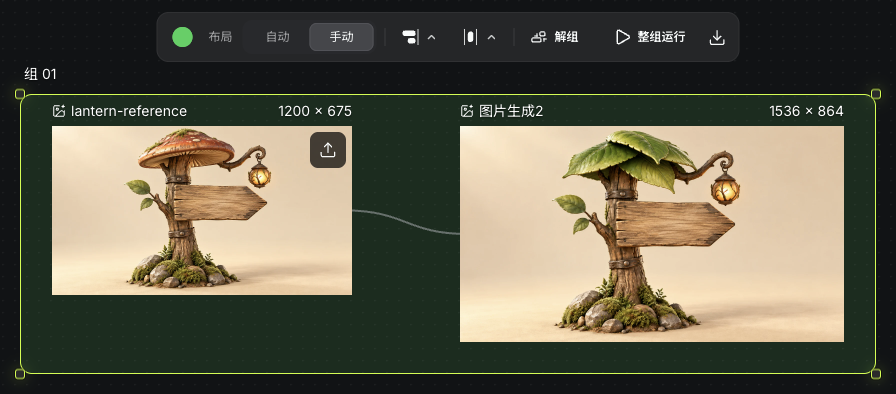
Upload an original mushroom-roof sign, generate a leaf-canopy variation, then use that image for a gently moving video. The connections and group shown were organized after generation for reuse. Review each result separately.

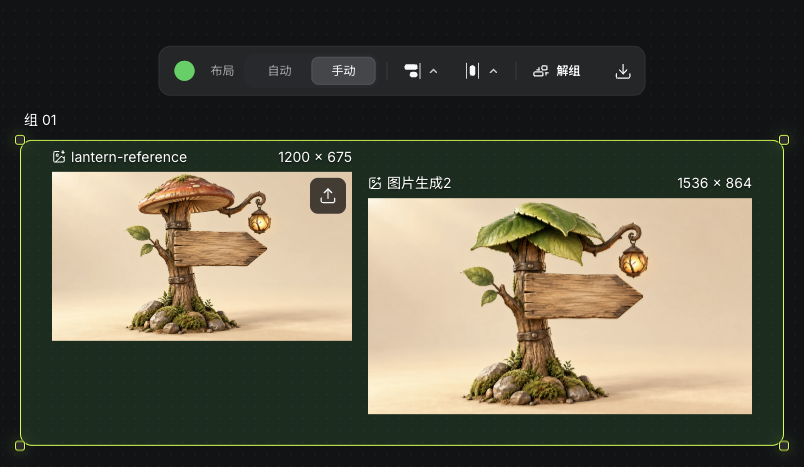
Reference and leaf-canopy result connected in a reusable group with Run group available
Actual Seagames screenshot (Chinese interface).
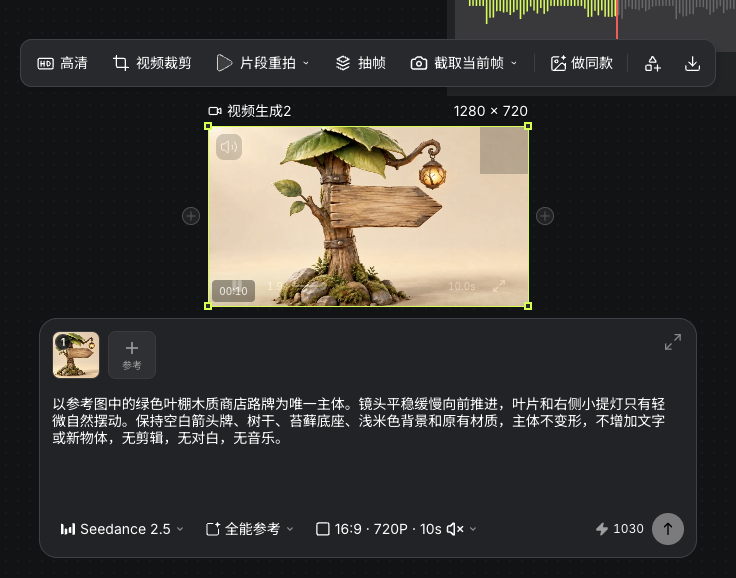
Actual generated video node and playback controls for the leaf-canopy sign
Actual Seagames screenshot (Chinese interface).

How to build the workflow

From a reference image to video

1. Upload a style reference

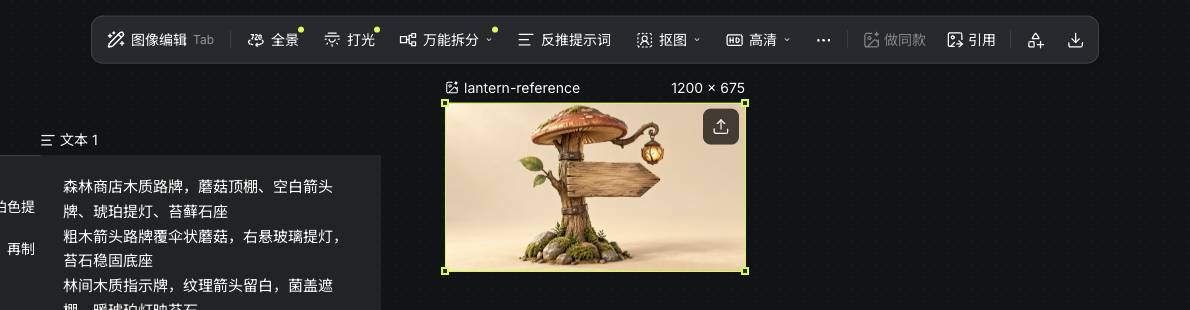
Upload a reference you may use. Create an image node and add it through the reference list or a connection, then verify the input.

Original mushroom-roof sign reference uploaded to the actual canvas
Actual Seagames screenshot (Chinese interface).

2. Add a character or prop brief

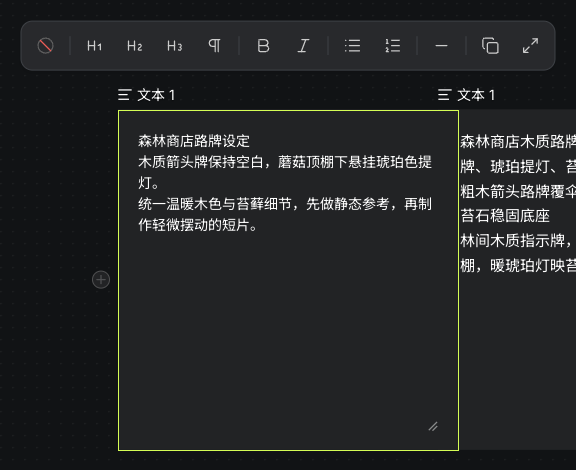
Create Text and choose Write your own content. For AI writing, generate and review the body first. This example copies the short sign brief into the image prompt. Text references read the body, not the AI instructions.

Actual text node containing the Forest Shop sign brief
Actual Seagames screenshot (Chinese interface).

3. Generate the image

Describe what to make and how to use the reference. Choose a model, ratio and supported settings, then review the quote.

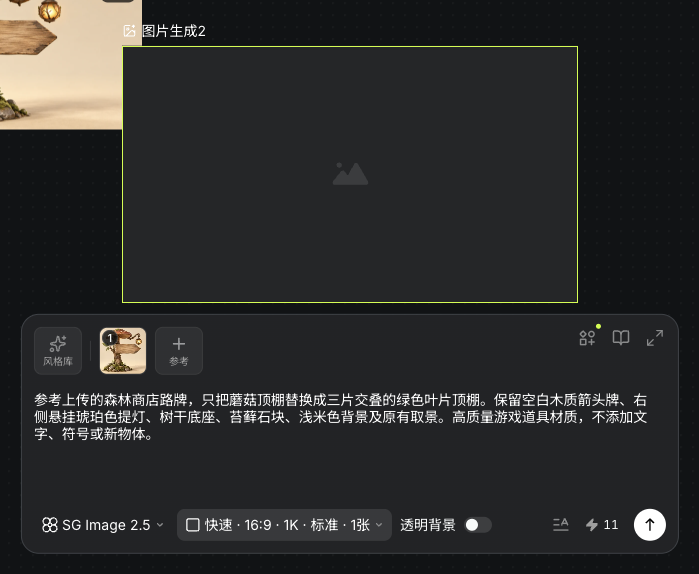
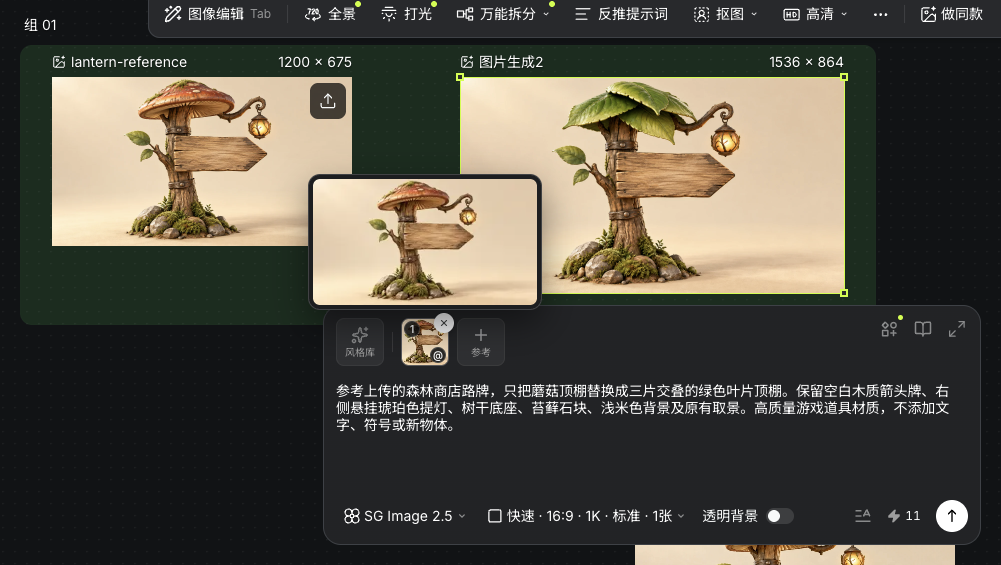
Example: Use the uploaded Forest Shop sign and replace only the mushroom roof with three overlapping green leaves. Keep the blank wooden arrow, right-hand lantern, trunk, mossy base and pale beige background. Add no lettering or new objects.

A short brief can go directly in the image node. Keep the previous output and description; change one dimension per round.

Actual image task using the mushroom sign and leaf-canopy edit instructions
Actual Seagames screenshot (Chinese interface).
Actual source reference, leaf-canopy result, reference thumbnail, prompt and settings
Actual Seagames screenshot (Chinese interface).

4. Generate the video

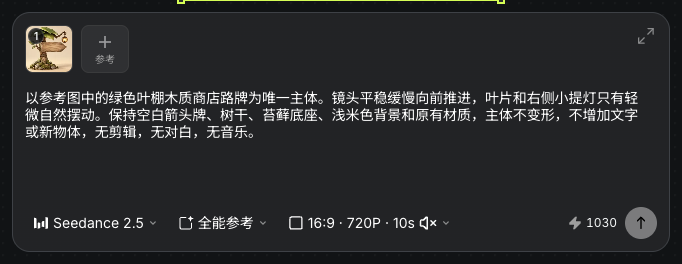
Create a video node separately and add the chosen image. An image’s Reference action creates another image node. Describe subject and camera movement, then review settings and quote.

Actual video task with the leaf-canopy reference, motion description and ten-second settings
Actual Seagames screenshot (Chinese interface).
Actual generated video node and playback controls for the leaf-canopy sign
Actual Seagames screenshot (Chinese interface).

Operate on a workflow

Organize connected nodes

Make individual tasks work first, then group them for clear organization and movement.

Group nodes

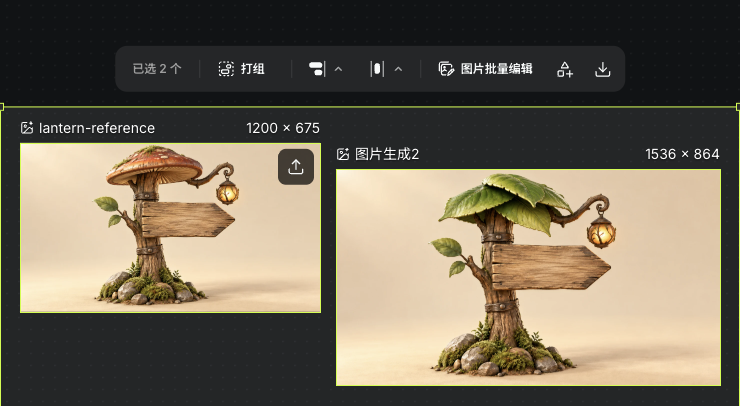
  • Hold Shift to select the intended nodes, then use Group in the selection toolbar.

  • Use Run group when a group contains a workflow; tasks run in dependency order.

  • Resolve cycles, incomplete inputs or unavailable quotes before running.

Actual Group, Align and Arrange toolbar after Shift-selecting two image nodes
Actual Seagames screenshot (Chinese interface).
Actual group frame, layout controls and Ungroup action
Actual Seagames screenshot (Chinese interface).

Keep a reusable workflow

  • Retain the brief, references, settings and approved outputs for the next session.

  • After replacing inputs, inspect downstream reference lists and current model support.

Reference and leaf-canopy result connected in a reusable group with Run group available
Actual Seagames screenshot (Chinese interface).

Asset management

Keep assets worth reusing

Separate approved assets from experiments and retain their origins. Generation records help reuse settings; uploads do not necessarily carry those records.

Find and reuse assets

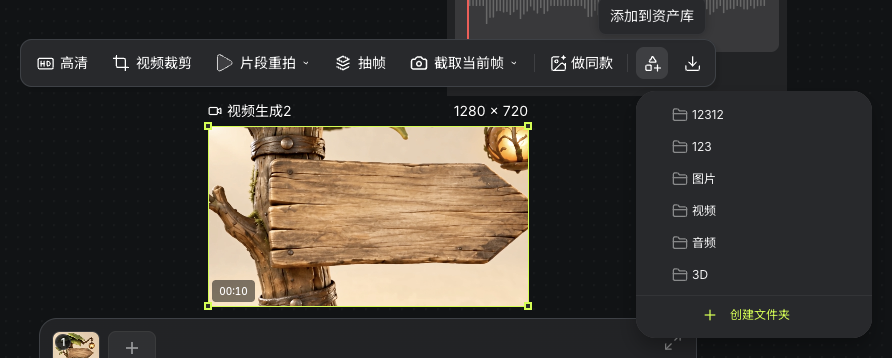
  • Choose Add to assets on an available media node and select a folder.

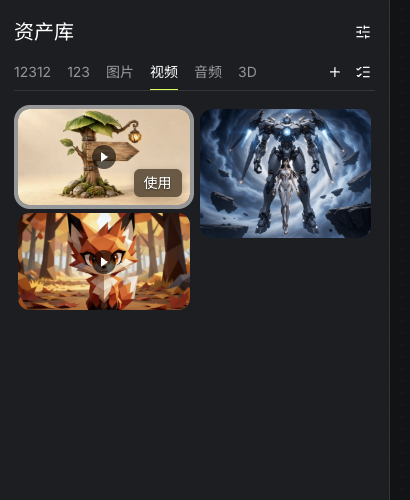
  • Open Assets from the top bar, choose a category, hover an asset and click Use to add it to the canvas.

  • Verify source content before reusing a preview as a reference.

Actual Add to assets action and save-location picker for the completed video
Actual Seagames screenshot (Chinese interface).
Saved leaf-canopy video in the actual asset library with Use visible on hover
Actual Seagames screenshot (Chinese interface).

References in prompts

Make the intended reference explicit

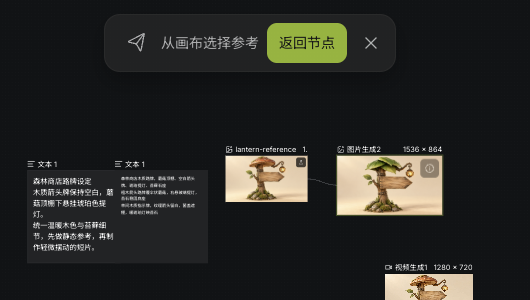
Use existing references and @ mentions supported by the composer. Follow its current suggestions; other platforms’ AutoLink confirmation shortcuts do not apply.

Actual canvas reference-picking mode and the leaf-canopy image to select
Actual Seagames screenshot (Chinese interface).

How to use references

  • Click Add reference on the destination and select an asset on the canvas, or use a reference connection. Do not add the same asset twice.

  • Specify the shape, palette or motion to preserve and choose the intended reference.

Before submission, verify reference identity, readiness and support by the selected model.

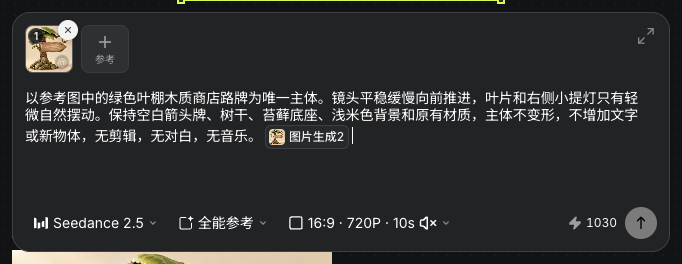
  • Hover a reference thumbnail and click @ to insert its tag in the prompt. The screenshot demonstrates an edit for the next iteration; no new generation was submitted.

  • When replacing an asset, remove the unwanted reference and check the new target against the description.

An image-reference tag inserted in the actual composer using the thumbnail’s @ action
Actual Seagames screenshot (Chinese interface).
Actual video task with the leaf-canopy reference, motion description and ten-second settings
Actual Seagames screenshot (Chinese interface).

Try it yourself

Open your projects, create a canvas, and apply this tutorial to your own work.

Open Projects to create