
Back to illustrated tutorials

Video generator

Features: reusable character references, Omni reference, first/last frames and camera descriptions

For consistency, keep references and character traits stable. For camera motion, separate subject movement from the camera’s change.

Explore character reuse and camera direction through reference lists and written descriptions, rather than an identity library or camera-preset favorites system.

Character references for video

Reuse a consistent visual reference

Reuse a clear approved character image in later video nodes. A reference guides output without guaranteeing identical identity, clothing or every detail.

Prepare character references

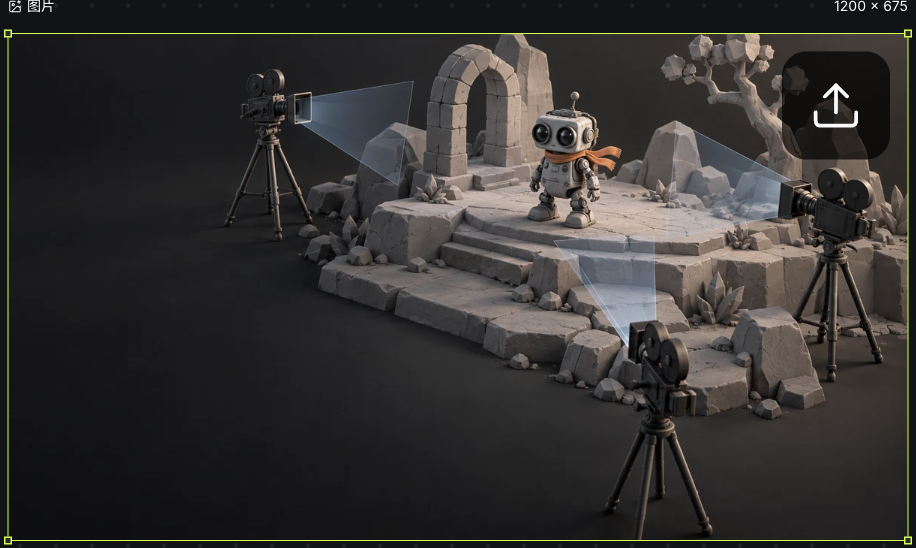
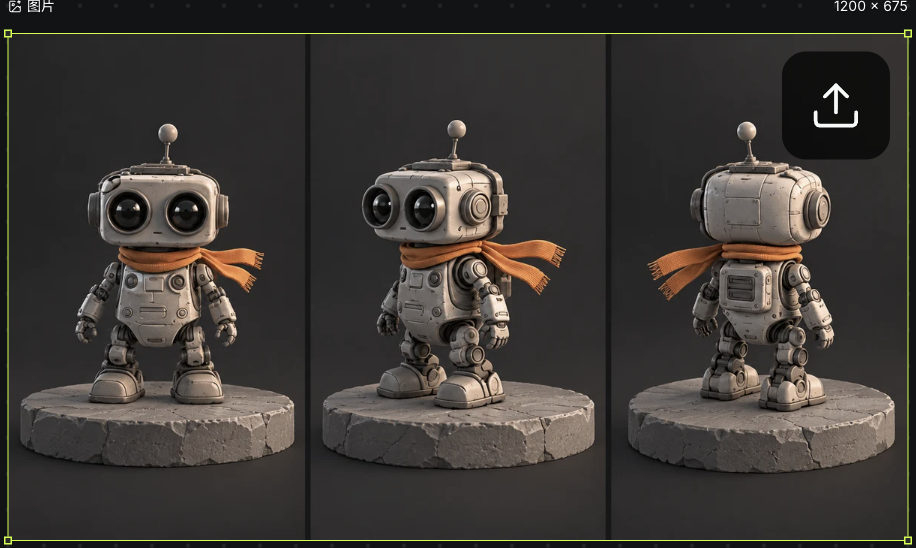
  1. Add a complete character and inspect the face, outfit and accessories. This example saves original robot-stage art and a triptych separately. The triptych is for appearance review and is not an input to this video.

    Actual original robot-stage reference saved on the video canvas
    Actual Seagames screenshot (Chinese interface).
    Actual original robot triptych on the canvas for inspecting appearance
    Actual Seagames screenshot (Chinese interface).
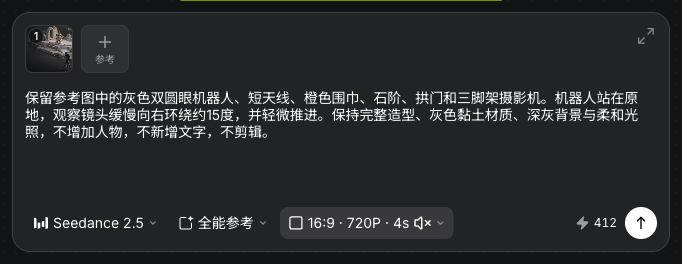
  2. Create Video from Add node and select the robot-stage image. Close the canvas selection toolbar after choosing it. This run uses Seedance 2.5 in Omni reference mode.

    Actual robot reference, subject and camera prompt, and four-second video settings
    Actual Seagames screenshot (Chinese interface).
  • Repeat the character’s main colors, outfit and held objects. Audio assets do not create a personal voice identity here.

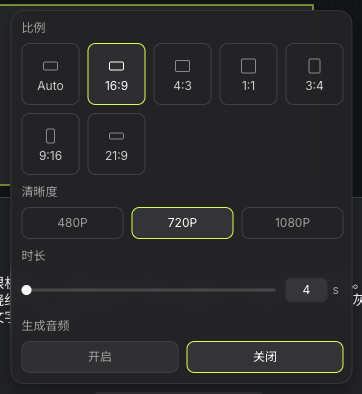
  • After a model change, recheck reference types, counts, duration, ratio and resolution. This run uses 16:9, 720P and four seconds with generated audio off.

    Actual 16:9, 720P, four-second settings with generated audio off
    Actual Seagames screenshot (Chinese interface).
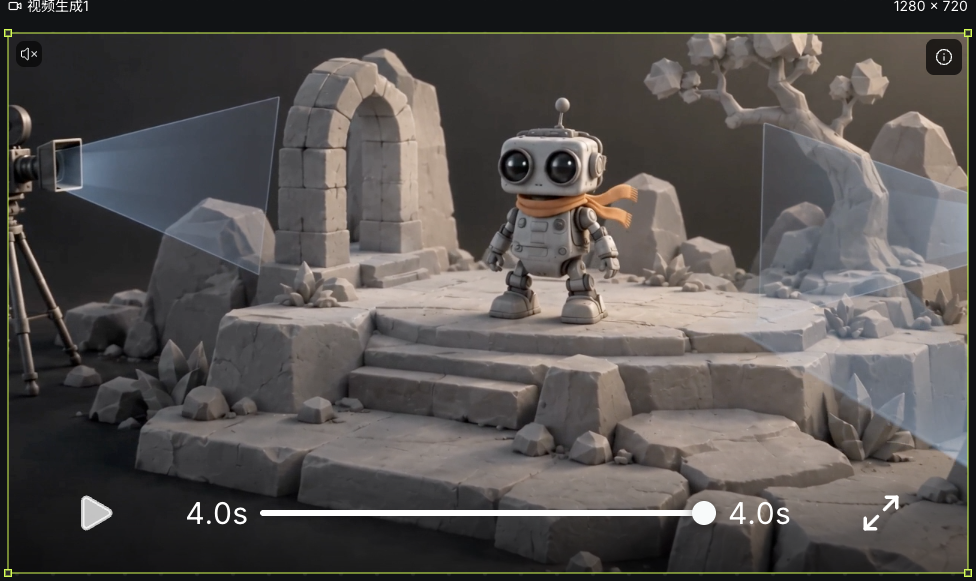
  1. Define subject and camera movement, then review the current quote, 412 credits in this run. The robot stays still while the observing camera slowly orbits about 15 degrees to the right with a slight push-in. Review the full completed clip for consistency.

    Actual completed robot orbit video node and player
    Actual Seagames screenshot (Chinese interface).

Camera motion

Separate subject movement from camera movement

When requesting a push-in, pull-back, lateral move or orbit, also define the subject action. Test a fixed camera before adding movement.

How to direct motion

Common camera descriptions

  • Fixed: small subject action, camera remains in place.

  • Push-in: approach the subject slowly while preserving direction.

  • Lateral: move slowly in one direction without complex rotation.

    Actual robot reference, subject and camera prompt, and four-second video settings
    Actual Seagames screenshot (Chinese interface).
    Actual completed robot orbit video node and player
    Actual Seagames screenshot (Chinese interface).

Write your own camera direction

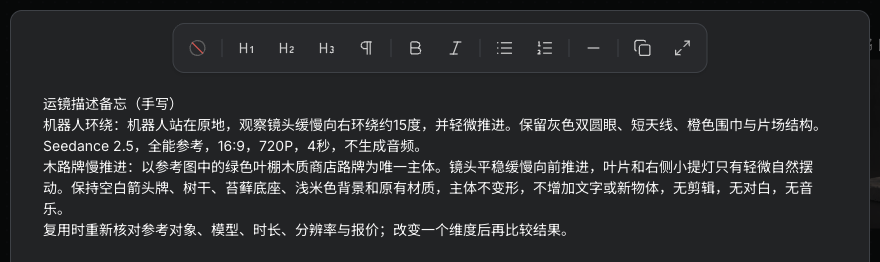
  • Keep useful directions in Text. Choose Write your own content and expand the editor to record the robot orbit and leaf-canopy-sign push-in separately. These are handwritten notes.

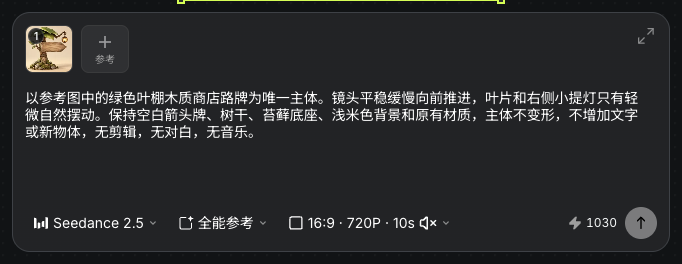
  • Direction: A green leaf-canopy wooden shop sign is the only subject. The camera pushes in slowly and steadily, with slight natural movement in the leaves and right-hand lantern. Preserve the blank arrow board, trunk, mossy base, pale cream background and materials. No deformation, added objects or lettering, cuts, dialogue or music. The screenshot shows the earlier completed task input; it was not generated again for this article.

    Actual handwritten robot-orbit and leaf-canopy-sign push-in notes
    Actual Seagames screenshot (Chinese interface).
    Reference, prompt and settings from the earlier actual leaf-canopy sign push-in task
    Actual Seagames screenshot (Chinese interface).

Camera direction tips

  • Keep framing and movement compatible; a tight close-up conflicts with a broad aerial view.

  • Reduce motion when deformation appears and change one subject or camera dimension at a time.

  • First & last frames is model-specific and accepts at most two images. Matching endpoints do not guarantee a seamless loop.

  • Inspect faces, hands, background drift and object changes before trimming or regenerating.

Try it yourself

Open your projects, create a canvas, and apply this tutorial to your own work.

Open Projects to create