
Back to illustrated tutorials

Video node tools

Features: video enhancement, retakes, continuation, frame extraction, capture and trimming

Enhance an existing clip, revise selected ranges or create a continuation. Keep the source before choosing a follow-up tool.

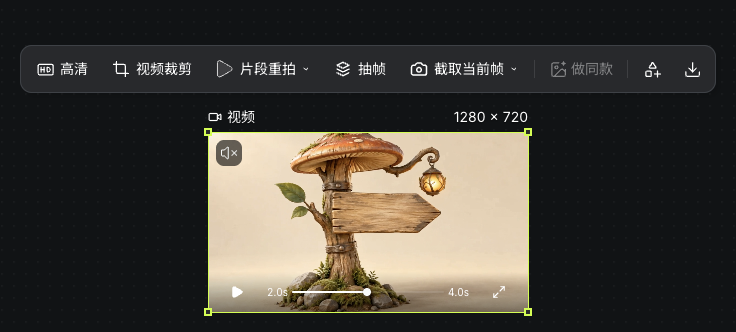
Select a ready video for its toolbar. This guide also identifies related features that are not currently available in Seagames.


Video enhancement

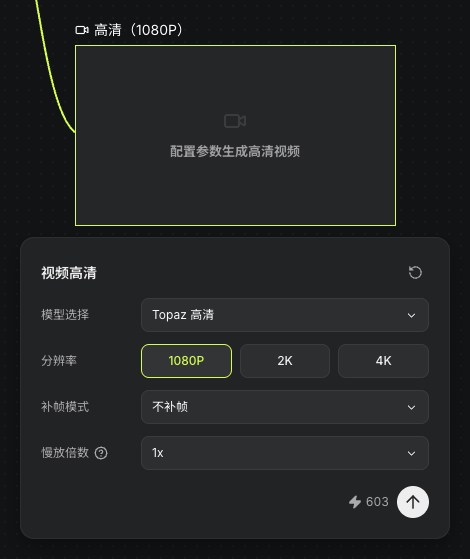
Choose Enhance, then an available model and resolution. Interpolation, target frame rate and slow motion depend on the selected option.

Review source details and quote before submitting. Inspect detail, edges and motion afterward; enhancement does not guarantee corrected geometry.

Actual Topaz enhancement panel: 1080P, no interpolation, 1x and quote
Actual Seagames screenshot (Chinese interface).
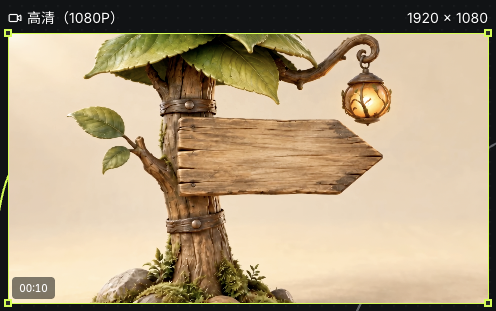
Actual completed ten-second 1920×1080 enhancement result
Actual Seagames screenshot (Chinese interface).

Retake a segment

Describe changes for a selected time range

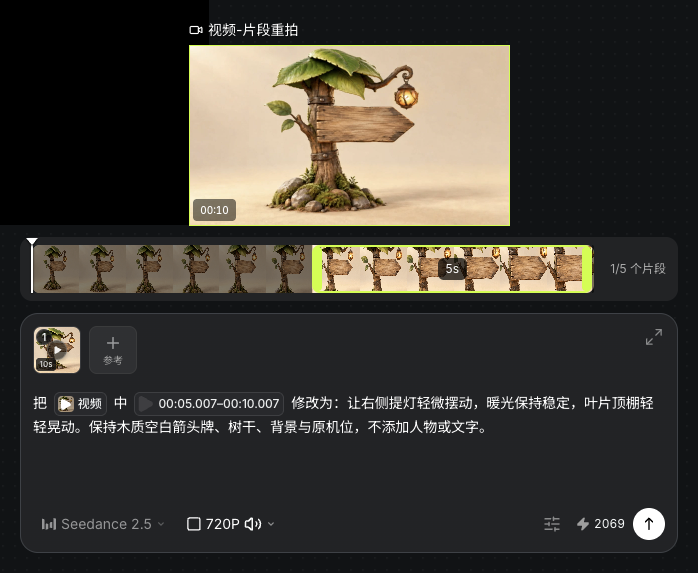
Open Retake and describe each selected range separately. Current sources are 4–30 seconds, with up to five ranges of at least four seconds each.

Review ranges, instructions and quote. This example selects 5.007–10.007 seconds and requests subtle lamp and leaf motion. Inspect the revised range and the remaining picture and sound.

Actual retake range, video reference, instructions and quote
Actual Seagames screenshot (Chinese interface).
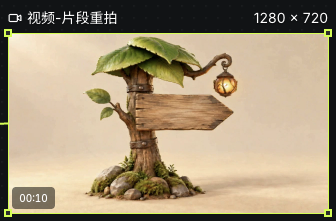
Actual completed ten-second retake result saved on the canvas
Actual Seagames screenshot (Chinese interface).

Video continuation

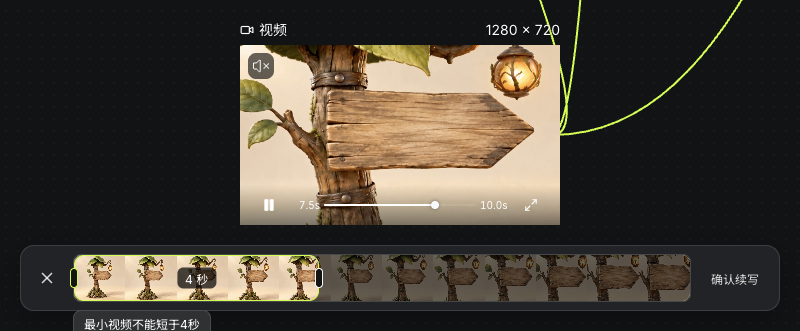
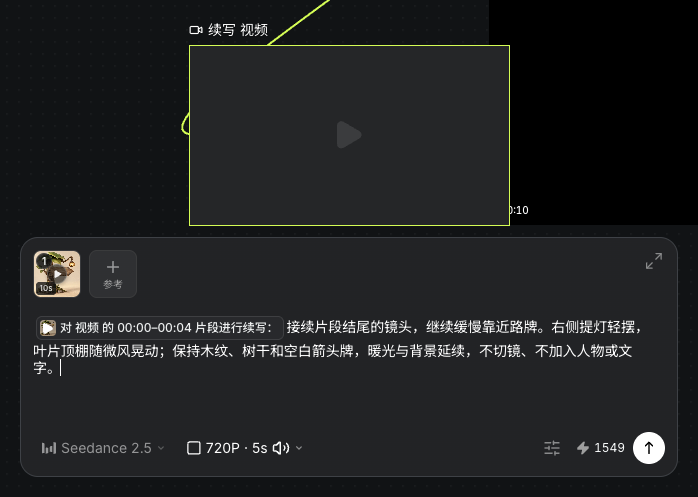
Choose Continuation from the Retake menu and select at least four seconds. This example uses 0–4 seconds, then requests a continued push-in with subtle lamp and leaf motion in a new node, at 720P for five seconds.

Continuation requests new footage after the selected range. It does not automatically join the source and result; review character, scene and motion continuity.

Actual selection of the zero-to-four-second continuation reference
Actual Seagames screenshot (Chinese interface).
Actual continuation reference tag, next-action instructions and five-second settings
Actual Seagames screenshot (Chinese interface).
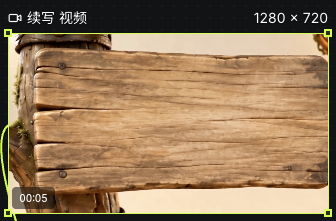
Actual generated five-second continuation as a separate clip
Actual Seagames screenshot (Chinese interface).

Extract and review frames

Inspect movement frame by frame

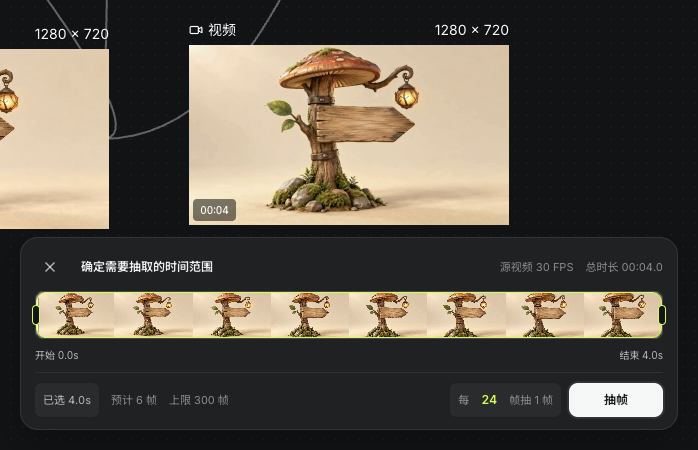
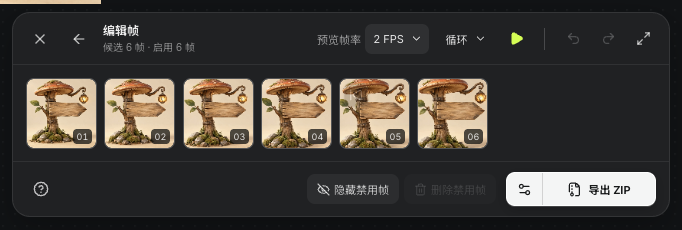
Extract frames provides range and sampling controls. This example uses a separately uploaded four-second mushroom-sign clip at 30FPS. Sampling every 24 frames produces six candidates for review and export.

Actual extraction range and 24-frame sampling interval for the four-second mushroom-sign source
Actual Seagames screenshot (Chinese interface).
Six actual extracted candidate frames in the frame editor
Actual Seagames screenshot (Chinese interface).

Trim a clip

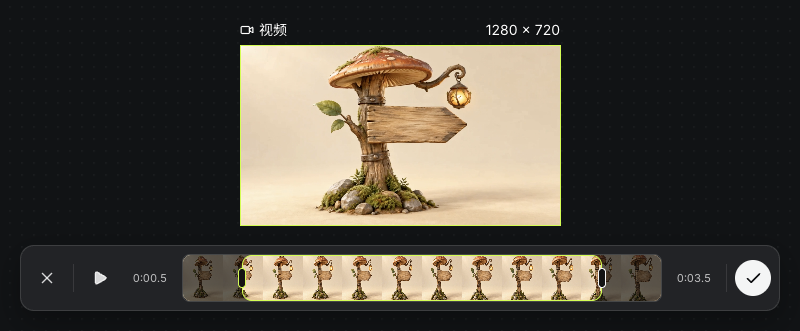
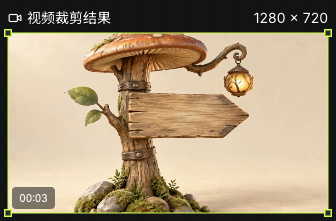
Open Trim video, set start and end, and preview. This example retains a separate source and saves 0.5–3.5 seconds of the four-second clip as a new result, approximately 3.1 seconds long. The pending node may still show the source preview; check the actual duration and picture after processing ends.

Actual trim range set to 0.5–3.5 seconds of the four-second source
Actual Seagames screenshot (Chinese interface).

Trim and review

  • Choose a stable start before the action.

  • Keep a short hold after the action without cutting it off.

  • Preview the range before confirming the output.

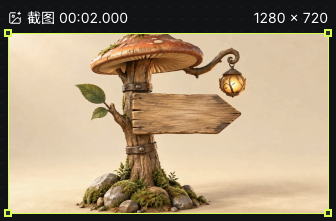
  • Use current-frame capture for stills or frame extraction for animation assets.

    Actual completed trimmed result of approximately 3.1 seconds
    Actual Seagames screenshot (Chinese interface).
    Independent image node captured from the actual uploaded four-second source
    Actual Seagames screenshot (Chinese interface).

Motion references

Use motion references to clarify movement

The video toolbar does not provide the reference site’s depth-motion capture. Use a model that accepts video references, or prepare movement with Motion and Pose editing.

How to use it

Choose a reference

  • Check the model’s accepted reference types, then choose readable character and movement assets.

    Actual four-second mushroom-sign video and native video toolbar
    Actual Seagames screenshot (Chinese interface).
    Independent image node captured from the actual uploaded four-second source
    Actual Seagames screenshot (Chinese interface).

Prepare movement or camera references

  • Use existing footage or the available Motion and Pose editor. A preview is not a completed character film.

    Actual selection of the zero-to-four-second continuation reference
    Actual Seagames screenshot (Chinese interface).
    Actual continuation reference tag, next-action instructions and five-second settings
    Actual Seagames screenshot (Chinese interface).

Use it downstream

  • Add the reference, describe the motion and camera to preserve, review settings and quote, then inspect the full output.

    Actual retake range, video reference, instructions and quote
    Actual Seagames screenshot (Chinese interface).
    Actual completed ten-second retake result saved on the canvas
    Actual Seagames screenshot (Chinese interface).

Silent video and sound assets

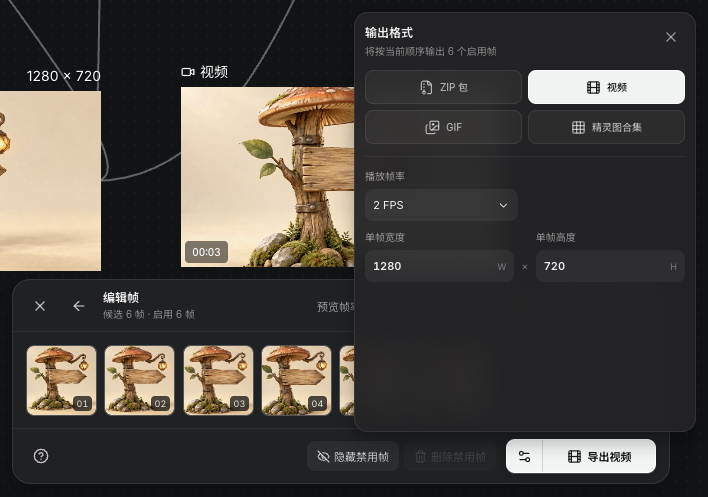
MP4 from frame extraction has no original audio track. Set preview and export frame rates separately. This example exports six frames at 2FPS as a three-second video. Keep dialogue, music and effects separately when sound is needed.

Actual sequence-video export format, 2FPS and 1280×720 settings
Actual Seagames screenshot (Chinese interface).
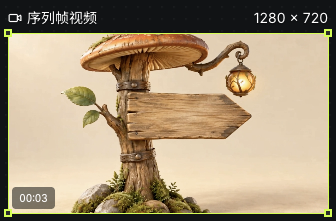
Actual silent three-second video exported from six frames at 2FPS
Actual Seagames screenshot (Chinese interface).

Plan voice and background sound

There is no voice or background-stem extraction tool here. Retain separate dialogue, music and effect sources for an appropriate editing workflow.

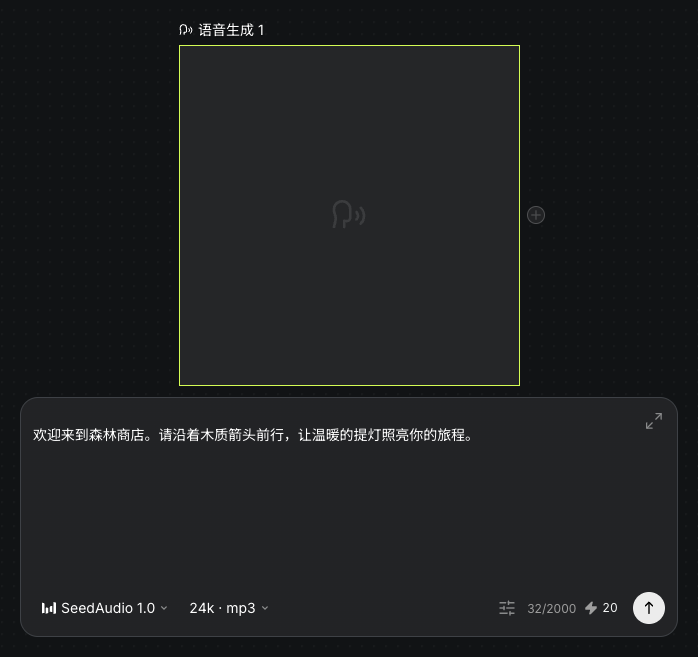
Text, voice and generation settings in the actual separate speech node
Actual Seagames screenshot (Chinese interface).
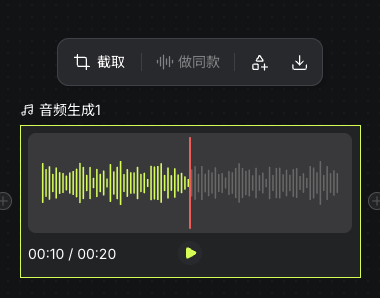
Actual uploaded twenty-second music asset and audio toolbar
Actual Seagames screenshot (Chinese interface).

Organize assets for editing

Seagames creates and processes individual assets; the canvas is not a complete automatic multitrack editor. Approve clips before assembling a film in a suitable workflow.

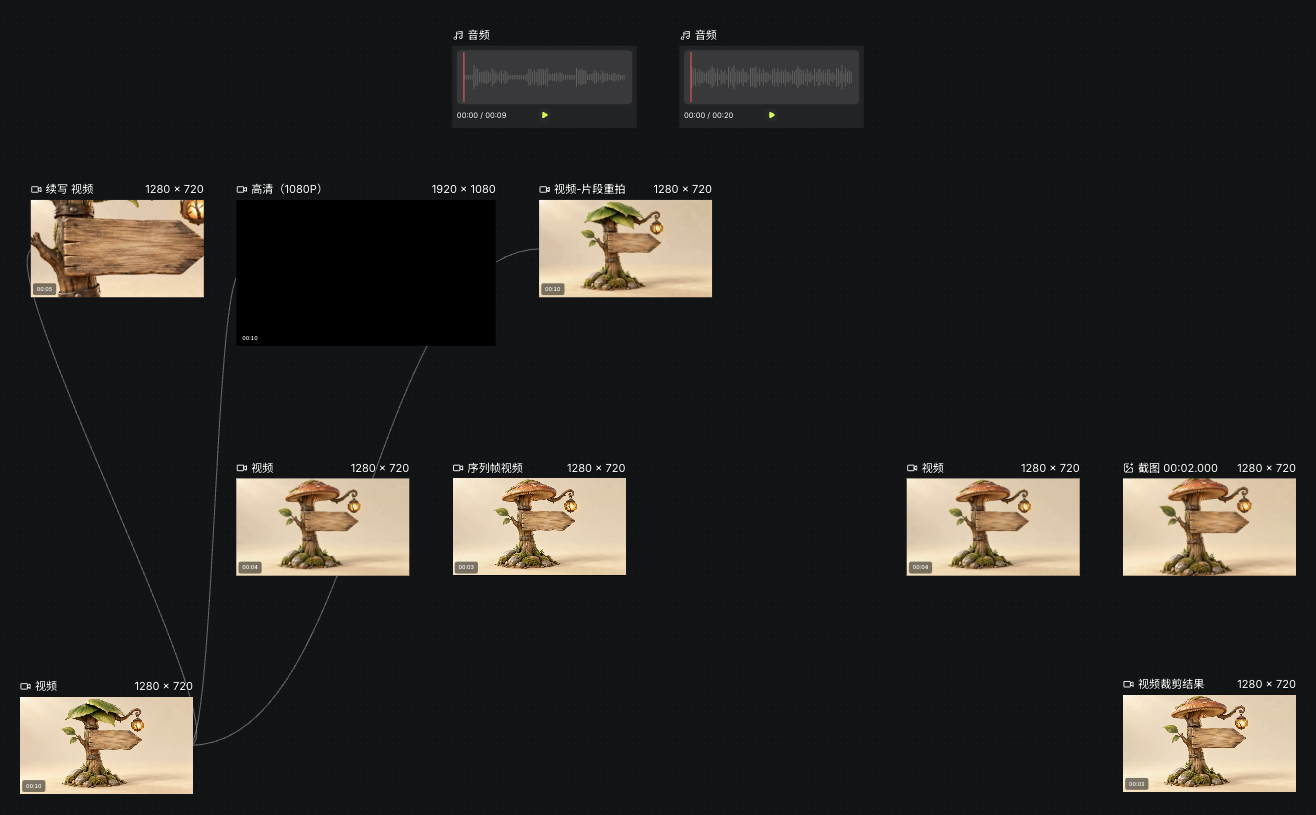
Source clips, processed results, separate speech and music in the actual video-tools canvas
Actual Seagames screenshot (Chinese interface).

What to hand off

  • Name approved clips in shot order.

  • Check boundaries, movement and aspect ratio.

  • List dialogue, music and effects separately.

  • Record outstanding issues; task success is not content approval.

Try it yourself

Open your projects, create a canvas, and apply this tutorial to your own work.

Open Projects to create