
Back to illustrated tutorials

3D models and multiple views: start with clear references

3D inputs need to communicate shape clearly. Practice with a simple prop before complex characters. A 2D viewpoint image and a 3D model are different outputs.

Choose an object with a clear silhouette

Open a project and describe one complete wooden chest, including its lid, lock and four short feet. For single-image practice, prepare a clean reference with clear connections rather than multiple objects and complex lettering.

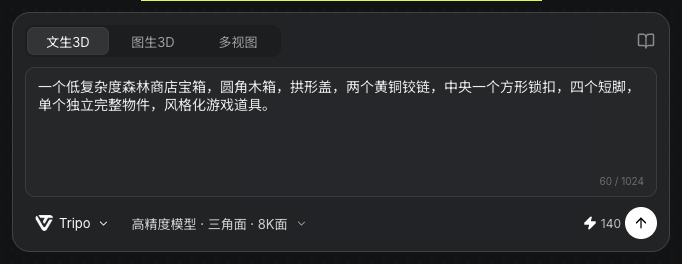
Actual forest-shop chest prompt, Tripo text-to-3D summary and 140-credit quote
Actual Seagames screenshot (Chinese interface).

Create a 3D node and choose its mode

Choose 3D model from Add node at the bottom of the canvas. This example uses Tripo text-to-3D. Text, single-image and multiview support varies by model; prepare inputs for the selected mode.

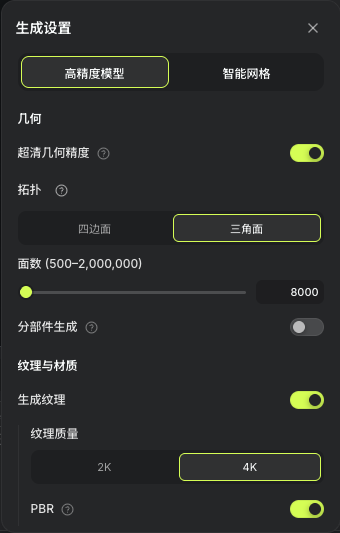
This run requests high fidelity, detailed geometry, triangular topology, 8000 faces, 4K textures and PBR, with a current quote of 140 credits. Requested and resulting face counts may differ; inspect the completed model statistics.

A simple forest shop treasure chest, rounded wooden box, arched lid, two brass hinges, one square lock in the center, four short feet, one complete standalone object, stylized game prop.

Actual high-fidelity, detailed geometry, triangles, requested 8000 faces, 4K texture and PBR settings
Actual Seagames screenshot (Chinese interface).

Use separate images for multiview

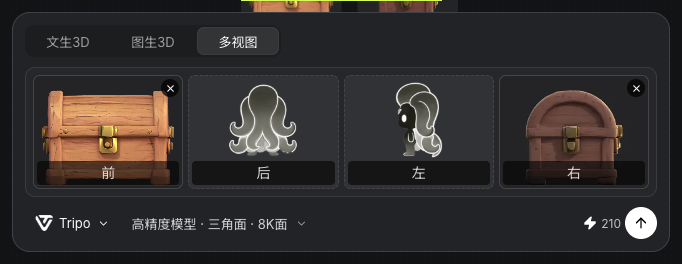
Add independent images in multiview mode, with the front first. Keep the object, scale and materials as consistent as possible. This example captures separate front and right views from the completed chest in the native 3D preview, saves them on the canvas and fills the Front and Right slots of a new draft. A composite picture is not multiple independent references.

If preparing references with Multi-angle, inspect every image: its 2D outputs do not guarantee a physically consistent 3D object. The multiview example here is a saved input draft, not a second submitted generation. The completed model comes from the text task above.

Actual separate front and right references in a multiview draft, not submitted
Actual Seagames screenshot (Chinese interface).

Rotate the preview to inspect hidden sides

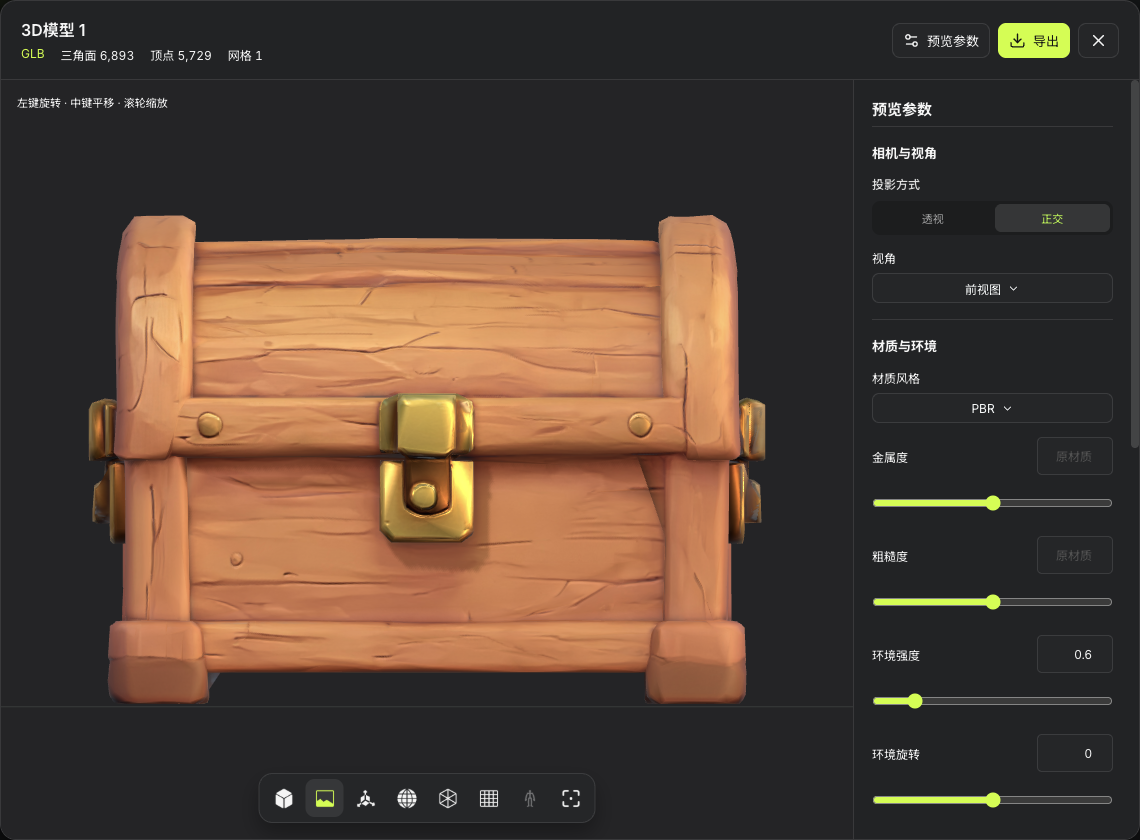
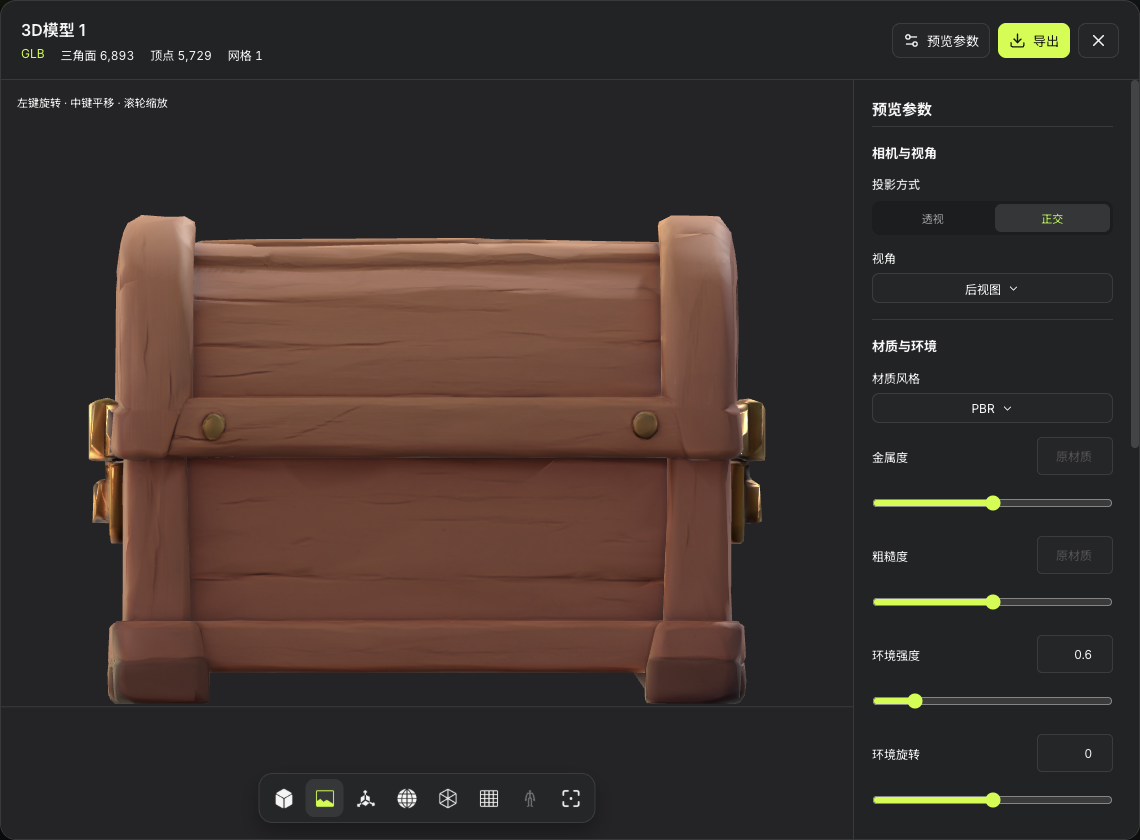
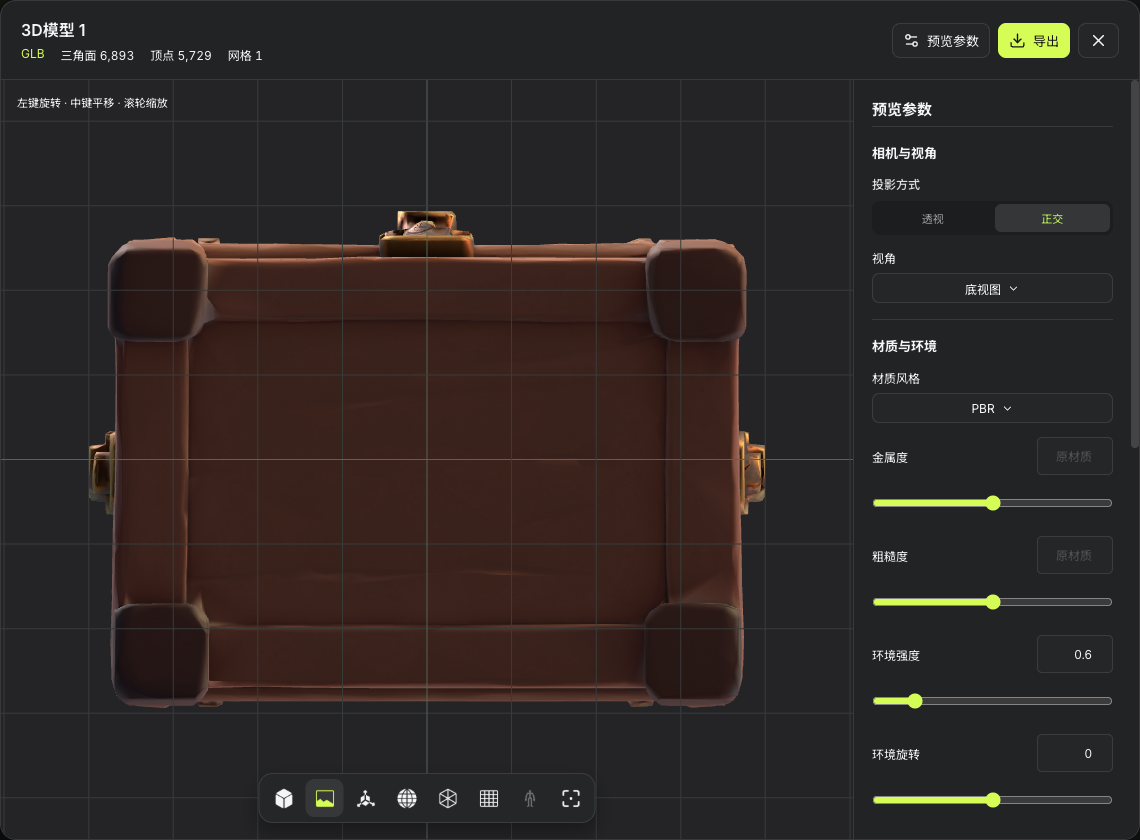
Open the completed model in the full viewer. Use orthographic front, rear and underside views, and rotate to inspect its sides. This GLB has 6893 triangles, 5729 vertices and one mesh. Check thin surfaces, holes, the lock, connections and four feet. A convincing front view does not replace rear and underside inspection.

Actual front view of the GLB chest with 6893 triangles and 5729 vertices
Actual Seagames screenshot (Chinese interface).
Actual rear view of the GLB chest for inspecting the body and connections
Actual Seagames screenshot (Chinese interface).
Actual underside view of the GLB chest for inspecting its four feet and base
Actual Seagames screenshot (Chinese interface).

Choose follow-up work for the destination

Use available retopology, rigging or texture tools according to the intended use. Decide whether the result is a static prop or an animated character before running additional tasks.

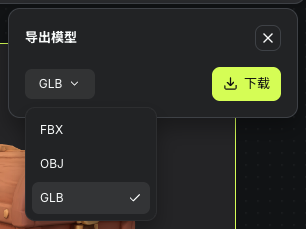
Use the formats shown in the interface. This example downloads GLB from the node toolbar, with three embedded 4K textures. After importing into the target software, still review size, orientation, materials and mesh before assessing game performance and animation requirements.

Actual node-toolbar export menu with GLB selected and FBX and OBJ options
Actual Seagames screenshot (Chinese interface).

Compare the model with the references

Review silhouette, part count, symmetry and material regions. Record defects before adjusting inputs or trying an available model. One prompt change will not necessarily fix every mesh issue.

Practice: try text and single-image input for the same chest. Compare its back structure and lock detail, then decide whether preparing separate multiview images is useful.

Try it yourself

Open your projects, create a canvas, and apply this tutorial to your own work.

Open Projects to create a 3D model