
Back to illustrated tutorials

Canvas and nodes

Features: canvas, text, image, video and audio nodes

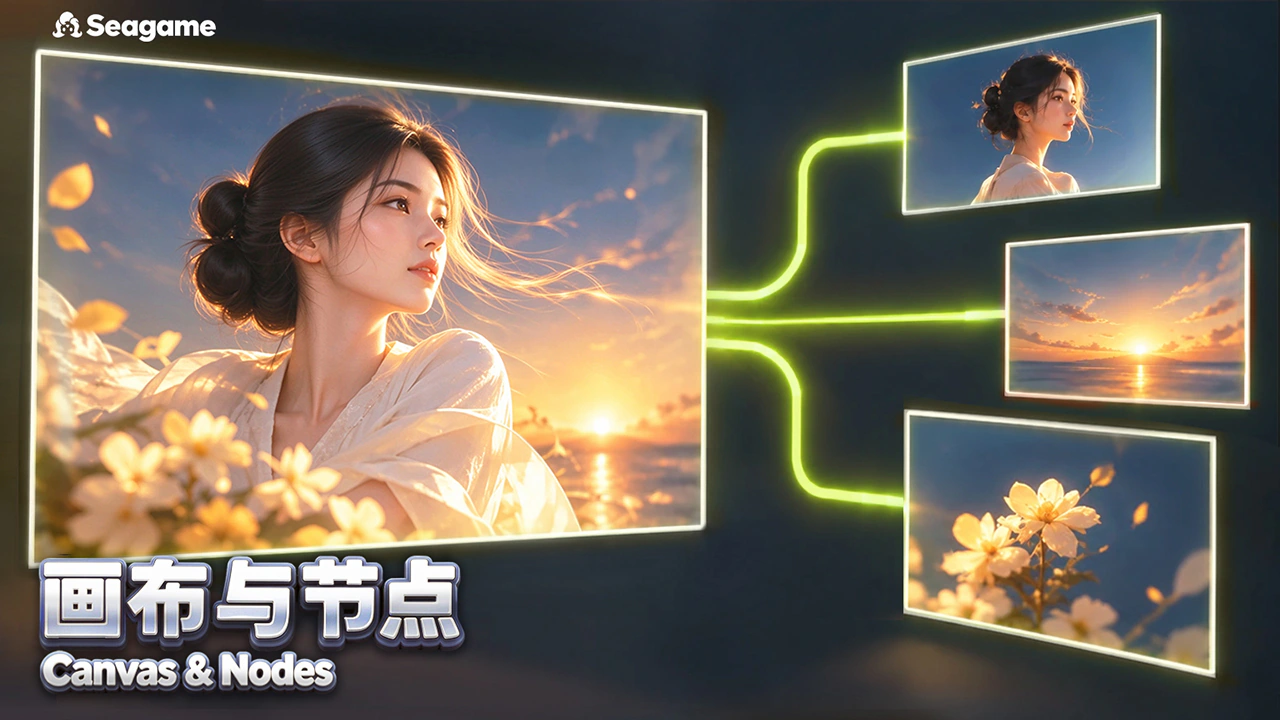
A Seagames project canvas brings your brief, references and results together. Explore its workspace before meeting the four common media node types.

Organize inputs before making outputs. Nodes hold content; reference connections describe how they work together.

Start with a signed-in account and a small brief. Make one prop before expanding the project.


What is the canvas?

Pan, zoom and arrange nodes freely. Keep briefs, references and results distinct so versions are easy to compare.

  • Create nodes: add text, images, video and sound, plus dedicated tasks such as 3D.

  • Edit and reference: change content and placement, then verify downstream references.

Text, image, video and audio nodes in the actual canvas
Actual Seagames screenshot (Chinese interface).

Create a canvas

Go to Projects and create or open a project. Use a recognizable name such as “Forest Lantern Study”.


Manage projects

Use Projects to reopen and organize work. Check the canvas save state before switching.

  • Use the site’s Projects entry to find existing work.

  • Choose a project from the list to continue with its assets.


Four workspace areas

Explore project actions, creation tools, account information and viewport navigation. Follow the current interface for exact placement.

Project controls

Check the project name and save state. Name projects and key nodes instead of relying only on thumbnails.

  • Confirm saving has finished before switching.

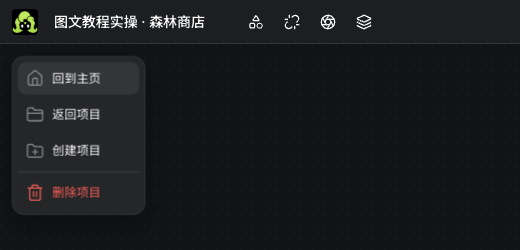
Actual project name and project menu
Actual Seagames screenshot (Chinese interface).

Canvas creation tools

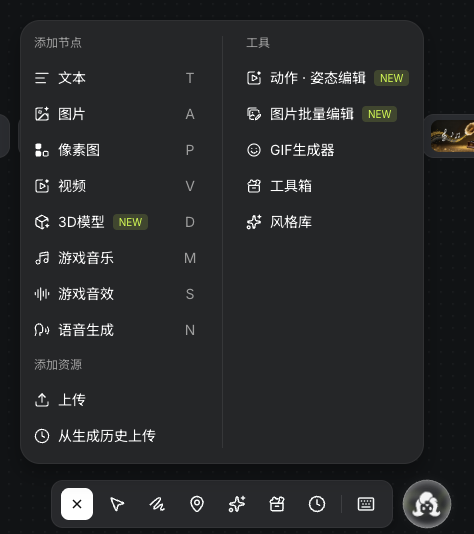
Double-click an empty area for the creation menu, including upload, the toolbox and style library.

Task types and Upload in the actual Add node menu
Actual Seagames screenshot (Chinese interface).
  • Add: create the appropriate task node.

  • Upload: choose local images, video or audio.

  • Toolbox and style library: explore available tools and styles.

  • Generation history: reuse earlier generated assets.

Account controls

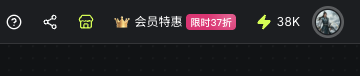
Use account and credit controls to review your account. Current pages and pre-submission quotes determine balance, costs and entitlements.

Actual credit and account controls at the top right
Actual Seagames screenshot (Chinese interface).
  • Review content and references before sharing.

  • Check the balance and each task quote separately.

Minimap and viewport navigation

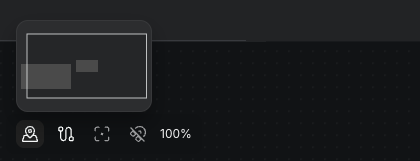
Use viewport, zoom and minimap controls to navigate larger layouts. Zoom changes your view, not the source resolution.

  • Use viewport navigation to inspect the layout and move to the intended area.

  • Use zoom controls to change viewing distance without changing source pixels.

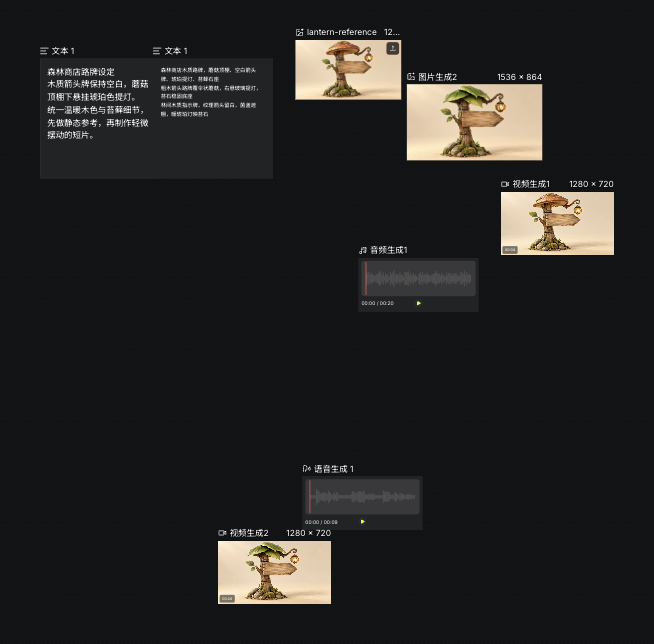
Actual minimap node layout and zoom controls
Actual Seagames screenshot (Chinese interface).

Meet the four basic node types

Text nodes 📝

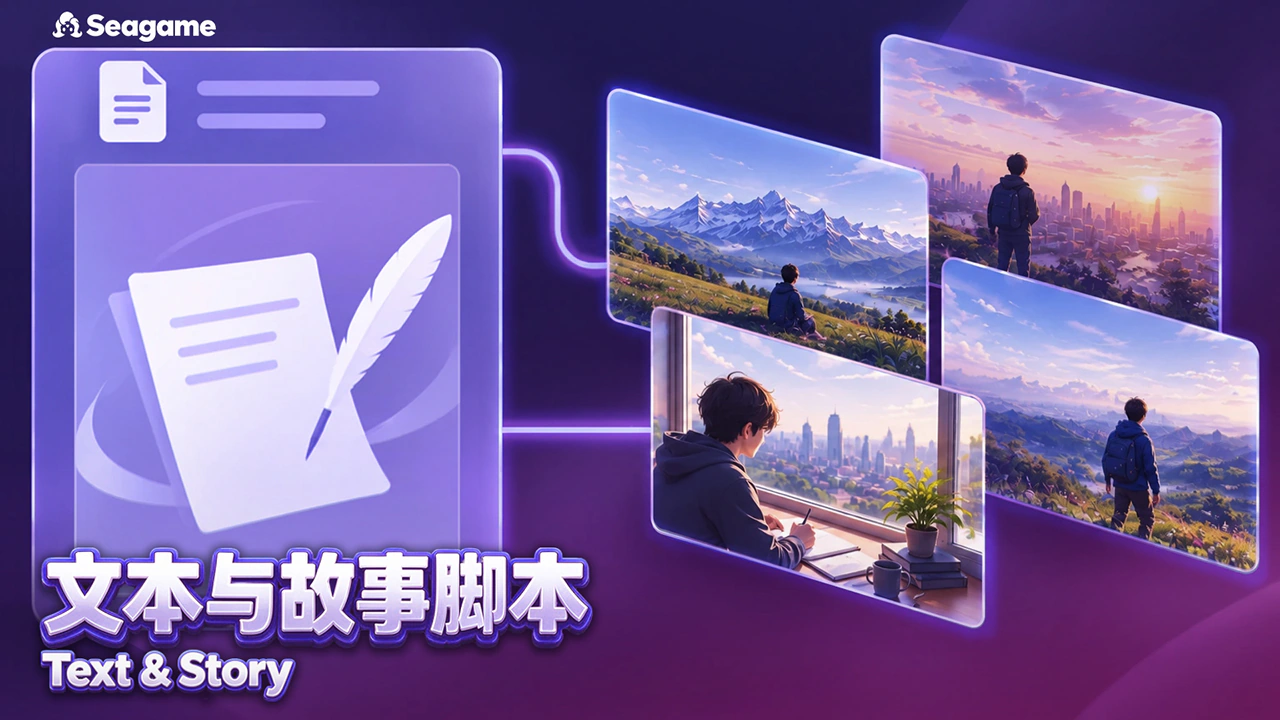
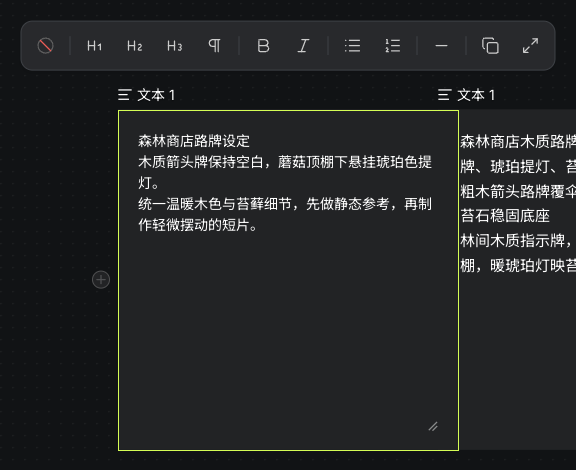
Text nodes hold briefs, prompts, scripts and notes. Put fixed character traits in the body for review and reuse.

Actual manually written sign brief and text editing toolbar
Actual Seagames screenshot (Chinese interface).

Add text content

Write manually or use AI

Both paths produce a body. AI instructions are separate from generated content.

Manual writing

  • Create Text, choose Write your own content, then type or paste the body.

    Actual manually written sign brief and text editing toolbar
    Actual Seagames screenshot (Chinese interface).

AI writing

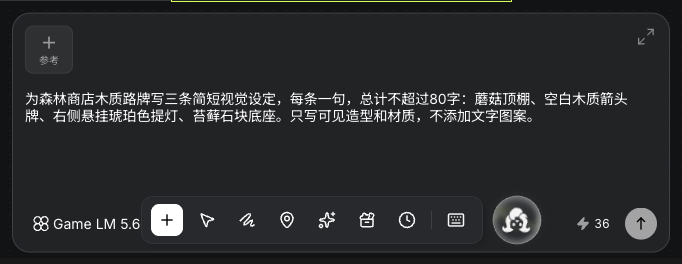
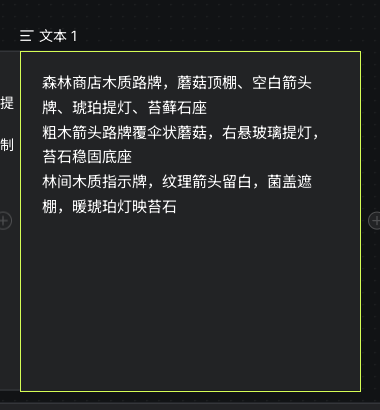
  • Enter script requirements, choose an available model, check the quote and generate. Review the body before referencing it downstream.

    Actual AI text instructions, model and quote composer
    Actual Seagames screenshot (Chinese interface).
    Actual AI-generated text body for the sign brief
    Actual Seagames screenshot (Chinese interface).

Example: Write three visual notes for a Forest Shop sign, defining the mushroom roof, blank arrow board and lantern through visible forms and materials.


Image nodes 🎨

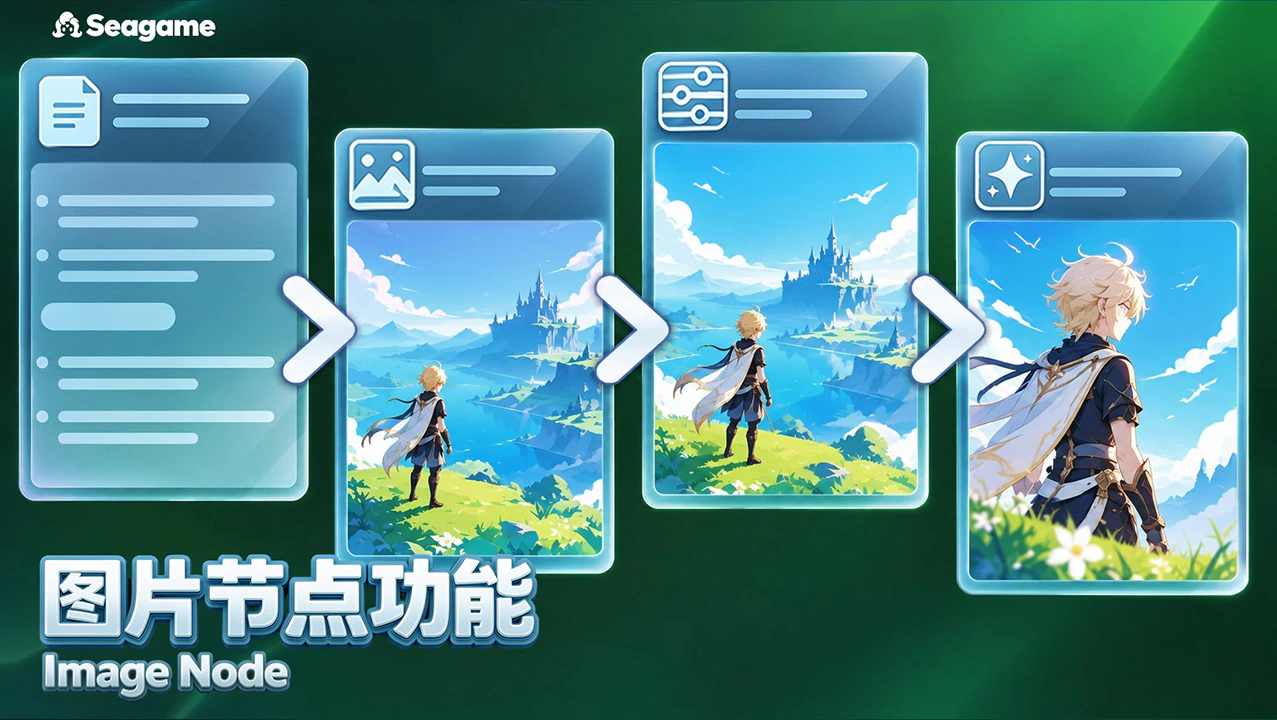
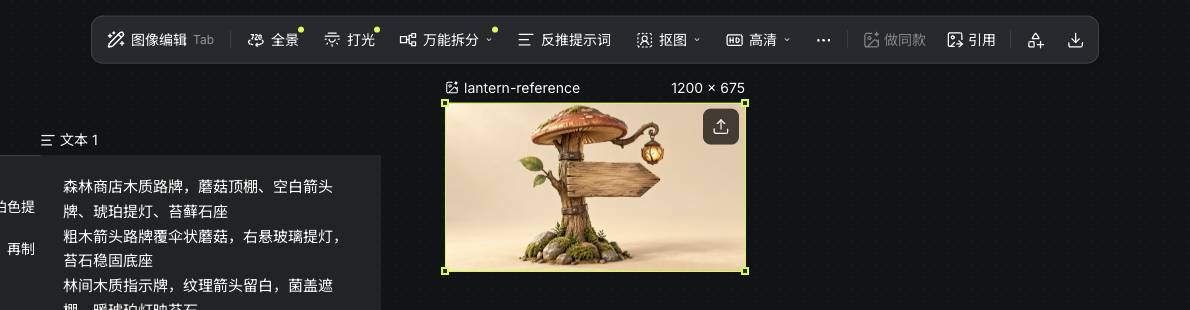
Image nodes hold references, characters, scenes and results. Select one to edit, reference or collect the asset.

Actual image node and toolbar after uploading the original sign
Actual Seagames screenshot (Chinese interface).

Add image content

Upload or generate images

Upload an existing asset, or start a new design with a description and useful references.

  • Upload: choose Upload in the creation menu or drop a supported local file.

    Actual image node and toolbar after uploading the original sign
    Actual Seagames screenshot (Chinese interface).

Image model generation

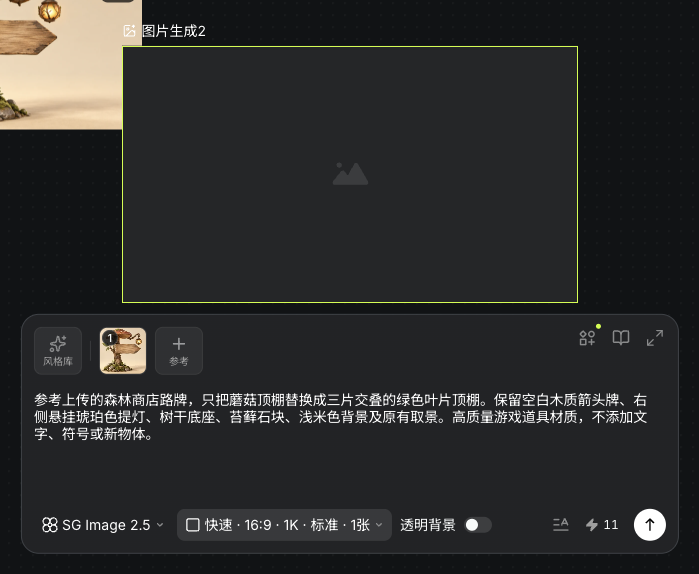
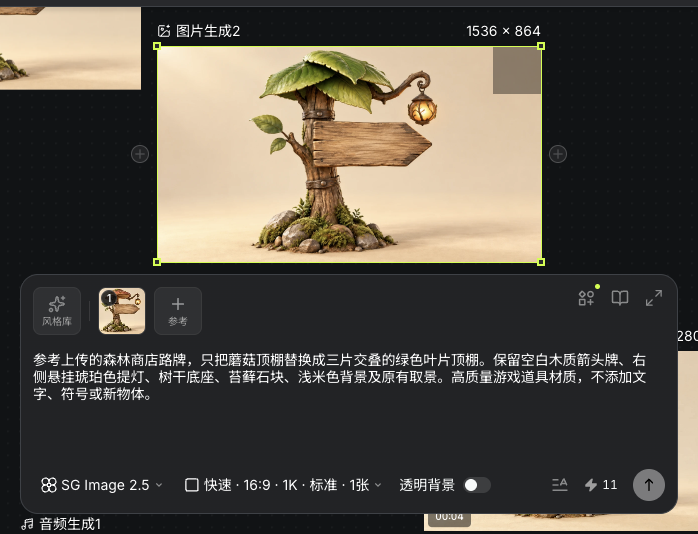
  • Enter a description, add supported references, then choose model, ratio and resolution.

  • Create a character, prop or scene, beginning with one subject.

  • Check the quote and generate, then inspect silhouette, structure and extra objects.

    Actual image task with a sign reference and leaf-canopy instructions
    Actual Seagames screenshot (Chinese interface).
    Actual Seagames leaf-canopy sign result generated from the reference
    Actual Seagames screenshot (Chinese interface).

Video nodes 🎥

Video nodes hold motion references and generated clips. Watch the whole clip to inspect movement, characters and boundaries.

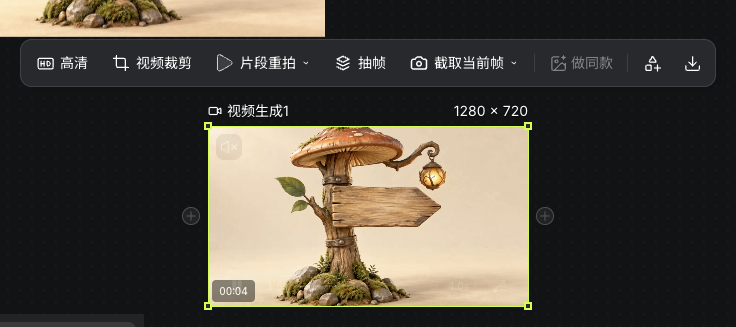
Actual video node and playback/editing controls after upload
Actual Seagames screenshot (Chinese interface).

Add video content

Upload or generate video

Manual upload

  • Choose a supported video and wait for the resource to become ready.

    Actual video node and playback/editing controls after upload
    Actual Seagames screenshot (Chinese interface).

Video model generation

  • Create Video and choose an available model that accepts the intended references.

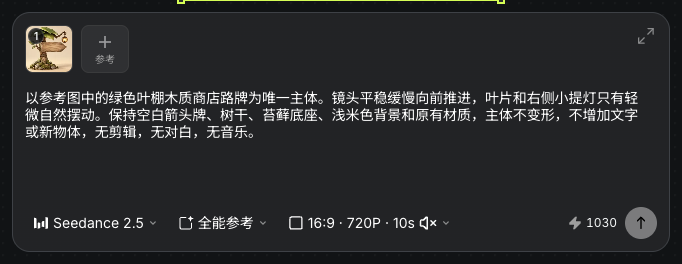
  • Add references and action instructions, review settings and quote, then preview the node’s output.

    Actual video task with an image reference, motion instructions and settings
    Actual Seagames screenshot (Chinese interface).
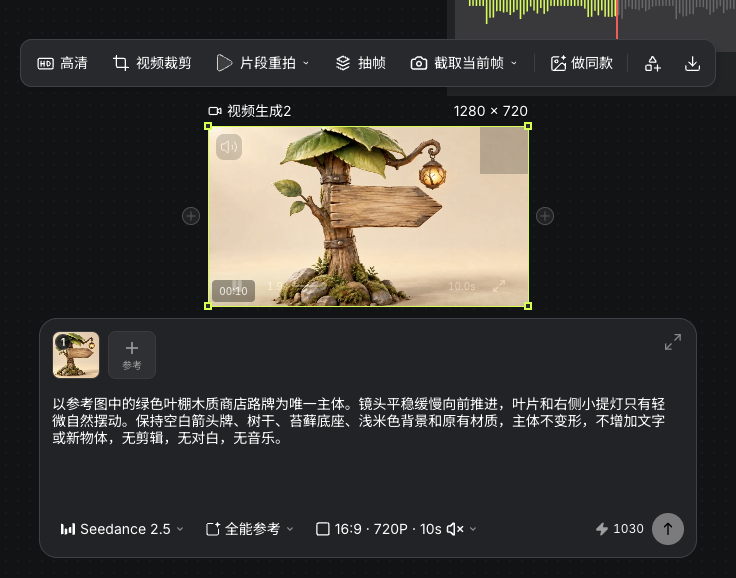
    Actual generated video result using the leaf-canopy sign reference
    Actual Seagames screenshot (Chinese interface).
  • Choose a supported approach:

    • Generate video from text.

    • Combine image references with action instructions.

    • Use First & last frames.

    • Use media types accepted by Omni reference.

    Original generated clip for observing composition and motion, not a feature recording.

Audio nodes 🎵

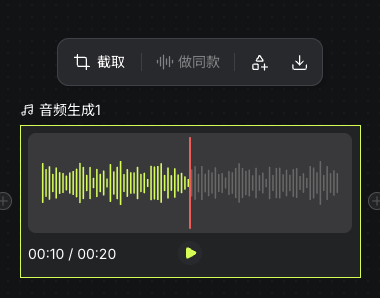
Music, effects and speech become sound assets. Name them for their destination and listen to their content and decay.

Actual audio playback and trim controls after uploading music
Actual Seagames screenshot (Chinese interface).

Add audio content

Upload or generate sound

Manual upload

  • Choose an audio file and listen once it is ready.

    Actual audio playback and trim controls after uploading music
    Actual Seagames screenshot (Chinese interface).

Audio model generation

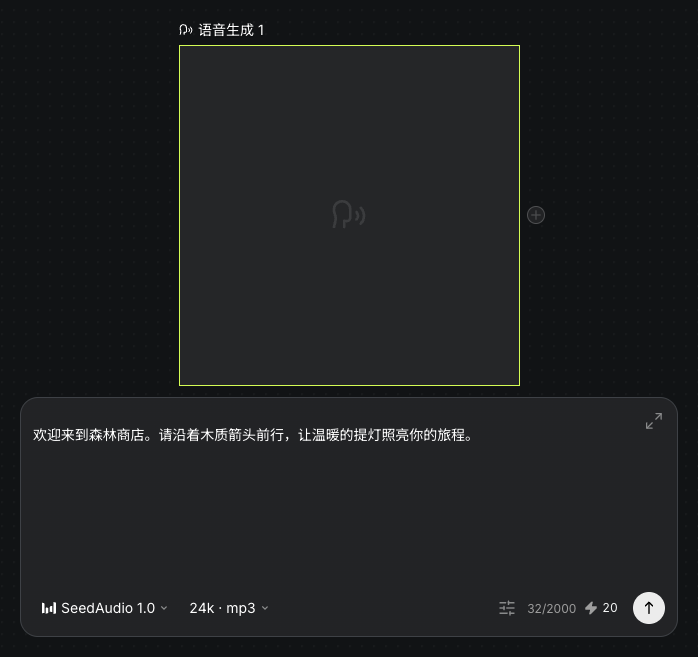
  • Music, effects and speech use separate nodes. Choose the task before entering a description or spoken text.

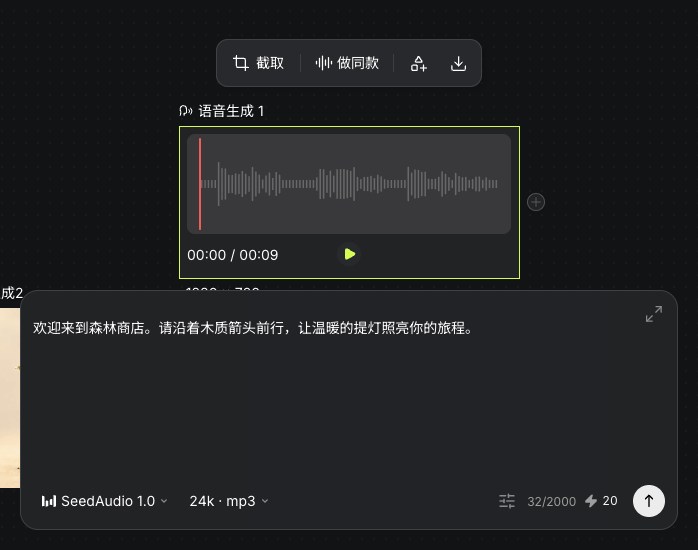
  • Review settings and quote, then generate and listen for clarity and decay.

    Actual speech task with the Forest Shop greeting text
    Actual Seagames screenshot (Chinese interface).
    Actual generated Forest Shop greeting and playback controls
    Actual Seagames screenshot (Chinese interface).

Review structure in images, continuity in video and listen to sound. A completed task still needs a quality review.

Try it yourself

Open your projects, create a canvas, and apply this tutorial to your own work.

Open Projects to create