
Back to illustrated tutorials

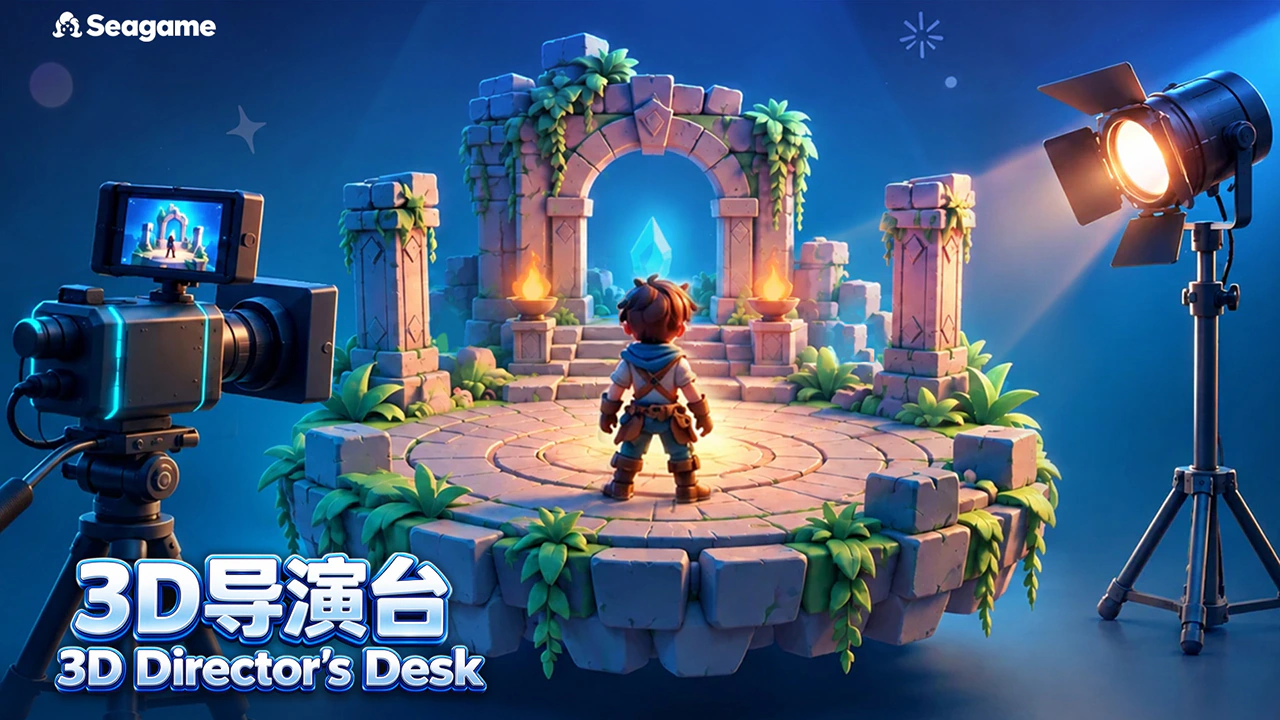
3D Director

Topics: 3D director concepts, scene and character planning, viewpoints, movement and camera motion

The 3D director is being integrated into Seagames. Composition sections retain original illustrations; preparation with the existing canvas, pose and panorama tools uses actual screenshots. Follow the released director version for its entry point.

Plan positions, sightlines and viewing direction before preparing image or video references. These illustrations explain composition, not a shipped interface.


Overview

Plan the scene before choosing the shot

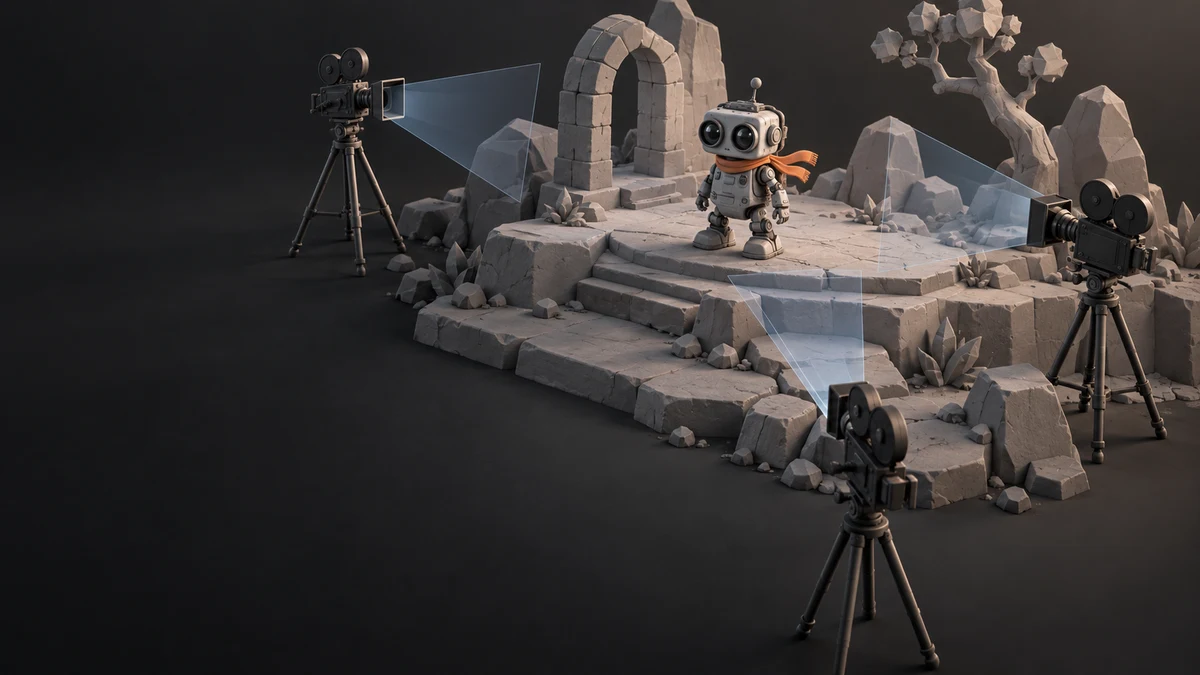
A 3D composition treats characters, props, surroundings and cameras separately. Establish their spatial relationships, then inspect framing and occlusion in still views.


What does director-style planning help with?

  • Positions and views: compare depth, character scale and occlusion.

    Original virtual-set illustration with character, props and space
    Original teaching illustration, not an interface screenshot or feature recording.
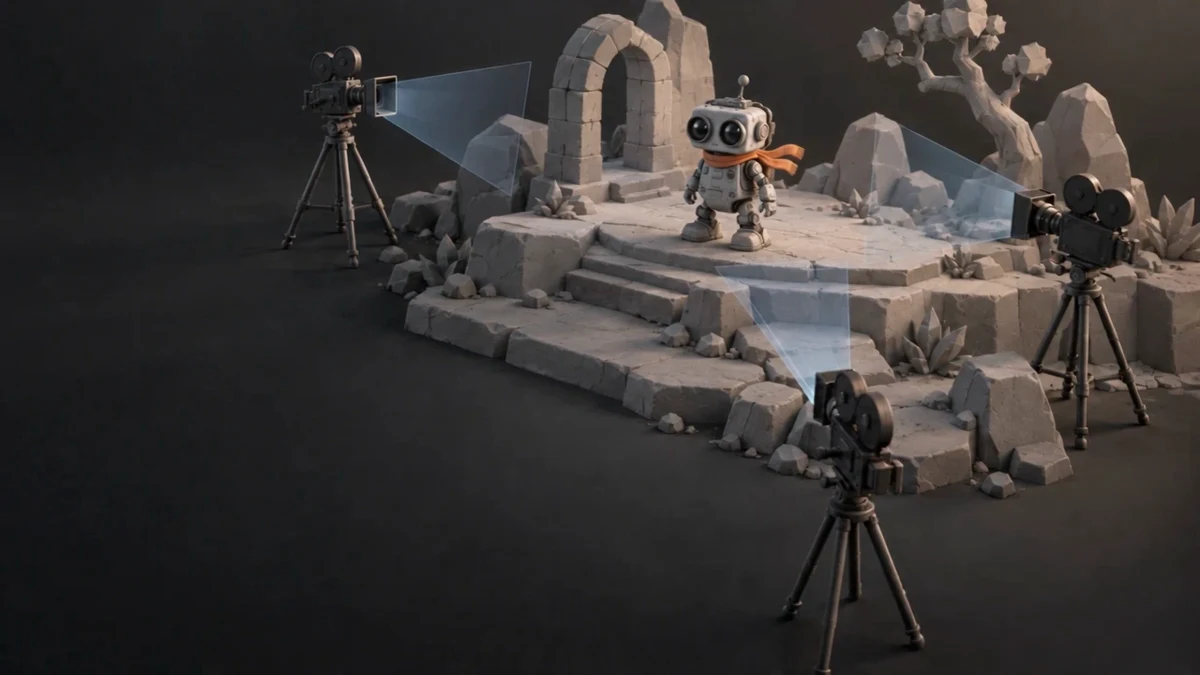
    Still from the original orbit clip of the same set
    Original teaching illustration, not an interface screenshot or feature recording.
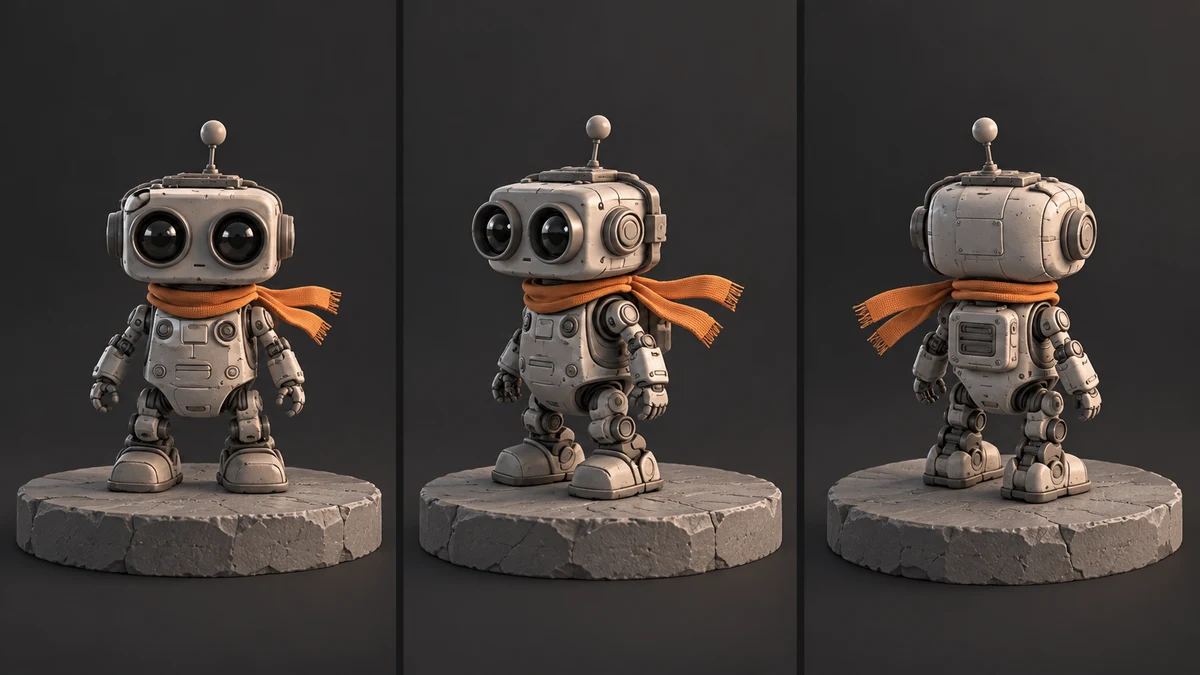
    Triptych of front, three-quarter front and three-quarter rear views of the same original robot
    Original teaching illustration, not an interface screenshot or feature recording.
  • Character and scene relationships: decide what a character faces and where the camera observes from.

    Original set illustration of character and camera placement
    Original teaching illustration, not an interface screenshot or feature recording.
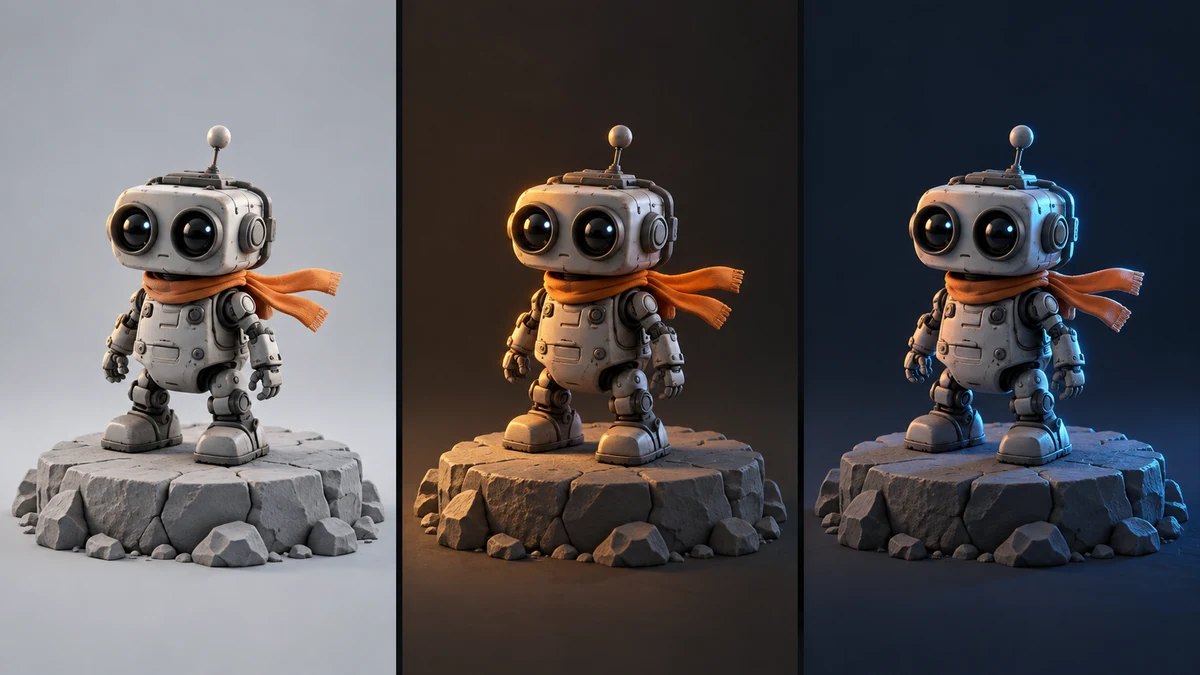
    The same robot under different lighting for appearance recognition
    Original teaching illustration, not an interface screenshot or feature recording.
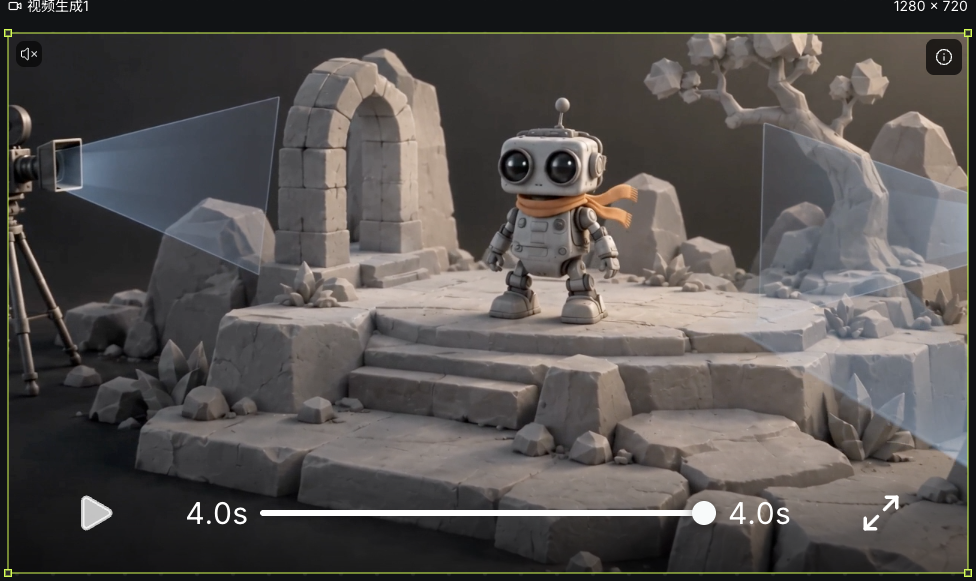
    Original generated clip for observing composition and motion, not a feature recording.

Prepare composition references ✨

Prepare a project

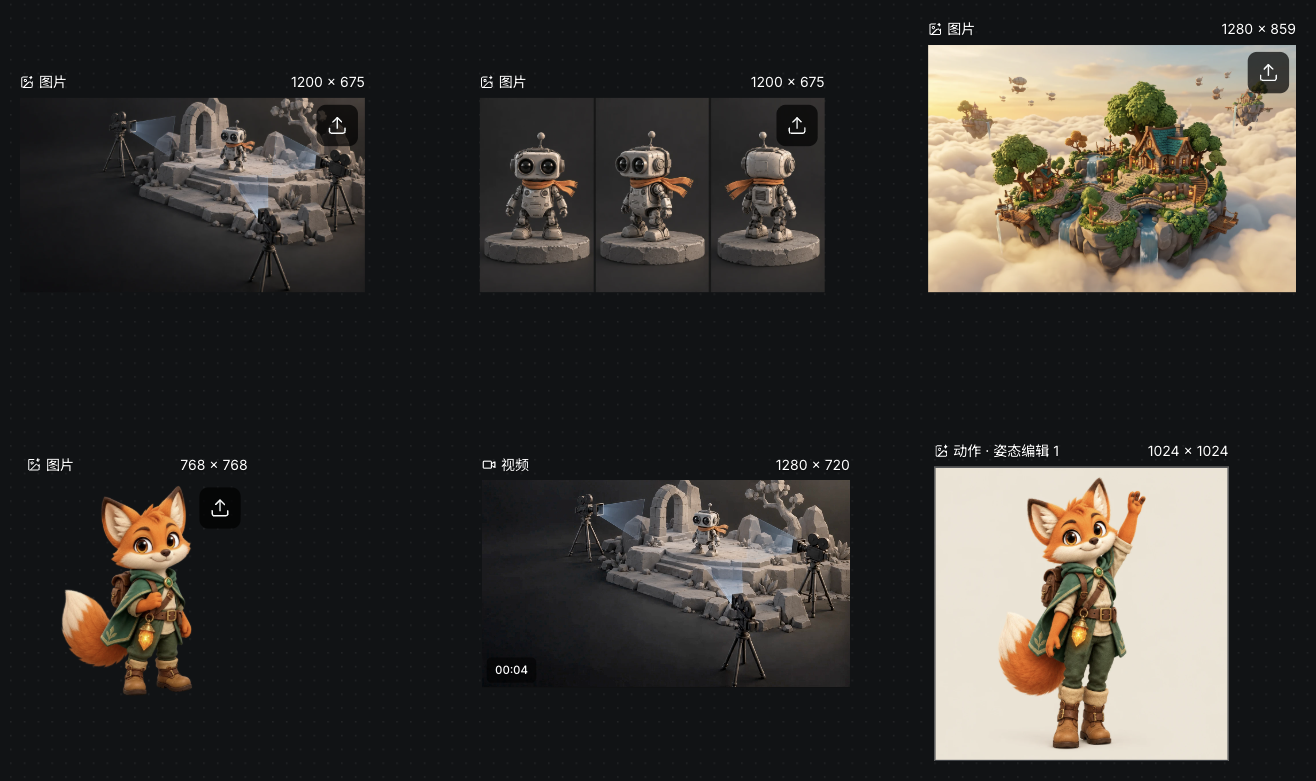
The current menu has no separate director entry. Organize stage art, a triptych, environment art and completed video on a project canvas. This example also keeps the source fox and its pose result; prepare 3D models with the separate model guide.

Actual preparation canvas with stage, triptych, environment, video and fox pose assets
Actual Seagames screenshot (Chinese interface).
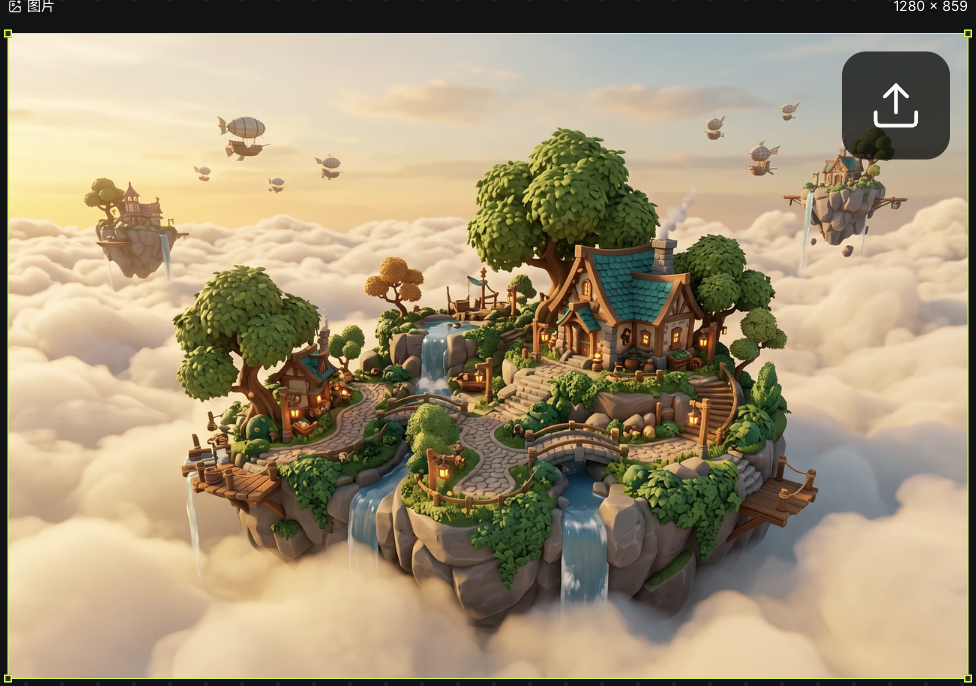
Actual floating-island environment reference saved on the preparation canvas
Actual Seagames screenshot (Chinese interface).

1. Prepare models and objects

  • List characters, key props and surroundings; plan space with simple shapes first.

  • Prepare a model file or use the existing 3D generation node. The separate 3D model guide covers generation and preview.

  • This preview does not promise director support for model imports, crowd arrays or object-group panels.

    Original generated clip for observing composition and motion, not a feature recording.

2. Plan object positions

  • Record three relationships:

    • Position: what sits in front of or behind something else.

    • Direction: where the character faces and looks.

    • Scale: relative sizes of character, prop and setting.

  • Record colors and identifying traits in text or images; use released controls when available.

    Original generated clip for observing composition and motion, not a feature recording.
    Position relationships in the same original set illustration
    Original teaching illustration, not an interface screenshot or feature recording.

3. Plan viewpoints and reference captures

Camera view

  • Choose the final frame and camera height. Check that the subject, gaze and action are readable.

    Original generated clip for observing composition and motion, not a feature recording.

Scene overview

  • Check character, prop and camera positions in an overview, then judge the final frame.

    Original workflow diagram explaining inputs and results, not a recording of the product interface.

Camera adjustments

  • Wide views establish setting; closer views emphasize action or emotion. Avoid conflicting framing instructions.

  • Field-of-view controls, target binding and automatic follow are not presented as available operations.

    Three static views for comparing silhouette and occlusion of the same character
    Original teaching illustration, not an interface screenshot or feature recording.

4. Use reference images in creation

  • Prepare your own stills or exported views from another tool.

  • Upload to the canvas, create Image or Video and add references.

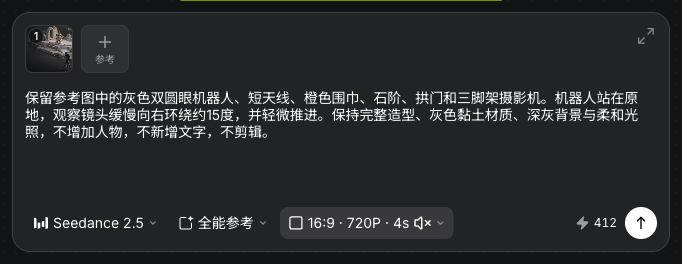
  • Describe positions and viewpoint to preserve, then check model support and quote. The screenshots show the actual robot-stage Omni reference input and completed four-second output.

    Actual robot-stage reference and orbit prompt in a standard video task
    Actual Seagames screenshot (Chinese interface).
    Actual completed four-second robot orbit from a standard video task
    Actual Seagames screenshot (Chinese interface).

Further planning

Character pose planning

Define body language

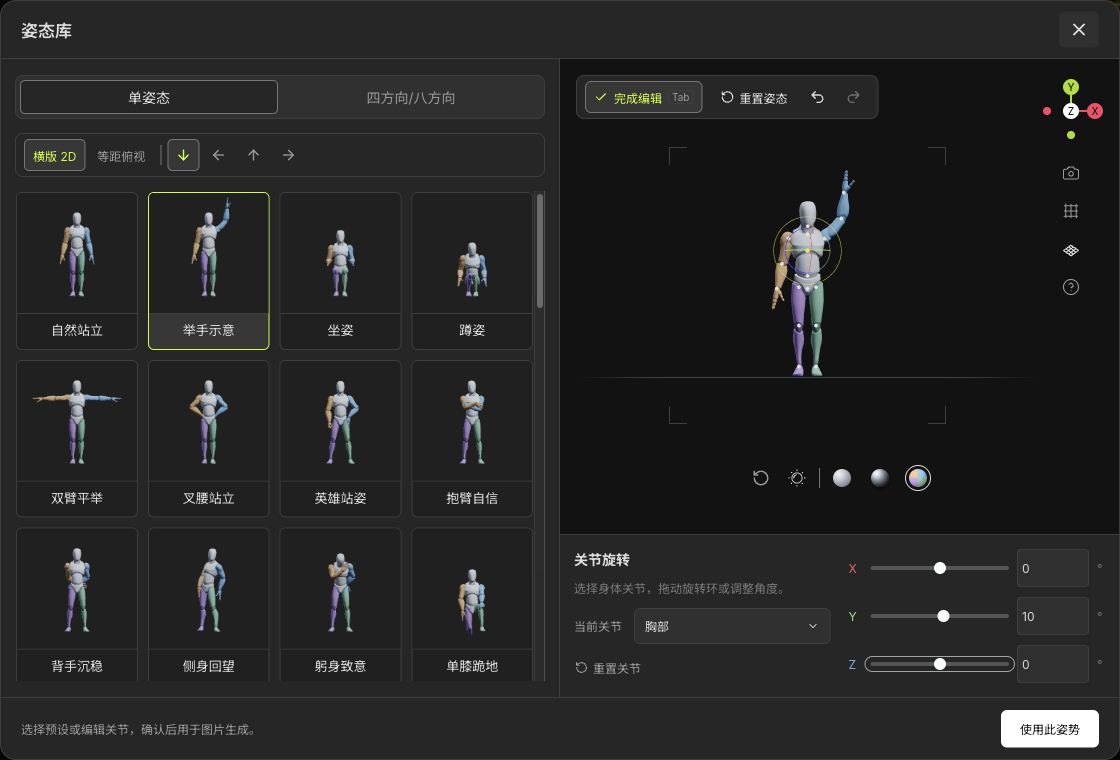
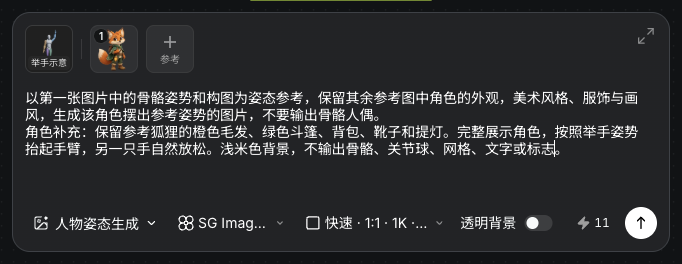
Plan stance, gestures and balance. Choose Motion and Pose editing from Add node, select Wave in the pose library, set chest Y rotation to ten degrees and use the pose. Add the original fox as its appearance reference. Review SG Image 2.5, 1:1, 1K, one image and the current quote before generating. This uses the existing independent pose tool; director character controls depend on the released version.

Actual independent pose library, Wave preset and chest Y rotation of ten degrees
Actual Seagames screenshot (Chinese interface).
Actual Wave pose, fox appearance reference, prompt and SG Image 2.5 settings
Actual Seagames screenshot (Chinese interface).
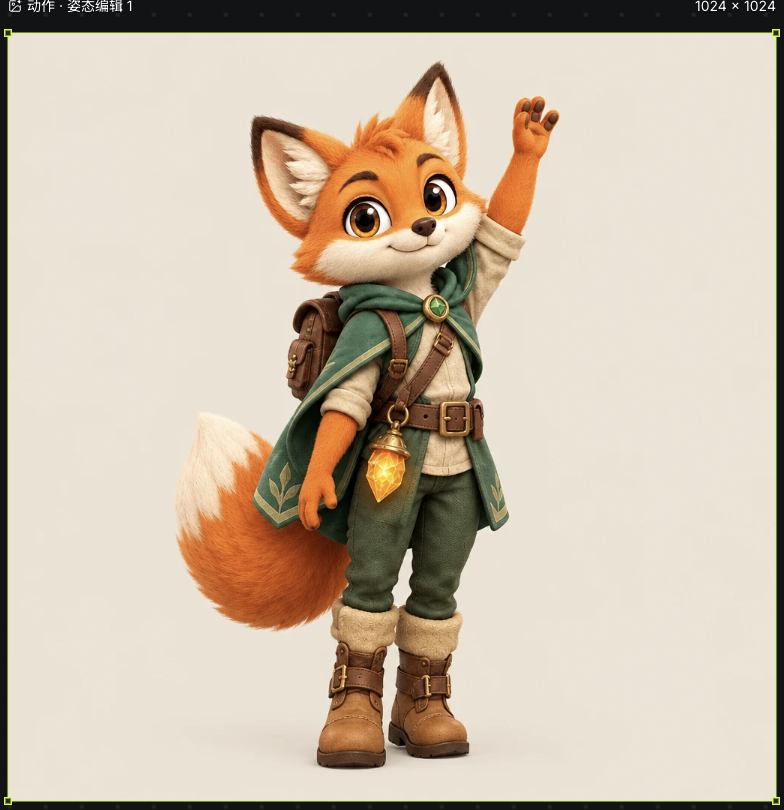
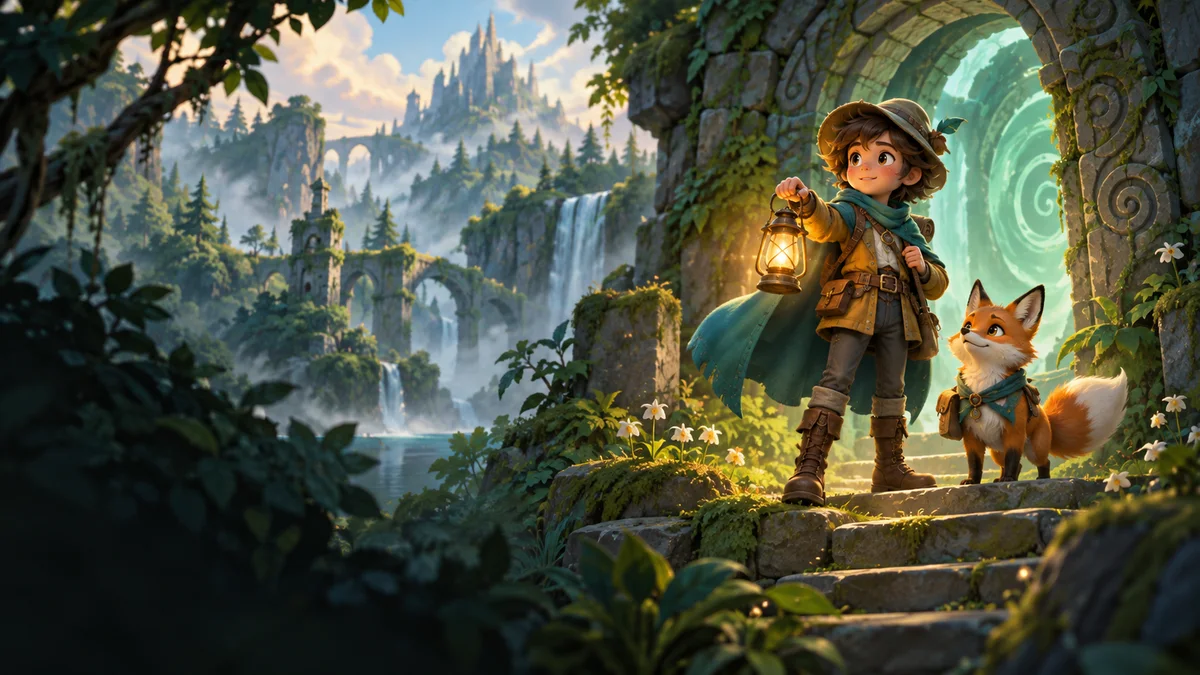
Actual generated waving fox image retaining its cloak, backpack and lantern
Actual Seagames screenshot (Chinese interface).

Panorama and environment planning

Keep character and environment in the same space

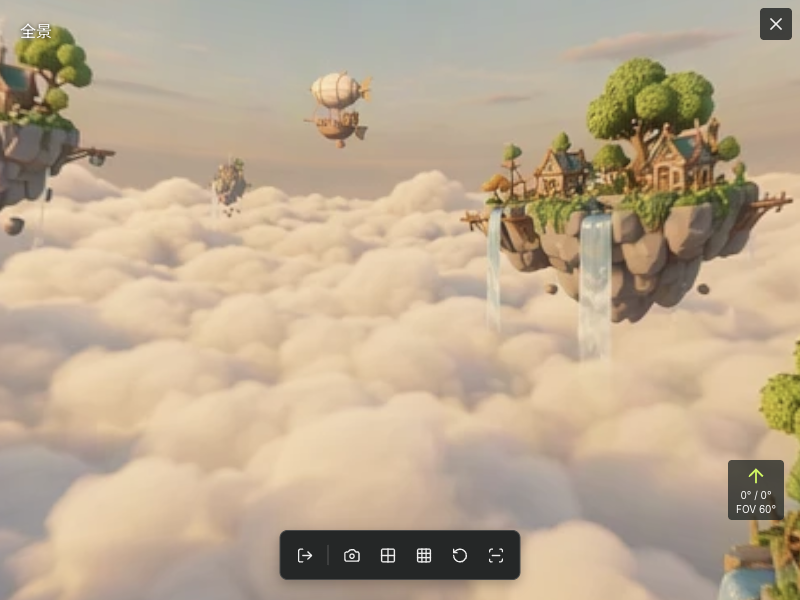
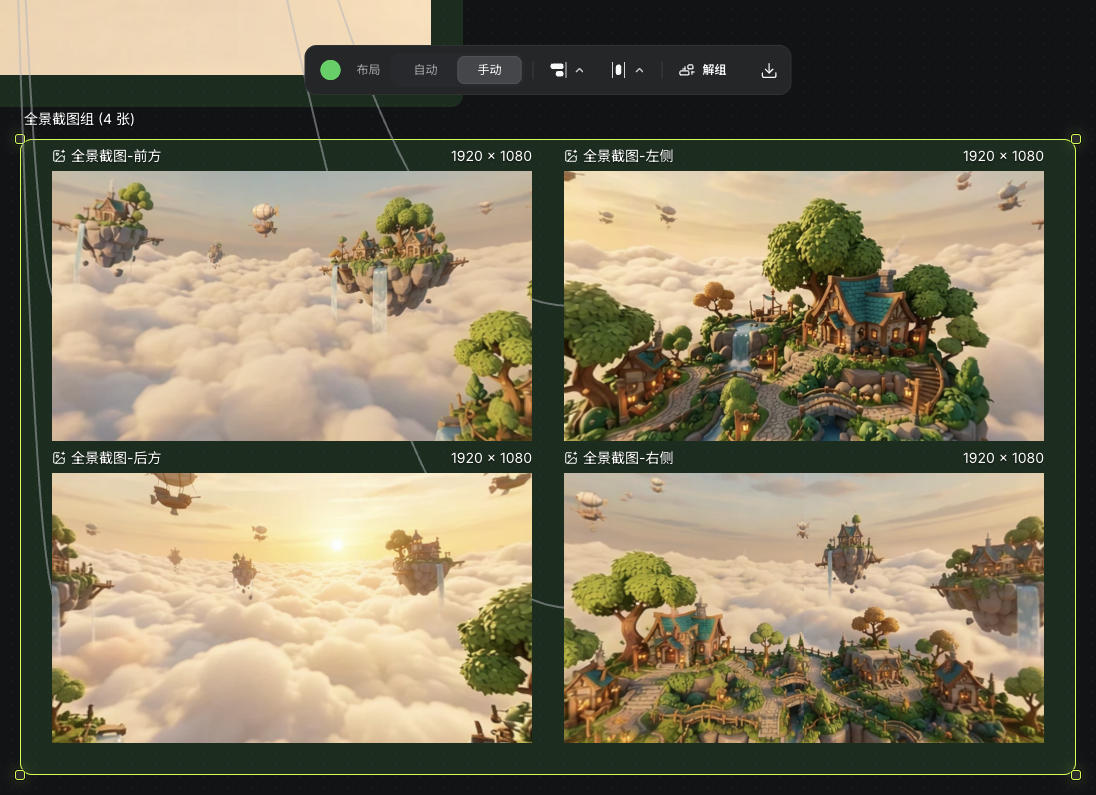
Prepare an environment with clear ground, horizon and lighting direction. This example uses the existing 720 panorama preview and four-direction captures to prepare 2D environment references. Panoramas, backgrounds and 3D environments are different inputs; the released director will determine accepted types.

Actual floating-island environment and view direction in the existing 720 panorama tool
Actual Seagames screenshot (Chinese interface).
Actual four completed 2D environment views exported by the existing panorama tool
Actual Seagames screenshot (Chinese interface).

Character and camera paths

Separate who moves from how the camera moves

1. Character movement

Describe a character’s start, destination, direction and action. Path drawing, keyframes and multicharacter timelines are not presented as current tools.

  1. Choose one action, such as approaching a doorway.

  2. State direction and the outfit and props to preserve.

  3. Use supported references in a video task and review the full result.

    Original exploration scene for planning movement direction
    Original teaching illustration, not an interface screenshot or feature recording.

2. Camera movement

Push-ins, pull-backs, lateral moves and orbits describe different camera paths. Begin with a small single-direction move. The screenshot shows an actual orbit prompt in a standard video task for checking that subject and camera instructions are separate.

  1. Define start/end composition and subject size.

  2. Describe camera and subject movement separately.

  3. Review speed, occlusion and background stability in the output.

Actual robot-stage reference and orbit prompt in a standard video task
Actual Seagames screenshot (Chinese interface).

3. Coordinate character and camera

A follow-shot brief aims to keep a character’s relative framing stable. It does not imply one-click binding, automatic distance maintenance or a camera group.

  1. Choose a clear character reference and test simple movement.

  2. Add a slow follow request without simultaneous rotation and elevation changes.

  3. Inspect subject size, direction, steps and camera smoothness.

    Illustration of relative character, ground and camera positions
    Original teaching illustration, not an interface screenshot or feature recording.

When planning a follow shot:

  • Character and camera paths are separate plans.

  • A ground-level character path does not determine camera height or angle.

  • References guide the result; continuity still needs manual review.


Controls and shortcut scope

Director controls, gestures and shortcuts are not finalized. Other products’ key combinations are not instructions for Seagames. Follow released help and interface hints.


External 3D files and references

Seagames does not claim a Blender director plug-in or one-click transfer here. Export permitted still or video files from an external tool, then upload and reference them on the canvas.

  • Check format, framing and clarity.

  • Pair references with a description and verify model support.

    Triptych of front, three-quarter front and three-quarter rear views of the same original robot
    Original teaching illustration, not an interface screenshot or feature recording.

Try it yourself

Collect scene art, characters and notes first; use the released director version for its entry point and controls.

Open Projects to prepare references