
Back to illustrated tutorials

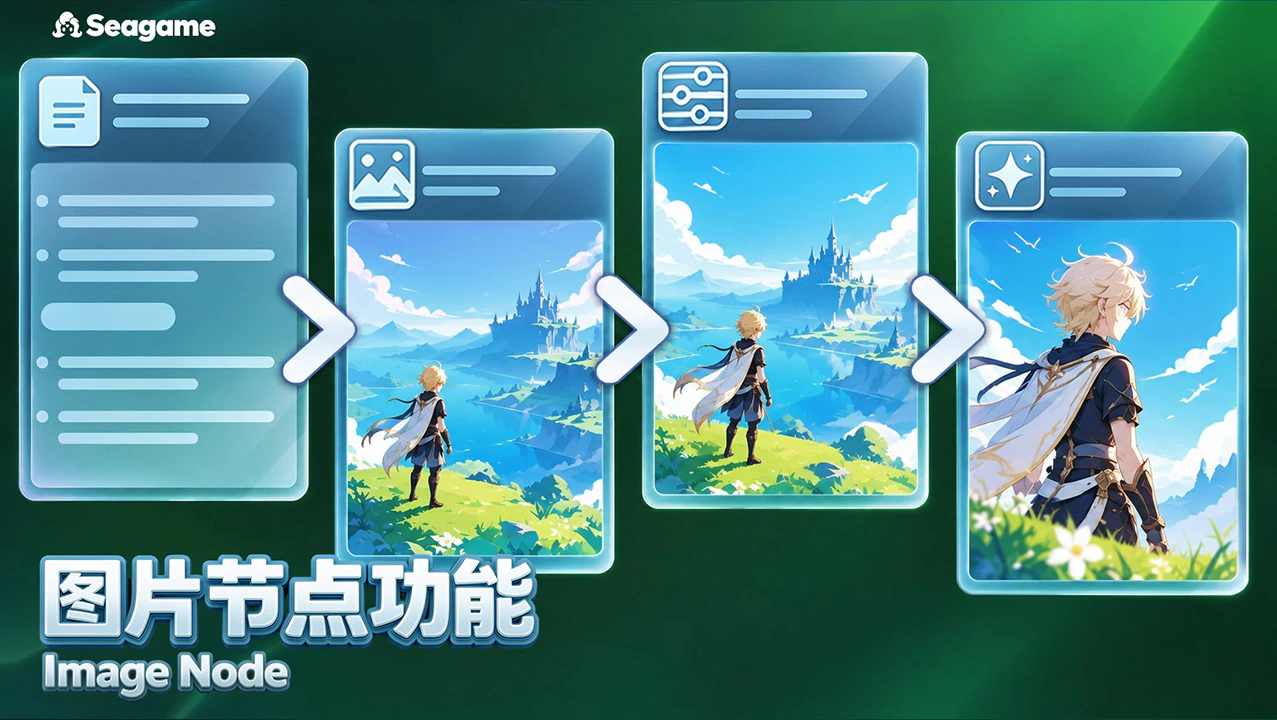
Image node tools

Features: panorama, viewpoints, lighting, image editing, splitting and groups

After generation, refine a viewpoint, lighting or local detail. Identify whether the issue is composition, color or structure before choosing a tool.

Explore follow-up tools by type. Preserve the original and compare changes separately.


How to use image tools

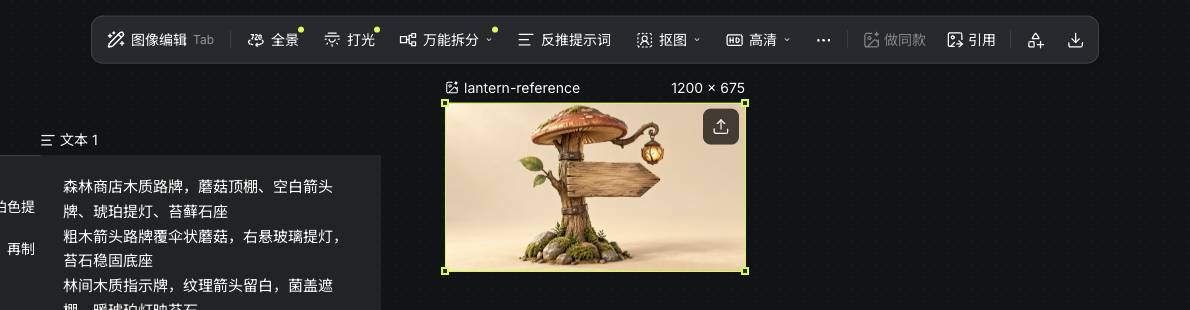
Select a populated image node for its toolbar. Tools can be pinned or found in More editing; availability depends on resource readiness.

Actual image node and image toolbar
Actual Seagames screenshot (Chinese interface).

Panorama

Explore a surrounding scene

Use Panorama to prepare a surrounding scene and inspect its directions. The result is not automatically a physically accurate 3D space.

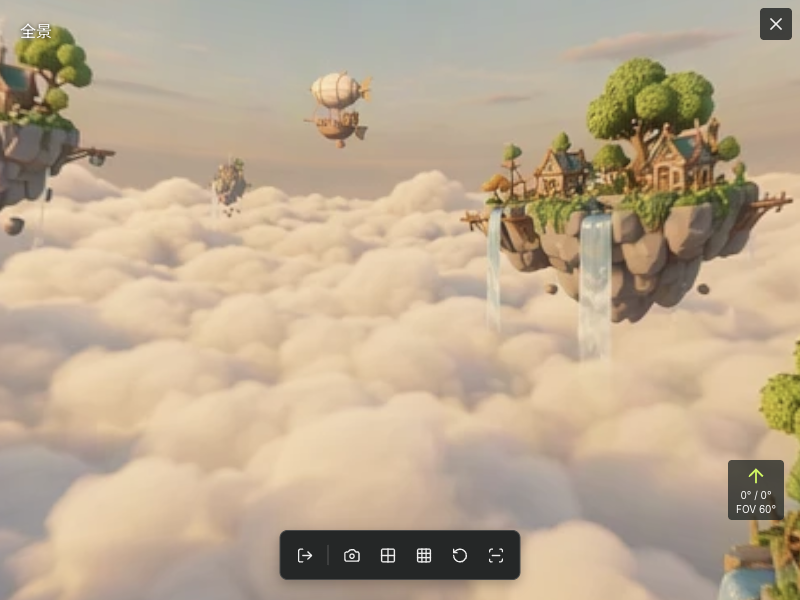
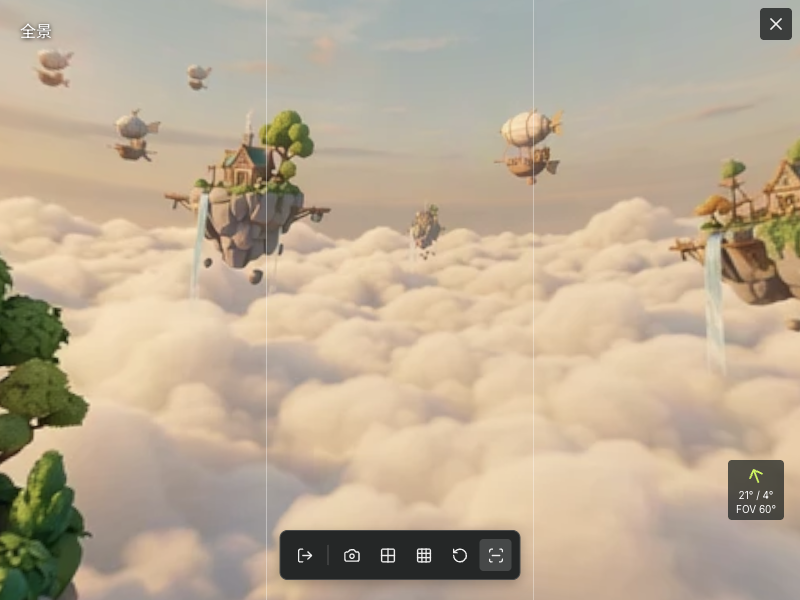
Actual generated floating-island panorama and native fullscreen controls
Actual Seagames screenshot (Chinese interface).

Tips for useful results

  • Use a scene with clear depth and a readable ground, subject and background.

  • Review spatial continuity:

    • Inspect seams and stretched regions.

    • Choose readable views for later references.

How to use it

Where to start

  • Open Panorama from the image toolbar or More editing.

  • This example starts a panorama task from the selected environment reference. Open the completed preview and inspect the view, seams and subject shape.

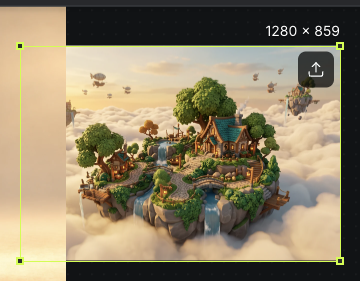
    Actual floating-island environment reference used for panorama generation
    Actual Seagames screenshot (Chinese interface).
    Actual generated floating-island panorama and native fullscreen controls
    Actual Seagames screenshot (Chinese interface).

What can you do with a panorama?

  • Explore directions: inspect different views for seams and spatial distortion.

    A changed viewing direction after dragging the actual panorama
    Actual Seagames screenshot (Chinese interface).
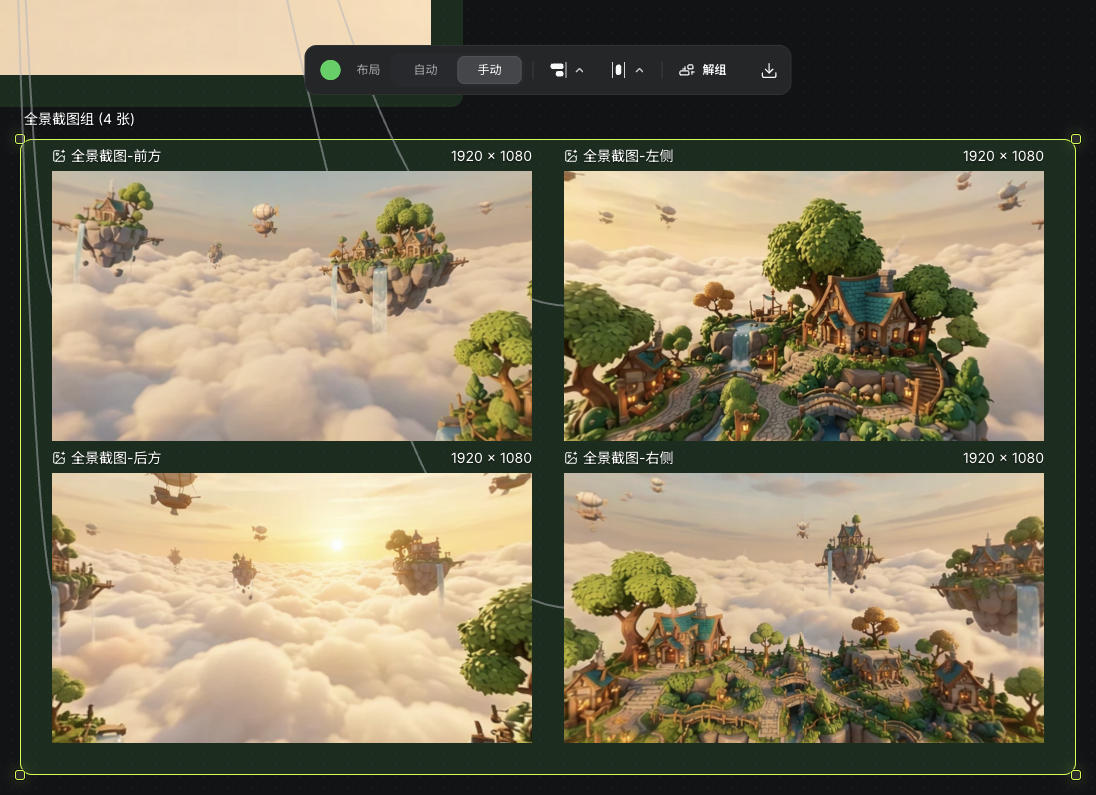
  • Capture: use the current view or available multiple-view captures for references.

    Four views exported from the same actual panorama and grouped on the canvas
    Actual Seagames screenshot (Chinese interface).
  • Composition guides: review subject placement and the horizon.

    Composition guides enabled in the actual panorama preview
    Actual Seagames screenshot (Chinese interface).
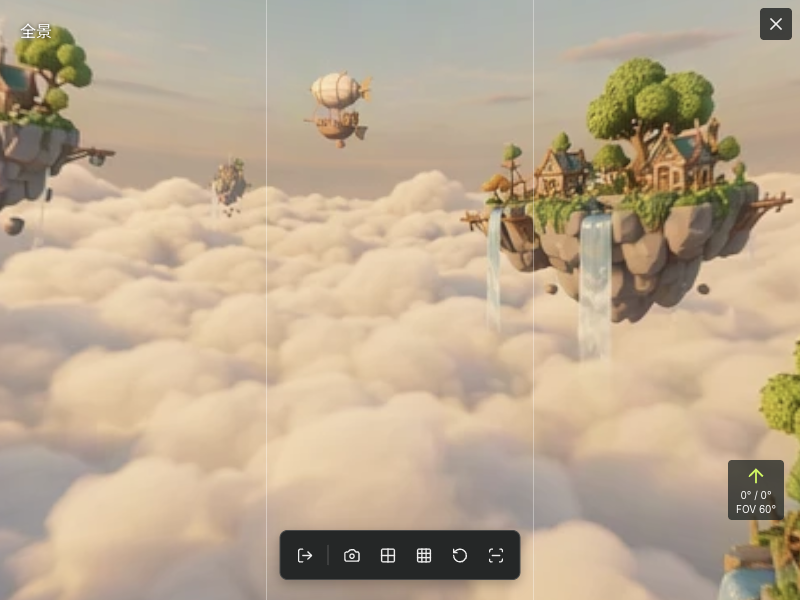
  • Reset the view: return to the initial direction for comparison.

    Actual generated floating-island panorama and native fullscreen controls
    Actual Seagames screenshot (Chinese interface).

Multiple viewpoints

Change the view and compare silhouettes

  • Use a preset or rotation and tilt to generate a new 2D viewpoint from the source. It is not a freely rotatable 3D model.

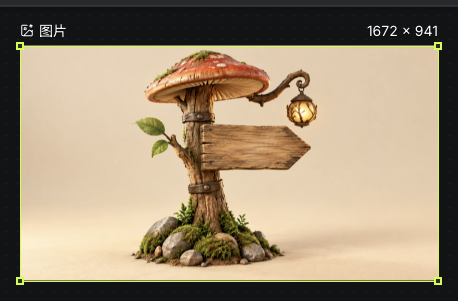
    Actual generated sign viewpoint saved on the canvas
    Actual Seagames screenshot (Chinese interface).

How to use it

Viewpoint settings

  • Choose a front, side or overhead goal and keep the subject complete.

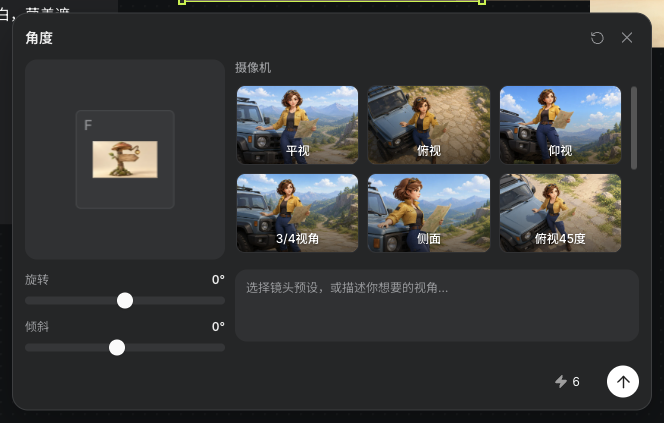
  • Use available presets or rotation and tilt sliders: rotation -90° to 90°, tilt -75° to 90°.

    Rotation, tilt and camera settings in the actual viewpoint panel
    Actual Seagames screenshot (Chinese interface).

Additional prompt guidance

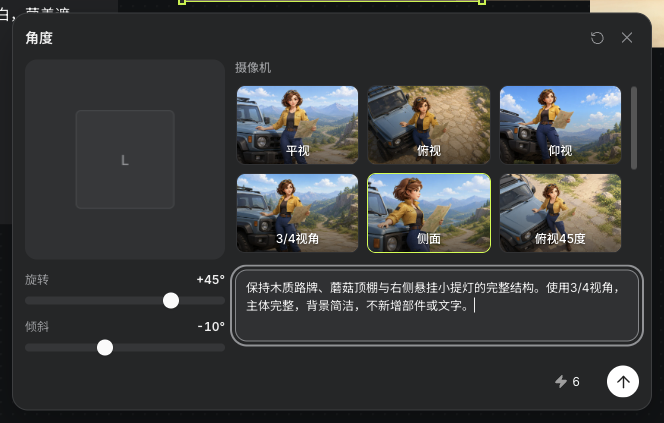
  • Describe framing, fixed parts and background extent, then inspect structural consistency.

    Actual three-quarter viewpoint settings, sign constraints and quote
    Actual Seagames screenshot (Chinese interface).

Example: Preserve the wooden sign, mushroom canopy and hanging lantern. Use a three-quarter viewpoint with a complete prop and simple background, adding no parts or lettering.

Viewpoint presets

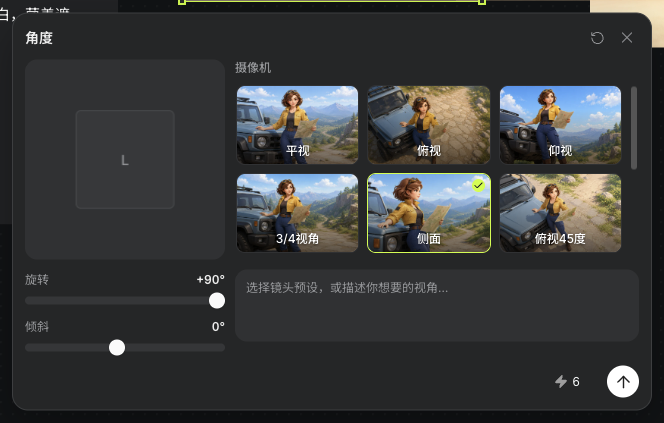
  • Choose a current preset and review settings and quote. Compare accessories, proportions and occlusion against the source.

    Actual viewpoint panel after selecting the Side preset
    Actual Seagames screenshot (Chinese interface).

Lighting

Shape materials and mood with light

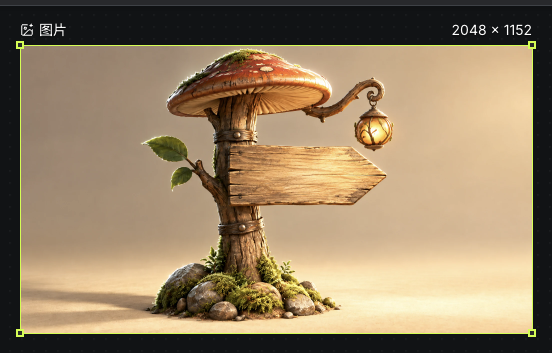
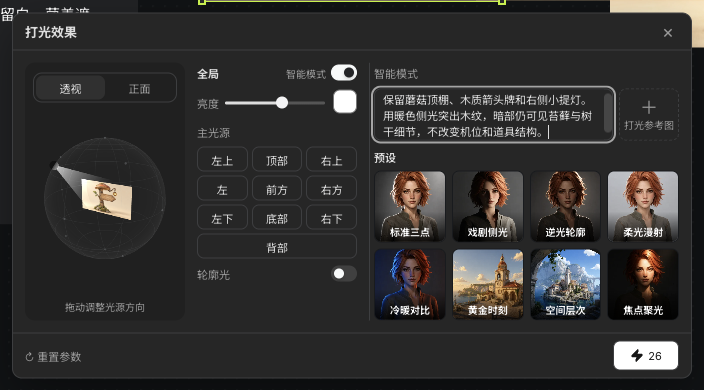
Relighting provides direction, brightness, color and rim light. Smart mode adds descriptions, reference images and presets. Review the generated wood grain, shadows and lantern details.

Actual sign result after parameter-based relighting
Actual Seagames screenshot (Chinese interface).

How to use it

Direction and rim light

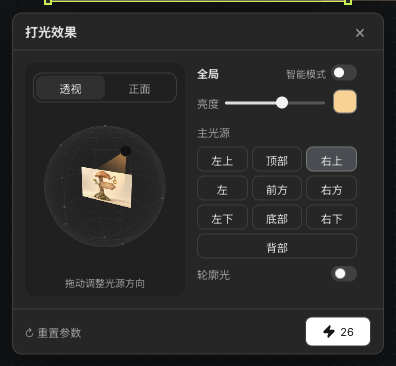
  • Turn off Smart mode to adjust the key direction and enable rim light when needed.

  • Keep the subject and viewpoint fixed while comparing light, without changing material and composition together.

    Actual key direction, brightness, warm color and rim-light controls
    Actual Seagames screenshot (Chinese interface).

Brightness and shadows

  • Adjust brightness gradually and inspect tonal transitions and shadow edges.

  • Check clipped highlights and lost shadows, keeping the same input for comparison.

    Actual key direction, brightness, warm color and rim-light controls
    Actual Seagames screenshot (Chinese interface).

Color

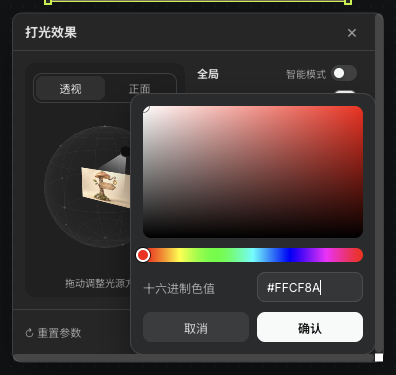
  • Set the light color and distinguish it from the material’s own color.

  • Check that character colors and key accessories remain recognizable.

    Warm hexadecimal light color in the actual color picker
    Actual Seagames screenshot (Chinese interface).

Presets, descriptions and references

  • Turn off Smart mode for direction, brightness and color. Turn it on for presets, descriptions or reference images.

  • A description can state mood, main light direction and fixed subject traits.

    Example: Keep the mushroom roof, wooden arrow and right-hand lantern. Use warm side light on the wood grain, retain moss and trunk detail in shadow and keep the viewpoint fixed.

  • In reference mode, verify the added image and review the quote before submitting.

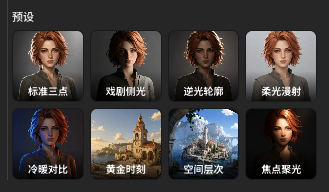
  • Presets help explore a direction, but their results still need comparison.

    Eight preset entries in the actual relighting panel
    Actual Seagames screenshot (Chinese interface).
    Actual smart-lighting description, reference-image entry and presets
    Actual Seagames screenshot (Chinese interface).

Grid art and sprite sheets

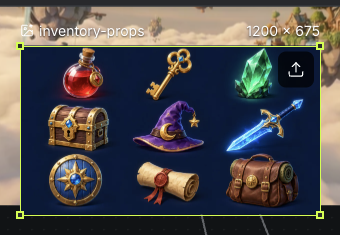
For grid assets, make cells and spacing clear before splitting. Sprite sheets also need stable scale and baselines before game use.

Actual uploaded nine-cell prop image node
Actual Seagames screenshot (Chinese interface).

Basic image editing

Image processing tools and the separate Image edit workspace serve different needs. Open the appropriate current toolbar entry.

  • Upscale: review settings and quote before generative enhancement.

  • Resize: change the 2D image dimensions for the intended use, then check clarity.

  • Outpaint: extend the image and inspect the join.

  • Inpaint: select an area with brush, rectangle or lasso, then describe its change.

  • Cutout: remove an image background and inspect transparent edges.

  • Crop: change the retained area without reconstructing hidden content.


Split a grid

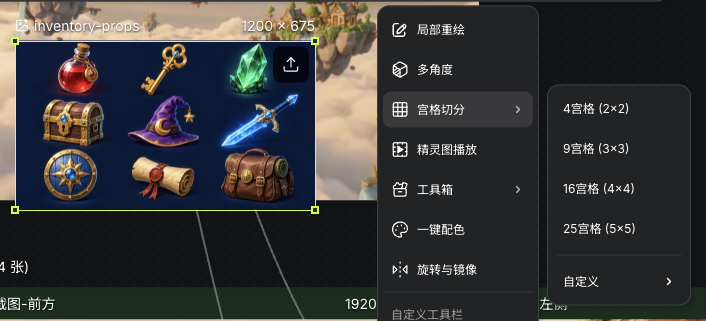
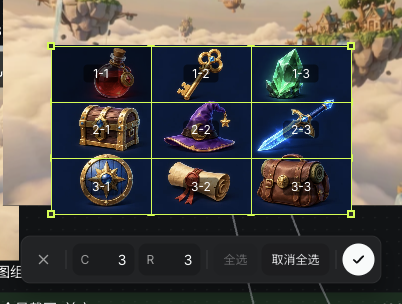
Split a grid into independent assets. Set cells from the actual boundaries and check that no subject is cut off.

Actual grid-splitting menu and nine-cell source
Actual Seagames screenshot (Chinese interface).
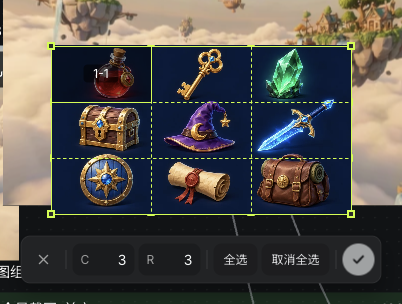
Actual 3×3 boundaries, row and column counts, and selected cells
Actual Seagames screenshot (Chinese interface).

How to use it

  • Open grid splitting from the toolbar or More editing and set the grid.

  • Review boundaries and previews before outputting the selected slices.

  • Check transparency, padding and completeness in every slice.

    Selecting an individual cell in the actual grid editor
    Actual Seagames screenshot (Chinese interface).
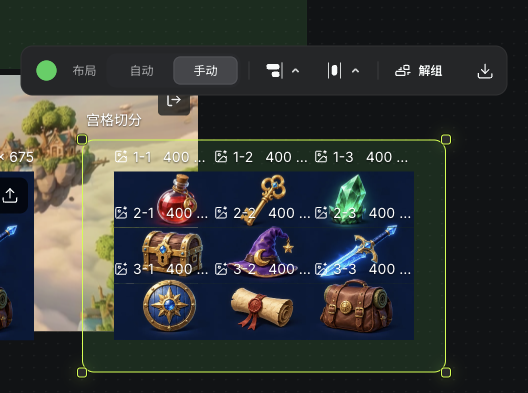
    Nine actual sliced image nodes grouped on the canvas
    Actual Seagames screenshot (Chinese interface).

Local notes and edits

Describe the exact area to change

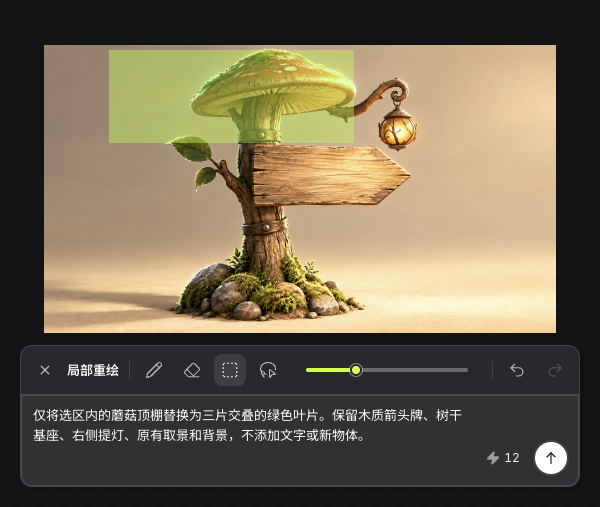
  • Open Inpaint from More editing in the image toolbar and state the location, replacement and fixed traits. This example edits the roof of the relit sign.

  • Choose the edit area with brush, rectangle or lasso and describe the change.

  • Compare both inside and outside the selection against the original; nearby details may also change.

    Actual inpainting selection over the mushroom roof and leaf-replacement instructions
    Actual Seagames screenshot (Chinese interface).
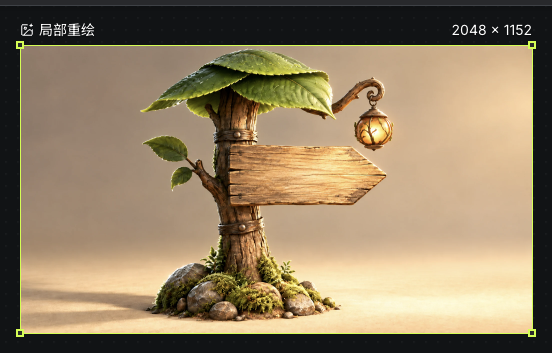
    Actual leaf-canopy inpainting result generated from the selection and description
    Actual Seagames screenshot (Chinese interface).

Rotate and mirror

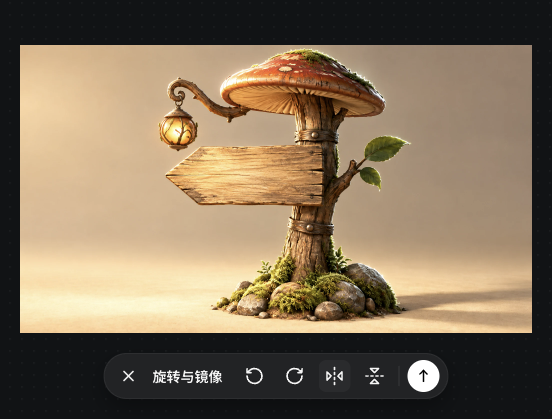
  • Preview a 2D rotation or mirror, then confirm or cancel. Inspect lettering, accessories and handedness after a flip.

    Actual horizontal-mirror preview with rotation, flip, confirm and cancel controls
    Actual Seagames screenshot (Chinese interface).

Image groups

Compare references and results together

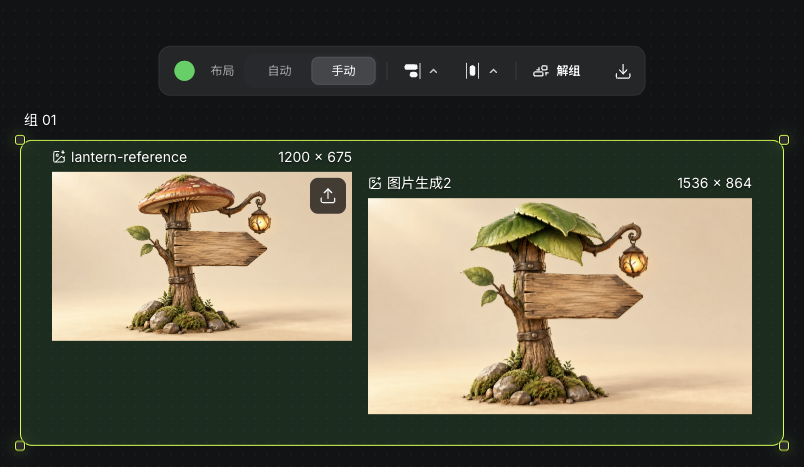
Use regular groups to organize images with clear ordering and names. A group is not a dedicated storyboard table or automatic video editor.

Reference, generated result and layout controls in an actual image group
Actual Seagames screenshot (Chinese interface).

How to use it

Create a regular group

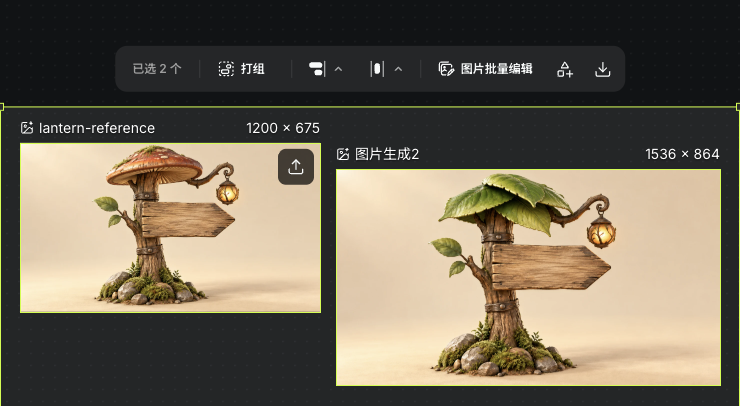
  • Select related images and group them as references, trials and approved work.

    Actual Group and Arrange toolbar for multiple selected images
    Actual Seagames screenshot (Chinese interface).

Organize an existing group

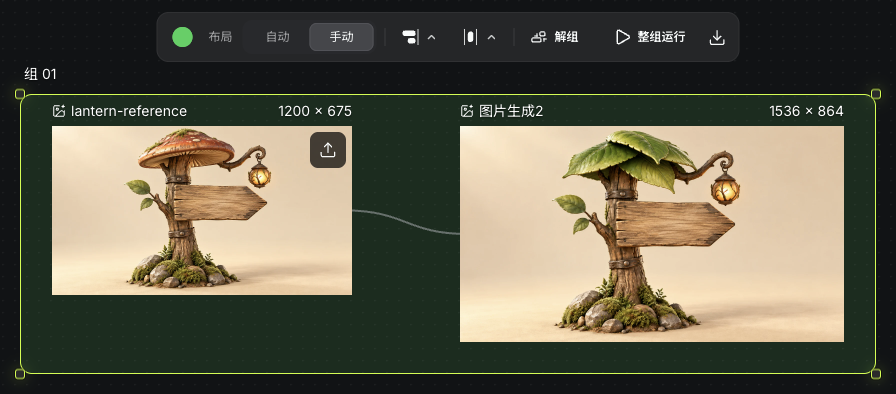
  • Name references, trials and approved work separately and inspect their connections.

    Actual image inputs, outputs and reference connection within a regular group
    Actual Seagames screenshot (Chinese interface).

Organize sliced outputs

  • Keep reusable slices as independent assets and group them by purpose.

    Nine actual sliced image nodes grouped on the canvas
    Actual Seagames screenshot (Chinese interface).

What to review after grouping

  • Image order, names and reference connections are clear.

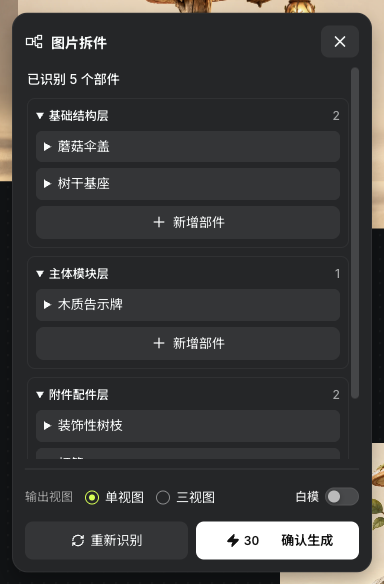
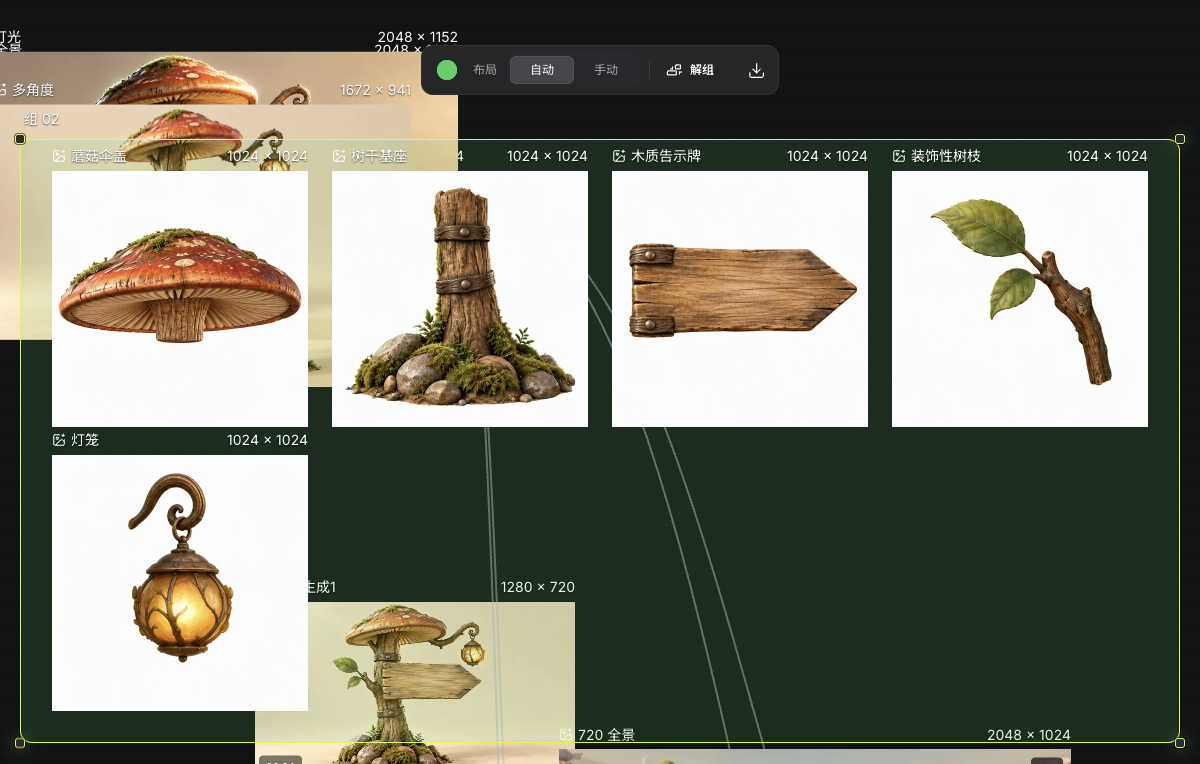
  • Review occlusion, incomplete edges and connections in decomposed assets; they are not automatically hand-finished layers.

    Five actual identified sign parts and output settings
    Actual Seagames screenshot (Chinese interface).
    Five actual generated sign parts grouped on the canvas
    Actual Seagames screenshot (Chinese interface).

Try it yourself

Open your projects, create a canvas, and apply this tutorial to your own work.

Open Projects to create