
Back to illustrated tutorials

Audio node tools

Features: trimming, speech speed, music, effects and text to speech

Music sets mood, effects mark events and speech reads words. Start with an existing audio asset or create one in the matching node.

Explore trimming, speed, segment organization and speech. Where a tool is unavailable, use an existing workflow instead.


Trim audio

Select a ready audio node and choose Trim. Listen before setting a range with natural onset and decay.

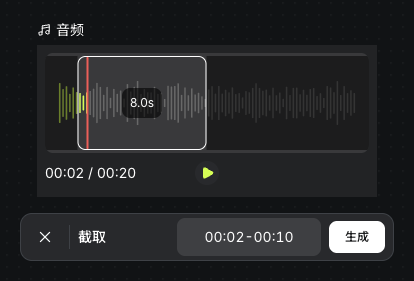
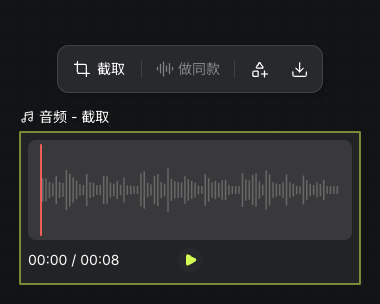
Check for cut syllables, lost transients or interrupted phrases. This example saves seconds 2–10 of the twenty-second music as a separate eight-second segment, retaining the source.

Actual two-to-ten-second trim range and waveform in the twenty-second music source
Actual Seagames screenshot (Chinese interface).
Actual eight-second music segment trimmed and saved on the canvas
Actual Seagames screenshot (Chinese interface).

Speech speed

Existing audio has no standalone speed tool. To change narration pace, adjust speed in Speech generation before generating again.

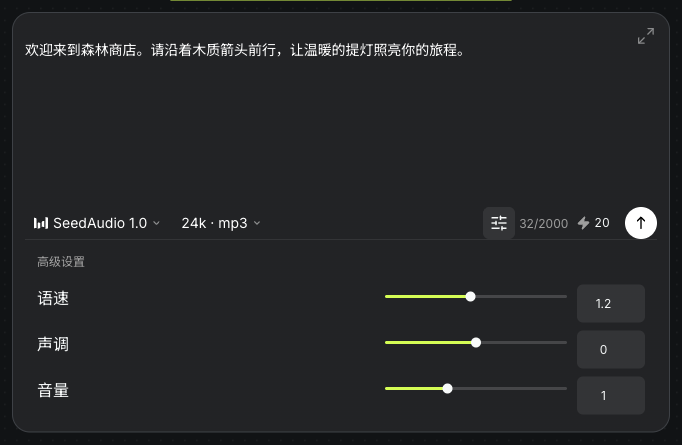
Speed and volume range from 0.5 to 2; pitch ranges from -12 to 12. This example uses speed 1.2, volume 1, pitch 0 and 24kHz MP3. These controls are not voice cloning.

Actual speech settings: speed 1.2, pitch 0 and volume 1
Actual Seagames screenshot (Chinese interface).

Choose and organize segments

There is no lyric-based splitting or text-command batch cutting. Trim and name individual segments, noting their purpose and source positions.

Listen and record intended time ranges before trimming each segment. These notes are a plan, not executable commands.

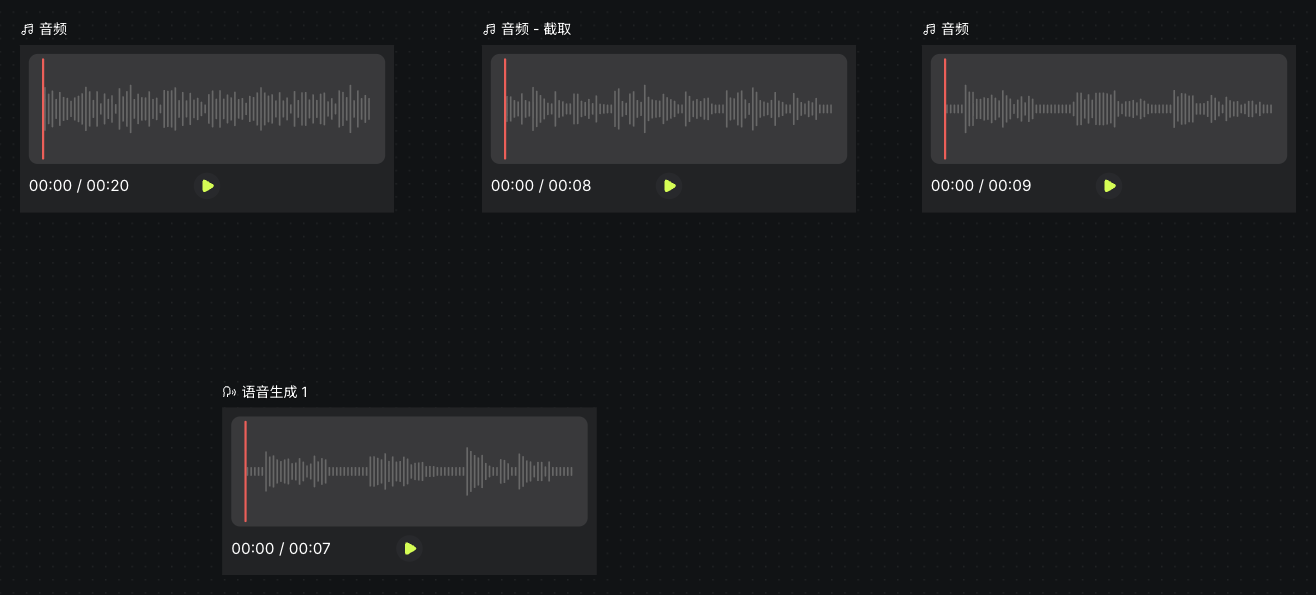
Practice: retain the source music and organize its two-to-ten-second segment separately from speech. Check the boundaries for abrupt cuts.

Source music, trimmed segment and separate speech versions in the actual audio canvas
Actual Seagames screenshot (Chinese interface).

Speech generation

Turn approved dialogue into a sound asset

What it does

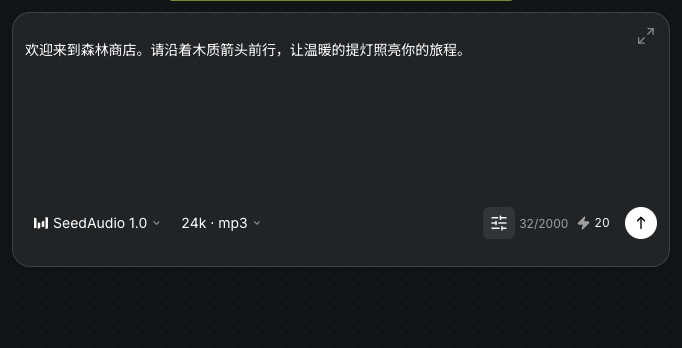
Current SeedAudio 1.0 accepts up to 2,000 plain-text characters, with no resource references, voice selection or cloning. Enter the words to speak, not stage directions.

How to create speech

  • Create Speech generation and enter approved dialogue.

  • Choose sample rate and format, then speed, volume and pitch.

  • Review the quote and test a short sentence before the full text.

    Actual plain-text dialogue, SeedAudio 1.0, 24kHz MP3 and generation quote
    Actual Seagames screenshot (Chinese interface).

Generate and review

  1. Prepare text: review punctuation, numbers and pauses.

  2. Choose output: 8, 16, 24 or 48 kHz; mp3, wav, pcm or ogg_opus.

  3. Listen: inspect pronunciation, clarity, phrasing and volume.

  4. Organize: name the approved version and keep it separate from music and effects.

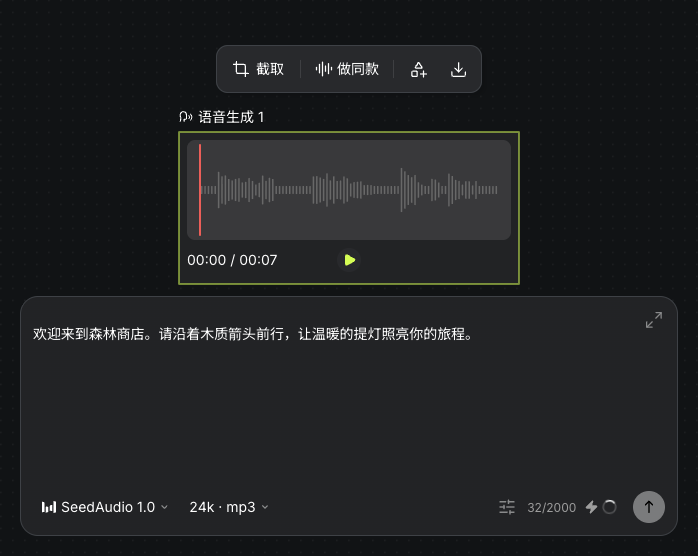
Example dialogue: Welcome to the forest shop. Follow the wooden arrow and let the warm lantern light your journey.

Actual speech waveform, player and dialogue generated at speed 1.2
Actual Seagames screenshot (Chinese interface).

Music and effects have separate nodes. SeaArt effects currently allow 1–5 seconds; music duration follows the current model options. Listen at the intended playback volume.

Try it yourself

Open your projects, create a canvas, and apply this tutorial to your own work.

Open Projects to create